
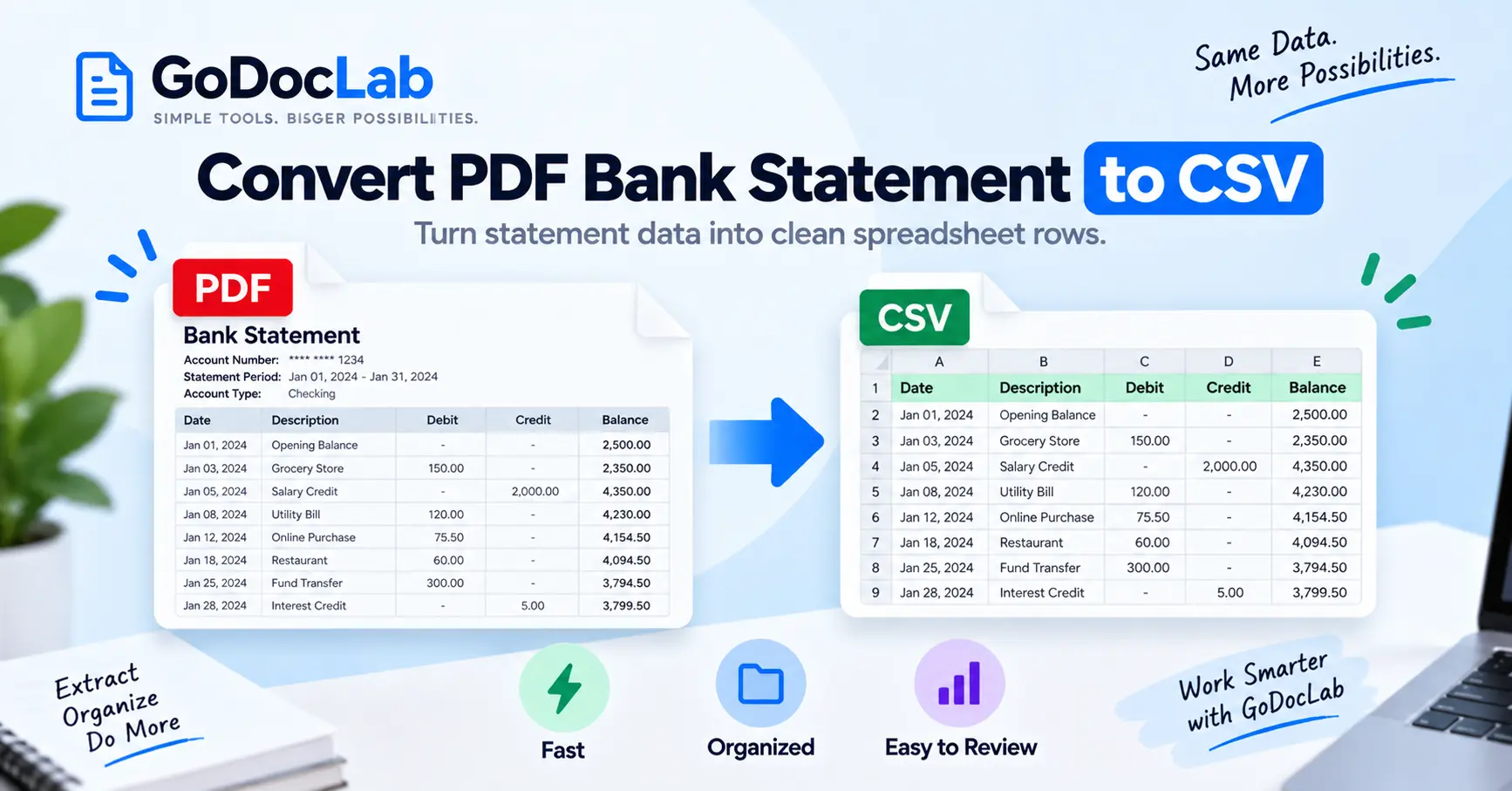
Online conversion: Open GoDocLab PDF to CSV, upload your bank statement PDF, select Process PDF to CSV, and download converted.csv.
File limit: GoDocLab currently publishes a maximum PDF upload size of 100 MB.
Scanned statement: You may need optical character recognition (OCR) before extracting transaction data.
Check the result: Verify transaction dates, descriptions, debit and credit values, running balances, and missing or duplicate records.
Excel: Import the CSV and check the delimiter, encoding, dates, and number formats.
QuickBooks: Check the import requirements for your particular QuickBooks product before uploading transaction data.
Privacy: Bank statements contain sensitive information. Confirm that any online service is appropriate for your document.
Need to organize transactions from a PDF bank statement in Excel or accounting software? Converting the statement into a CSV file can make the information easier to sort, check, and reuse without manually typing every transaction. To convert a PDF bank statement to CSV, you can use GoDocLab's PDF to CSV converter.
Upload the PDF, run the conversion, download the CSV, and review the extracted transactions against your original statement. The final review matters. Bank statements contain dates, amounts, balances, and transaction descriptions that may be misread when a converter interprets a complex layout. This guide explains the process, how to handle scanned statements, and how to prepare your CSV for Excel or accounting software.
Why Convert a PDF Bank Statement to CSV?
Banks commonly issue statements as PDF documents because they retain a consistent layout for viewing, saving, and printing.
However, PDFs aren't always convenient for analyzing transactions.
If you want to calculate monthly spending, filter deposits, compare expenses, or prepare bookkeeping records, CSV is often easier to work with.
A CSV file stores information in rows and columns that spreadsheet and other compatible applications can interpret.
For example, a bank statement might display a transaction table with dates, descriptions, withdrawals, deposits, and running balances.
After conversion, that information can be organized into a spreadsheet so you can sort transactions by date, filter specific descriptions, or review individual amounts.
When Is CSV the Right Format?
CSV is useful when you need to:
Review personal or business spending.
Prepare transactions for bookkeeping.
Sort payments and deposits.
Reconcile records against a bank statement.
Combine data from different statement periods.
Analyze transactions using spreadsheet software.
Prepare an import file for a compatible accounting system.
Before converting, check whether your bank offers an official CSV, OFX, QFX, or QBO download. A direct transaction export may require less cleanup than extracting the same information from a PDF.
If only a PDF is available, a converter can provide a practical starting point.
How to Convert PDF Bank Statements to CSV Using GoDocLab
GoDocLab provides a browser-based PDF to CSV tool that extracts tabular information from PDF files.
According to its published tool page, it accepts PDFs up to 100 MB and generates CSV output.
The site currently describes the service as free and says no account is required for a standard download.
Step 1: Open the PDF to CSV Converter
Go to:
GoDocLab — PDF to CSV Converter
The upload area allows you to choose a PDF from your device or drag and drop the file.
Step 2: Select Your Bank Statement
Choose the bank statement you want to convert.
For example, you may have a file named statement-september-2026.pdf.
Before uploading it, confirm that the correct statement period and account are included.
Keep the original PDF as your reference copy.
Step 3: Confirm the Uploaded File
After uploading, continue through the converter's available configuration stage.
Check that the document is the one you intended to process.
If the statement is a scanned image rather than a text-based PDF, you may need a separate OCR workflow to obtain more reliable text extraction.
Step 4: Run the Conversion
Select Process PDF to CSV.
The converter processes the uploaded PDF and prepares a CSV file.
Its ability to identify complete transaction rows depends on the structure and quality of the source statement.
Step 5: Download the CSV
Download the result.
GoDocLab's published output filename is converted.csv.
Rename it to something descriptive, such as bank-transactions-september-2026.csv.
Step 6: Open and Check the Data
Import the downloaded CSV into Excel, Google Sheets, or another compatible spreadsheet application.
Compare the output with the original bank statement.
Look for missing rows, misplaced amounts, unexpected characters, and incorrect date formats.
A file that opens successfully isn't necessarily an accurate transaction record.
How to Handle Scanned Bank Statements
Some bank statements contain selectable text. Others are scans or photographs saved as PDFs.
These two types may require different extraction methods.
Check Whether Your PDF Contains Selectable Text
Open the statement in a PDF viewer and try to select a transaction description.
If you can highlight individual words, the document probably contains a text layer.
If the entire page behaves like one image, you may be working with a scanned PDF.
This isn't a definitive test for every document, but it helps identify whether OCR may be needed.
What Is OCR?
Optical character recognition, or OCR, analyzes images of text and converts recognizable characters into searchable or selectable text.
For example, OCR may identify the letters and numbers in a scanned transaction table.
However, recognizing the text and correctly organizing it into financial columns are separate tasks.
A converter might recognize an amount but still place it in the wrong transaction row.
How to Prepare a Scanned Statement
Start with the clearest available PDF.
Check that:
All transaction pages are included.
Pages are upright.
Text isn't blurry or cropped.
Account details and dates remain legible.
The scan hasn't cut off balance or transaction columns.
If text recognition is needed, use an approved OCR workflow.
GoDocLab offers a separate OCR PDF tool for preparing searchable PDF content.
After recognition, review several transaction lines before converting the resulting document to CSV.
Never assume OCR is completely accurate. Similar-looking digits, faint minus signs, and misread decimal points can change the meaning of financial information.
What Should a Bank Statement CSV Contain?
Different banks use different transaction layouts.
Some statements have separate debit and credit columns. Others use one signed amount column.
A useful CSV should follow the meaning of the source statement rather than forcing every bank into the same structure.
Consider this simplified example:
Date | Description | Debit | Credit | Balance |
2026-09-01 | Opening balance | 2,000.00 | ||
2026-09-03 | Office supplies | 125.00 | 1,875.00 | |
2026-09-05 | Customer payment | 500.00 | 2,375.00 |
Illustrative values only—not a real bank statement or test conversion.
A possible CSV representation is:
Date,Description,Debit,Credit,Balance
2026-09-01,Opening balance,,,2000.00
2026-09-03,Office supplies,125.00,,1875.00
2026-09-05,Customer payment,,500.00,2375.00
In this example, the opening-balance row is reference information, not necessarily a transaction to import into an accounting system.
The output file may use a different arrangement depending on the source PDF and converter.
Common Fields to Review
Transaction date: When the transaction occurred.
Posting date: When the bank recorded it, if the statement provides a separate date.
Description: Merchant, payee, payment reference, or other transaction details.
Debit: Money leaving the account, under the statement's accounting convention.
Credit: Money entering the account, under the statement's accounting convention.
Balance: The account's running balance after a transaction, if included.
Be especially careful with credit card statements, where signs and debit/credit conventions may differ from ordinary deposit-account statements.
How to Verify Bank Statement Transactions
For financial data, verification is more important than a visually tidy spreadsheet.
A CSV can look perfectly organized while still containing an incorrect amount or missing transaction.
Check the Number of Transactions
Count the actual transactions in the statement and compare them with the extracted data.
Exclude headings, opening-balance lines, summary totals, and other nontransaction entries when appropriate.
If the source has 42 transactions but the CSV has 41, find the missing record before using the file.
Compare the Beginning and End of Each Page
Bank statement tables often continue across page breaks.
Check transactions near the bottom of one page and the top of the next.
This helps identify missing rows, duplicate headers, or descriptions that were divided across pages.
Review Debit and Credit Signs
A transaction may appear as a negative amount in one system and as a positive debit in another.
For example, an outgoing payment of 125.00 might be represented as:
-125.00 in a signed Amount column.
Or:
125.00 in a separate Debit column.
Both can be valid, but they aren't interchangeable without understanding the target format.
Don't reverse transaction signs simply because the extracted data looks different from another spreadsheet.
Reconcile the Balances
When the statement provides a straightforward opening balance, closing balance, total credits, and total debits, use the following check:
Opening balance + Credits − Debits = Closing balance
For example:
Opening balance: 2,000.00
Total credits: 500.00
Total debits: 125.00
Expected closing balance: 2,375.00
If the extracted figures don't reconcile, investigate missing transactions, sign errors, fees, or other statement-specific adjustments.
The exact calculation depends on the account type and the bank's reporting convention.
Inspect High-Risk Values
Check decimal points, thousand separators, dates, long transaction IDs, and descriptions containing commas.
A value such as 1,250.00 must not become 125.00.
For important financial records, compare every material amount against the original statement.
How to Open the CSV in Excel
Microsoft Excel can open CSV files, but importing the file gives you more control over how it interprets columns.
Step 1: Open Excel
Create a blank workbook.
Step 2: Import the CSV
In supported versions, use the Data tab and choose From Text/CSV or the equivalent Get Data option.
Select your downloaded CSV.
Step 3: Review the Import Settings
Check the delimiter and file encoding.
If the preview shows all fields in one column, the wrong delimiter may have been selected.
If special characters display incorrectly, review the encoding setting.
Step 4: Check Dates and Amounts
Excel may automatically interpret values as dates or numbers.
Make sure the import hasn't changed the intended meaning of account references, dates, or long identifiers.
For example, an identifier beginning with zero should remain unchanged if it is meant to be stored as text.
Step 5: Load the Data
Load the CSV into a worksheet, then review the transaction columns.
You can now sort, filter, or analyze the information.
See Microsoft's instructions for importing and exporting CSV files for more detail.
Can You Import the CSV into QuickBooks?
Yes, supported QuickBooks products can import bank transaction data from compatible CSV files.
However, a PDF-to-CSV conversion doesn't automatically create a QuickBooks-ready import file.
QuickBooks Online's US documentation describes both a three-column structure using Date, Description, and Amount, and a four-column structure using Date, Description, Credit, and Debit.
Your exact requirements depend on the QuickBooks product, region, and import workflow.
Before importing, confirm the required date format, column headings, amount signs, and account selection.
Also check whether transactions have already been imported through a connected bank feed.
Importing the same records twice can create duplicates that are time-consuming to reconcile.
For the latest product-specific rules, see Intuit's CSV formatting instructions and manual transaction upload guide.
GoDocLab also provides a QuickBooks CSV import guide for related preparation steps.
Common Problems and Solutions
The CSV Has Missing Transactions
Return to the PDF and check the corresponding page.
Transactions may have been overlooked because of merged rows, page breaks, or unusual table layouts.
Compare the transaction count and balances before finalizing the file.
Debits and Credits Are Reversed
Check the source statement's conventions before changing the data.
Bank accounts and credit card accounts may represent money in and money out differently.
Use the format required by the destination application and verify several known transactions.
All the Data Appears in One Column
The CSV delimiter may not match your spreadsheet import settings.
Import the file through Excel's text/CSV interface and choose the correct separator.
If the file itself lacks a usable tabular structure, it may need reconversion or cleanup.
Dates Are Incorrect
Check for ambiguous values such as 04/05/2026.
Depending on the country and software settings, this could mean April 5 or May 4.
Use the original bank statement to confirm the intended date.
Decimal Points or Commas Are Misread
A PDF may show currency values using regional separators.
For example, 1.250,75 and 1,250.75 represent the same amount under different conventions.
Choose the appropriate locale and number format when importing the CSV.
The File Is a Scanned PDF
Try an OCR workflow if the PDF contains only images of transaction tables.
Check the recognized text before relying on the converted amounts.
The Bank Statement Is Too Large
GoDocLab currently publishes a 100 MB maximum for its PDF to CSV converter.
If your statement exceeds that limit, consider using a suitable desktop extraction method or preparing a smaller authorized document.
If only certain pages are relevant, GoDocLab's Extract Pages tool may help isolate them.
Privacy and Financial Data Safety
Bank statements often contain account details, transaction descriptions, addresses, and other sensitive financial information.
Before uploading a statement to any online converter, consider whether third-party processing is appropriate.
GoDocLab's Privacy Policy states that files are transferred using HTTPS, processed on its servers, and automatically removed after processing. The policy also notes that some account-related features may associate converted files or processing history with an account.
These are the website's published practices, not an independently verified security audit.
If you're handling company records, client information, or documents subject to confidentiality requirements, follow the relevant data-handling policies.
Where the statement must remain on your device, use an approved local application or request a direct CSV export from your bank.
Finally, store downloaded CSV files carefully. Unlike a password-protected PDF, an ordinary CSV file may not have document-level access restrictions.
Final Thoughts
Converting a PDF bank statement into CSV can make transaction records easier to review, organize, and prepare for accounting work.
For a browser-based option, try GoDocLab's PDF to CSV converter. Upload your PDF, process the statement, and download the CSV.
If your bank offers an official transaction export, consider using that instead. For scanned PDFs, check whether OCR is required.
Whatever method you choose, keep the original statement and reconcile the extracted financial data before relying on it. The most useful CSV isn't just one that opens in a spreadsheet—it's one whose transactions match the source.
FAQs
Frequently asked questions
Upload the statement to a PDF-to-CSV converter, run the conversion, download the CSV, and compare the extracted transactions with the original PDF.