
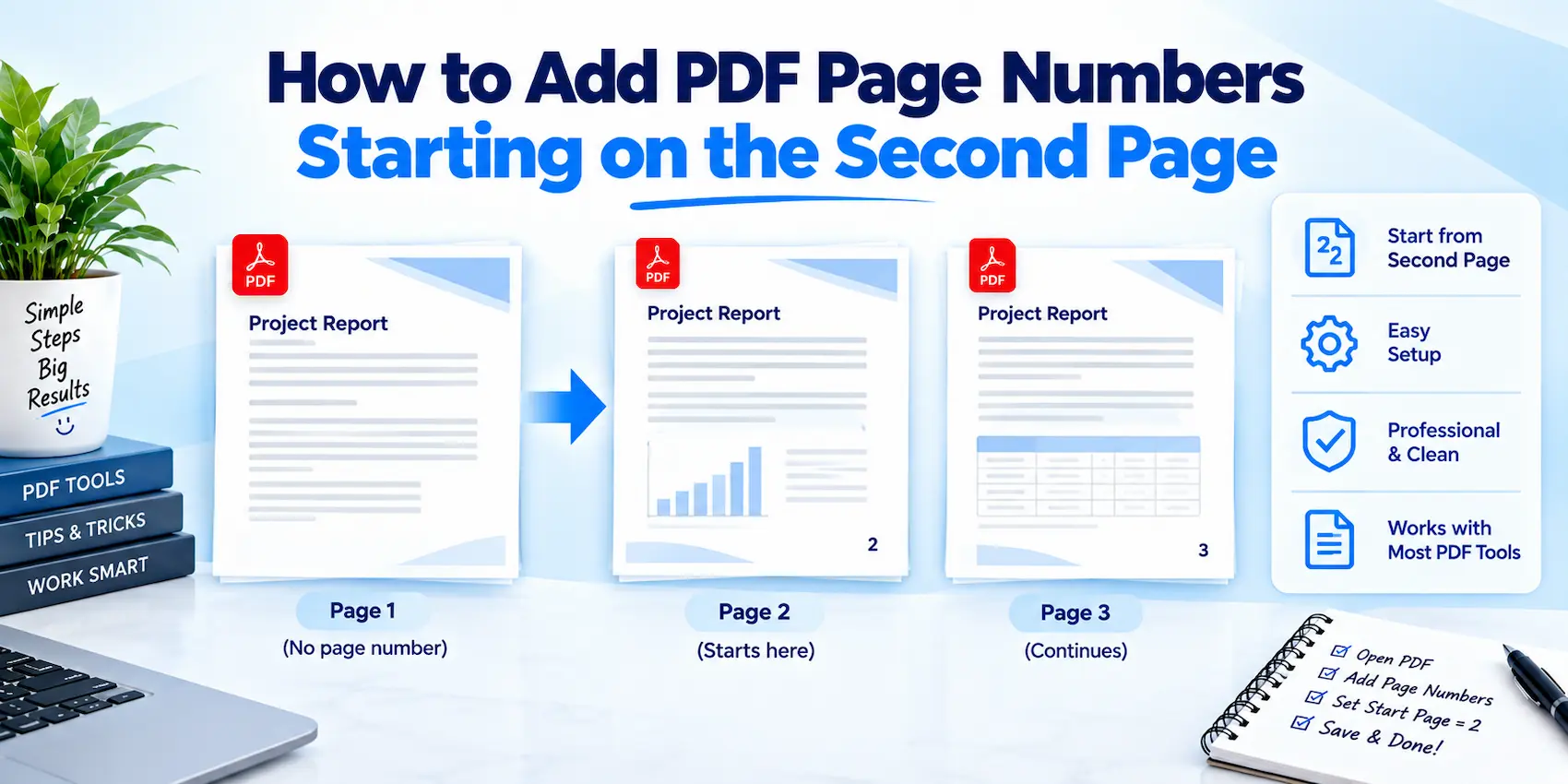
Nobody wants "Page 1" stamped across a cover page. It looks amateurish, and honestly, it's the kind of small detail that makes a report look rushed. If you've ever opened a PDF and seen a number sitting awkwardly on the title page, you already know the fix belongs on page two, not page one.
Good news: this takes about two minutes once you know where the setting actually lives.
Why Page 1 Usually Skips the Number
Cover pages, title slides, and the front of a thesis don't need a visible number. Readers already know it's page one, so printing "1" on it just adds clutter. Most style guides, from APA to Chicago, actually recommend hiding the number on the title page while keeping the page counted in the background.
That last part matters. There are really two different goals people mean when they say "start numbering on page 2":
Hide the number on page 1, but count it. Page 2 then shows the number "2."
Ignore page 1 completely and restart counting at 1 on page 2. Page 2 shows the number "1."
Mixing these up is where most formatting headaches come from, so let's separate them clearly.
Method 1 vs Method 2: Which Numbering Style Do You Need?
Feature | Hide Page 1, Continue Counting | Restart Numbering at Page 2 |
What shows on page 1 | Nothing | Nothing |
What shows on page 2 | "2" | "1" |
Best for | Reports, business documents, manuals | Theses, books, formal essays with a title page |
Total page count stays accurate? | Yes | Yes, but the number no longer matches the physical page |
Common in | Corporate and academic reports | Academic dissertations, published books |
Neither option is "more correct." It genuinely depends on what your document is for and what your reader (or professor, or client) expects to see.
How to Add Page Numbers Starting on Page 2
Here's the general process most PDF tools follow, based on how page numbering and page-range settings actually work in standard PDF editors:
Open the PDF in a page numbering tool. A dedicated page number tool saves you from digging through a full desktop editor just for this one task.
Choose your number position and style. Bottom-center and bottom-right are the most common choices for a clean, professional look.
Set the page range to start from page 2. This is the actual setting that skips your cover page. According to Adobe's own documentation, if you don't want a page number on the first page, you simply specify where the PDF numbering should start.
Decide the starting digit. If you want page 2 to display "1," set the start value to 1. If you want it to display "2" and keep the true count, leave the start value as 2.
Preview before saving. Always check page 1, page 2, and the last page. A misaligned number on a 40-page report is annoying to fix twice.
Save and double-check the final PDF. Open it fresh, not just the working file, to confirm the numbers actually applied the way you expected.
That's genuinely the whole process. The confusing part isn't the tool, it's deciding which of the two numbering goals you actually want.
A Quick Real-World Example
Say you're preparing a 25-page business proposal. Page 1 is your cover page with the company logo and client name. You don't want "1" floating under your logo, but you do want the table of contents on page 2 to correctly say "2," since it's genuinely the second sheet of paper someone is holding.
In this case, you'd hide the number on page 1 and keep the counting method, not the restart method. Simple, but easy to get backwards if you're numbering pages at 11 PM before a deadline.
Common Mistakes to Avoid
A handful of small errors show up constantly with this exact task:
Numbering the cover page by accident, because the "apply to all pages" box was left checked.
Restarting the count when you meant to just hide it, which throws off the total page count reference later in the document.
Forgetting to preview the last page, where an off-by-one error is most likely to show up.
Applying numbers before finishing edits, so pages get added or removed later and the numbering no longer lines up.
Ignoring header and footer overlap, especially when a document already has other footer text like a company name or confidentiality notice.
If your document already needs footer branding alongside page numbers, it's worth reviewing full header and footer editing options at the same time, rather than doing two separate passes.
When You're Reorganizing Pages Too
If your cover page, table of contents, or appendix pages need reordering before numbering, sort that out first. Numbering a document and then shuffling its pages around basically guarantees you'll redo the whole thing. A page organizing tool lets you lock in the final page order first, so the numbering step only has to happen once.
Final Thoughts
Starting your PDF numbering on page 2 isn't a complicated task once you separate the two real options: hiding the number versus restarting the count. Pick the one that matches how your document will actually be read and used, apply it with a proper PDF page number tool, and preview before you send it out.
It's a small detail, but small details are usually what make a document look genuinely finished instead of just done.
FAQs
Frequently asked questions
Usually no, especially for cover pages, title pages, or the first page of a formal report. Most style guides support hiding it while still counting it in the background.