
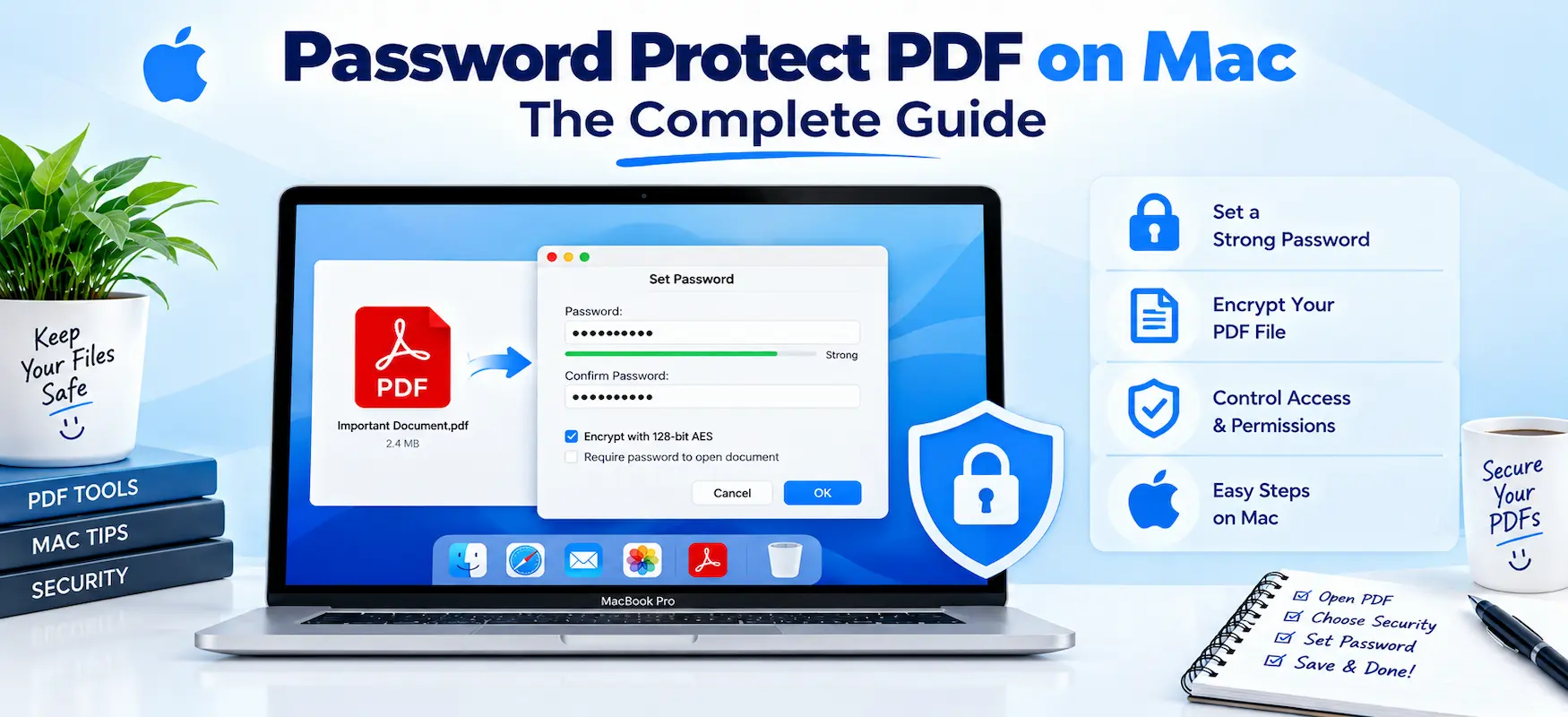
You don't need to buy anything or install a single app to lock a PDF on a Mac. That surprises most people, because somewhere along the way everyone assumed you needed Adobe Acrobat Pro just to add a password. You don't. macOS has had this built into Preview for years, most people just never clicked the right menu.
Let's fix that, and along the way, clear up a mix-up that trips up a lot of Mac users.
Why Bother Password Protecting a PDF?
Tax documents, contracts, medical records, client invoices. These files carry information you wouldn't want sitting in someone's inbox unprotected. A password-protected PDF adds a real barrier, since the file gets encrypted, not just hidden behind a login screen that anyone could bypass with the right software.
This matters even more once a file leaves your Mac. Email attachments get forwarded. Files get uploaded to shared drives. A password on the PDF itself travels with the document, no matter where it ends up.
Two Types of PDF Passwords You Should Know
Here's something most guides skip entirely: a PDF can actually carry two different kinds of passwords, and they do different jobs.
Password Type | What It Controls | Who Needs It |
User Password (Open Password) | Required just to open and view the file | Anyone trying to access the document |
Owner Password (Permissions Password) | Controls printing, copying text, and editing | Only needed if someone tries to change restricted settings |
A user password locks the door completely. An owner password is more like a set of house rules, the file opens fine, but printing or copying might be restricted unless someone enters that second password. You can set one, the other, or both, depending on how locked-down the document needs to be.
How to Password Protect a PDF Using Preview
Preview is the built-in PDF viewer on every Mac, and it handles basic PDF encryption without needing anything extra installed. Here's the process, based directly on Apple's own support documentation:
Open the PDF in Preview. Double-clicking any PDF on a Mac usually opens it here by default.
Go to File, then Export. This creates a new, encrypted copy rather than altering the original file in place.
Click the Permissions button. This is the step people miss, it's tucked inside the Export dialog, not sitting out in the open.
Select "Require Password To Open Document." Type your password, then retype it to confirm.
Rename the file if needed. If you want to keep an unprotected original alongside the encrypted copy, give the new file a different name.
Click Apply, then Save. The password takes effect the next time anyone opens the file.
That's genuinely the entire process for a basic open password. Two minutes, no third-party software, no subscription.
Setting Printing and Editing Restrictions (Owner Password)
If you want the file to open freely but restrict what people can do with it, that's where the owner password comes in. Inside that same Permissions window, you'll find checkboxes for actions like printing and content copying.
Leave a checkbox unselected, and that action requires the owner password. Select it, and anyone can do that action without entering anything extra. You can mix and match: allow printing but block copying, for example, which is common for shared reference documents you don't want lifted word-for-word.
The "Locked" Feature Isn't the Same as a Password
Here's the mix-up that catches a lot of people. macOS has a separate "Locked" toggle you can find by hovering near the document title in an app's toolbar and clicking the dropdown arrow. This marks a file as locked to prevent accidental edits.
That feature has nothing to do with encryption. It's a simple flag that any user on the same Mac account can toggle right back off in seconds. If you actually need security, meaning the file is unreadable without a password even on a different computer, you need the Preview export method above, not the toolbar lock icon.
When Preview Isn't Enough
Preview covers the basics well, but it has limits. It doesn't offer batch processing for dozens of files at once, and it doesn't easily layer additional permission controls beyond the standard set. For heavier workloads, a dedicated PDF protection tool handles encryption at scale, without the repetitive export dialog every single time.
If you ever need to reverse the process, say a client no longer needs the file locked, a PDF unlock tool removes the password cleanly, assuming you have the correct credentials to begin with. For more granular control over what recipients can and can't do with a document, a permissions management tool gives you options beyond Preview's basic checkboxes.
Password Protecting PDFs as Part of a Bigger Mac Workflow
Password protection rarely happens in isolation. Usually you're finishing up a document, maybe merging a few files or converting something first. If your workflow already involves combining PDFs on a Mac, it makes sense to lock the final file right after, rather than treating it as a separate task days later. The same goes for documents you've just converted or cleaned up before sending them out.
Common Mistakes People Make
A handful of avoidable errors show up constantly with PDF passwords:
Forgetting the password immediately after setting it. Unlike a website login, there's no "forgot password" recovery option for an encrypted PDF. If it's gone, the file is effectively locked forever.
Using the toolbar "Locked" feature and assuming it's secure. As covered above, that's not encryption.
Sharing the password over the same channel as the file. Sending both in one email defeats the purpose.
Setting only an owner password when an open password was needed. The file opens for anyone, which isn't what most people actually intend.
Overwriting the only unprotected copy. Always keep a backup somewhere safe before locking down the working file.
Final Thoughts
Locking a PDF on a Mac isn't the hassle most people expect. Preview handles the basics for free, and once you understand the difference between a user password and an owner password, the whole process makes a lot more sense. For anything beyond single files, a proper PDF protection tool picks up where Preview leaves off.
Either way, the real takeaway is simple: if a document matters enough to keep private, it matters enough to lock properly, not just rename and hope nobody looks.
FAQs
Frequently asked questions
Yes. The built-in Preview app handles this natively through File, then Export, then Permissions. No download required.