
Blog
How to Add a Custom Company Stamp to a PDF
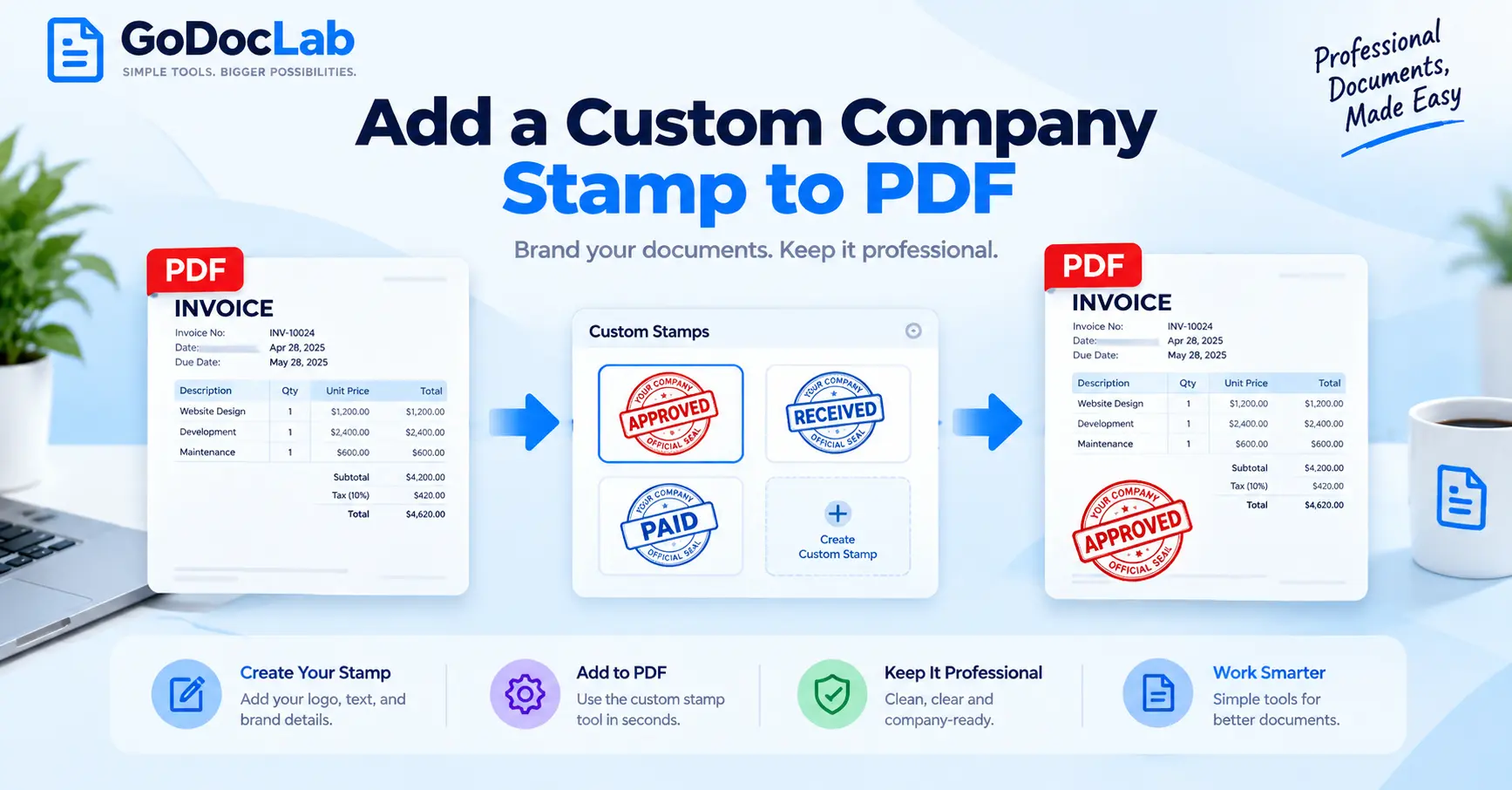
A company stamp can make a PDF look official, organized, and ready for business use. Whether you want to mark an invoice as approved, add a company seal to a report, or place a branded stamp on a document, the process does not need to be complicated.
The important part is choosing the right method. A custom company stamp is not the same thing as a digital signature, and neither is automatically the same as a legal certification. Mixing those three concepts can create confusion when a document needs formal authentication.
In this guide, you will learn how to add a custom company stamp to a PDF, what file format works well, where to place the stamp, and how to keep the finished document professional.
What Is a Custom Company Stamp in a PDF?
A custom company stamp is a visual element that you place on a PDF to communicate information about a business or document.
It can contain a company name, logo, approval wording, department name, date, or another visual identifier. Adobe Acrobat supports custom stamps created from supported files such as PDF, JPEG, PSD, AI, and DWG.
Businesses can use stamps for several practical purposes, including:
Approved documents
Internal review
Completed paperwork
Received documents
Company branding
Administrative workflows
Document status
A stamp works best when it communicates something clearly without covering important information. Nobody wants a giant company seal sitting proudly on top of the invoice total.
Custom Stamp vs. Digital Signature
Before adding a stamp, decide what you actually need.
A PDF stamp is primarily a visual mark. It can show that a document has been reviewed, approved, received, or associated with a particular company.
A digital signature, on the other hand, uses a digital identity or certificate to provide authentication and document-integrity features. Adobe explains that certificate-based digital signatures can help verify the signer and protect the signed document against unauthorized changes.
The difference matters:
If your goal is simply to add a company stamp to a PDF, a custom stamp may be enough. If you need to prove who signed a document and whether it changed afterward, look at a certificate-based digital signature instead.
How to Create a Company Stamp for a PDF
The first step is to prepare the visual design.
A simple stamp usually works better than an overloaded one. Include the information someone actually needs to recognize the company or document status.
A useful company stamp might contain:
Company name
Logo
Department or business unit
Status such as “Approved” or “Received”
Date, if required
Short identifying information
For the best result, create the stamp with clear text and enough contrast. Avoid tiny lettering, excessive decoration, and unnecessary information.
If you already have a company logo, you can use it as the foundation for the stamp. Adobe's documentation confirms that images such as company logos can be used when creating custom stamps.
How to Add a Custom Company Stamp to a PDF
Adobe Acrobat provides a dedicated custom-stamp workflow.
The general process is:
Prepare your company stamp image or PDF.
Open the PDF application.
Open the Add a Stamp tool.
Choose Custom Stamps.
Select the option to create a custom stamp.
Browse for your prepared stamp file.
Choose or create a stamp category.
Give the stamp a recognizable name.
Save the custom stamp.
Open the document where you want to use it.
Select the custom stamp.
Click where you want the stamp to appear.
Adobe documents this workflow for creating custom stamps and explains that a multi-page PDF can also be used as the source, with a specific page selected as the stamp.
Once created, the stamp can be placed on the PDF like other available stamp options.
Where Should You Place a Company Stamp?
Placement matters more than many people expect.
A stamp should be visible enough to communicate its purpose but should not cover essential information. On an invoice, for example, placing a large stamp over the customer name or total amount creates more problems than it solves.
Good placement depends on the document.
For an invoice, consider an area near the approval or payment-status information.
For a contract, keep the stamp away from signature fields unless the workflow specifically requires it.
For an internal report, a corner or designated approval area often works well.
Before saving the final PDF, zoom out and check the entire page. A stamp that looks perfect at 200% zoom may look enormous when the document is viewed normally.
How to Make a Professional PDF Company Stamp
A professional stamp should look intentional rather than pasted onto the document at the last minute.
Keep the design simple and consistent with your company's existing visual identity.
Consider these guidelines:
Use your official company logo.
Keep the typography easy to read.
Maintain consistent brand proportions.
Use transparent backgrounds where appropriate.
Avoid covering existing document content.
Keep the stamp size reasonable.
Use the same design across recurring documents.
Preview the final PDF before sending it.
If the stamp includes a logo, a transparent image can help it blend naturally with the document instead of creating an obvious rectangular box around the graphic.
Add a Company Stamp Without Covering PDF Content
One common mistake is treating the stamp like a decorative sticker.
A stamp should support the document, not compete with it.
Before placing it, identify areas that contain important information such as:
Names
Invoice totals
Dates
Addresses
Signature fields
Payment information
Legal clauses
Tables
Adobe Acrobat allows users to move, resize, rotate, and change the opacity of stamps after placing them.
That flexibility makes it easier to position the stamp without damaging the readability of the original document.
If you need to add ordinary text rather than a reusable stamp, a dedicated Add Text Box tool can be useful for placing text precisely on a PDF. GoDocLab's tool lets users upload a PDF, click where the text should appear, configure the text, and download the edited file.
Can You Add a Dynamic Company Stamp?
Yes. A dynamic stamp can contain information that changes automatically, such as the date, time, or user details.
This can be useful when the same stamp is used repeatedly in a business workflow.
For example, instead of creating a new image every time someone approves a document, a dynamic stamp can be configured to display changing information.
Adobe provides a workflow for creating dynamic stamps using form fields and JavaScript within Acrobat.
However, dynamic stamps are more technical than ordinary image-based stamps. If you only need a simple company logo or “Approved” mark, a standard custom stamp is usually easier to manage.
What About a Company Watermark?
A watermark can look similar to a stamp, but the purpose is different.
Adobe describes a watermark as fixed text or an image added to a PDF to indicate ownership, branding, or confidentiality. Unlike a stamp, a watermark becomes part of the page content.
A watermark can therefore make more sense when you want your company name or logo to appear consistently across multiple pages.
For example:
Company Stamp: “APPROVED” placed beside an approval area.
Watermark: Company logo displayed lightly across document pages.
Choosing the correct tool prevents you from using a hammer when the PDF needs a screwdriver.
Using an Online PDF Tool
You do not always need desktop software for everyday PDF tasks.
GoDocLab provides browser-based PDF and image tools covering tasks such as merging, compression, OCR, conversion, watermarking, and PDF editing. Its homepage states that the tools are designed to work directly in a browser without requiring an account for most tasks.
You can explore GoDocLab's PDF tools if you need to prepare or modify a document before or after adding your company branding.
For example, you might need to:
Add text to a PDF
Convert an image into a PDF
Merge supporting documents
Compress a large PDF
Apply a watermark
Perform OCR on a scanned document
The right workflow depends on what you need to change.
Check the PDF Before Sending It
Never assume the document looks correct simply because the stamp appeared successfully.
Open the finished PDF and inspect it from beginning to end.
Check the following:
Is the company name spelled correctly?
Is the logo clear?
Does the stamp cover any important content?
Is the stamp positioned consistently?
Does the document still look professional at normal zoom?
Are signature fields still accessible?
Does the PDF open correctly after saving?
Did the original document remain intact?
For important business documents, keep an untouched copy of the original before making modifications.
That simple habit gives you a clean reference if something goes wrong later.
Keep the Original PDF Safe
Adding a stamp changes the document. For routine business files, this may be perfectly acceptable. For records that require preservation, however, you should think about document management rather than just appearance.
ISO 19005 defines PDF/A standards for long-term preservation of electronic documents. ISO describes PDF/A-1 as a format intended for long-term preservation, while later parts address newer PDF versions and preservation requirements.
If your organization has a formal records-management policy, follow that policy before altering or archiving the stamped file.
A Simple Workflow for Business Documents
For most everyday documents, you can keep the process straightforward:
Original PDF → Prepare stamp → Add custom stamp → Check placement → Save a new copy → Review → Send or archive
This approach separates the original file from the modified version.
If the document needs more editing first, GoDocLab's browser-based tools can help with related PDF tasks. For example, you can use its PDF tools collection to handle common document operations before creating your final version.
If you need to convert a PDF into an editable document before making substantial changes, a PDF to Word converter may be more practical than trying to rebuild complicated content directly inside a PDF.
Final Thoughts
Adding a custom company stamp to a PDF is a simple way to communicate document status, branding, or internal approval. The key is to use the stamp for what it does best: providing a clear visual mark.
If authentication, signer identity, or tamper detection matters, use an appropriate digital signature instead of relying on a visual stamp. Adobe's certificate-based signing tools are specifically designed for those requirements.
For ordinary business documents, focus on three things: a clean stamp design, sensible placement, and a final quality check.
A professional PDF does not need to shout. A well-designed company stamp should say what it needs to say—and then politely get out of the way.
FAQs
Frequently asked questions
You can add a custom company stamp using an online PDF editing tool. Upload your PDF, add your company logo or stamp design, position it where needed, and save the edited document.