
Split PDF: How to Separate PDF Pages Into Multiple Files Easily
PDF files are one of the most common formats for sharing documents. They keep text, images, and layouts consistent across devices. But large PDF files can become difficult to manage, especially when you only need a few pages. A split pdf tool helps you separate a large document into smaller files. You can extract selected pages, create new PDF files, and organize documents faster. Whether you need to manage work files, study material, invoices, or reports, learning how to split a pdf file can save time.
What does "split PDF" mean?
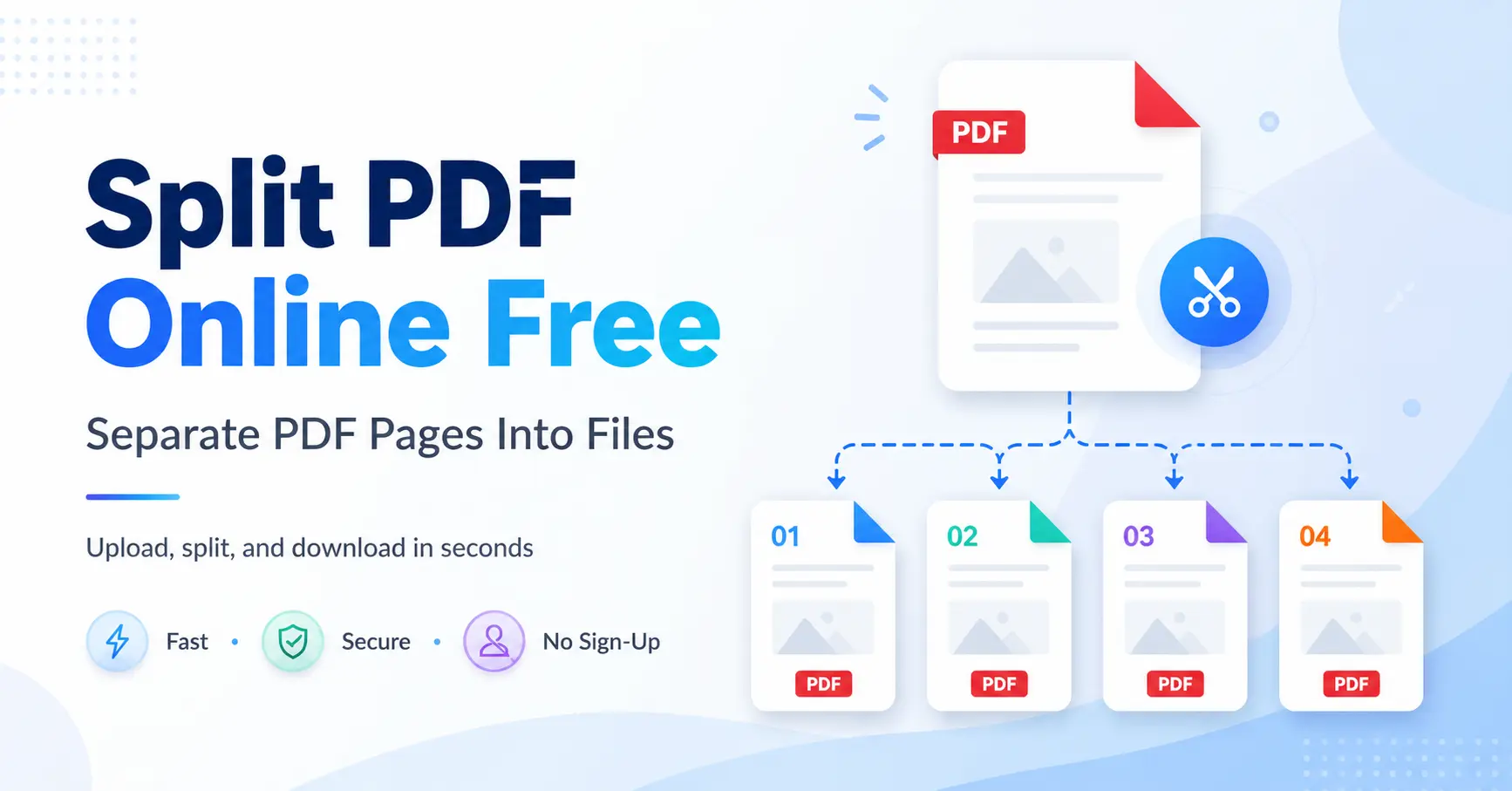
A PDF split means dividing one PDF document into multiple smaller PDF files. You can choose specific pages, page ranges, or separate every page into an individual file. For example, a 50-page report can become smaller files based on chapters, sections, or selected pages. People often search for how to split a pdf into multiple files because they want to share only the required information instead of sending a complete document.
Why Split PDF Files?
Large PDF documents may be harder to upload, share, or organize. Splitting them helps users manage files in a cleaner way. Common reasons to split PDF documents include
- · Sending selected pages from a long report
- · Separating invoices and receipts
- · Creating study notes from books or guides
- · Sharing specific pages from contracts
- · Organizing scanned documents
A simple PDF splitter can make daily document work much easier.
How to Split a PDF File
The process is simple and works with most PDF tools.
Upload Your PDF Choose the PDF file you want to divide and upload it to your selected tool. Select Pages Pick the pages you want to separate. Some tools allow page ranges, while others can split every page into a new file. Create New PDF Files Start the split process and let the tool create separate documents. Save Your Files Download the new files and store them with clear names.
If you search for how to split a PDF file into separate PDF files, these steps will help you complete the task quickly.
How to Split PDF Pages Into Separate Files
Sometimes users need each page as its own PDF. This is useful for certificates, forms, receipts, and scanned records. To split PDF pages into separate files, select the page separation option in your PDF tool. The system will create individual files from your selected pages. For example, a 10-page document can become 10 separate PDF files.
Can You Split PDF Files Online for Free?
Yes, many browser-based tools allow users to split PDF files without installing software. A free online split PDF tool can help you separate pages from a document in a few steps. Online PDF tools are useful for:
- · Small documents
- · Quick page extraction
- · Sharing selected information
For private files, always check the privacy rules of any online service before uploading documents.
Split PDF and Merge PDF: What Is the Difference?
PDF split and merge tools solve different problems. A split tool separates one PDF into multiple files. A merge tool combines several PDF files into one document. Many users search for pdf split and merge tools because document work often requires both actions.
For example:
- · Split a large report into sections
- · Edit or organize those files
- · Merge selected pages into a new PDF
Why Use GoDocLab for PDF Tasks?
Managing PDF files often requires more than splitting documents. Users may need to organize, edit, or prepare files before sharing them. GoDocLab helps users complete PDF tasks directly from a browser. It removes the need to install extra software and provides a simple way to handle common PDF needs.
Benefits include:
- · No installation needed
- · Simple online process
- · Free access
- · Works directly from a browser
- · Useful for personal and professional documents
After you split pdf files into smaller documents, you may need to prepare them before sharing or storing them. A simple online PDF tool can help complete these tasks with fewer steps. If you regularly work with PDF files, GoDocLab can help you manage documents more easily. Visit GoDocLab and explore PDF tools whenever you need to organize or update your files.
Tips for Better PDF Management Check Pages Before Splitting
Review your document before splitting. This helps you select the correct pages and avoid creating unwanted files.
Use Clear File Names
Names like "Report-Part-1" or "Invoice-January" make files easier to find later.
Protect Private Documents
Use trusted PDF services and avoid uploading sensitive files to unknown websites.
Common Questions About Splitting PDFs How to split a PDF into pages? To split a PDF into pages, upload your document to a PDF splitting tool and choose the page separation option. The tool will process the file and create separate PDF documents from each page. This option is useful when you have a large PDF and need to share individual pages, such as forms, certificates, invoices, or reports. You can then save each page separately and use it whenever needed.
How to split a PDF into separate files? To split a PDF into separate files, upload your document, select the pages you want to extract, and start the splitting process. The tool will create new PDF files based on your selected pages. For example, if you have a 30-page document and only need pages 5 to 10, you can select those pages and create a new PDF without changing the original file.
Can I split PDF files for free? Yes, you can split PDF files for free using many online PDF tools. Free PDF split tools are useful for basic tasks like extracting pages, separating documents, and creating smaller files. Before using any free online service, check its privacy policy, especially if your PDF contains personal or business information.
Can I split PDF without Adobe Acrobat?
Yes, you can split PDF files without Adobe Acrobat. Many online PDF tools allow users to separate pages directly from a browser without installing desktop software. This makes the process easier for users who only need to split documents occasionally and do not want to purchase or install additional programs.
How to split a PDF file into multiple files?
To split a PDF file into multiple files, select the pages you want to separate and use a PDF splitter tool. The tool will create new documents based on your page selection. This feature helps when you need to divide a large document into smaller sections, such as splitting a book into chapters or separating different parts of a report.
How to split PDF pages into separate files?
To split PDF pages into separate files, choose a tool that supports page-by-page splitting. After uploading your document, select the option to create individual files from each page. This method works well for scanned documents, receipts, application forms, and other files where each page needs to be handled separately.
Can I split PDF documents online? Yes, you can split PDF documents online using browser-based PDF tools. These tools allow you to upload a file, select pages, and download the separated documents without installing software. Online PDF splitting is useful for quick tasks because you can complete the process from almost any device with an internet connection.
Is it safe to split PDF files online?
The safety of an online PDF tool depends on how the service handles uploaded files. Before uploading documents, check the website’s privacy information and avoid using unknown tools for sensitive files. For regular documents, trusted online PDF tools can provide a simple way to separate files.
Where to split PDF documents easily?
You can split PDF documents easily with GoDocLab or another trusted PDF tool. It allows users to manage PDF tasks directly from a browser without needing extra software.
Final Thoughts
Splitting PDF files is a simple way to organize documents and share only the pages you need. A good PDF splitter helps you save time and keep files easier to manage. Whether you need to separate pages for work, education, or personal use, the right tool can make the process simple. GoDocLab provides easy PDF tools that help users handle common document tasks without extra software.