
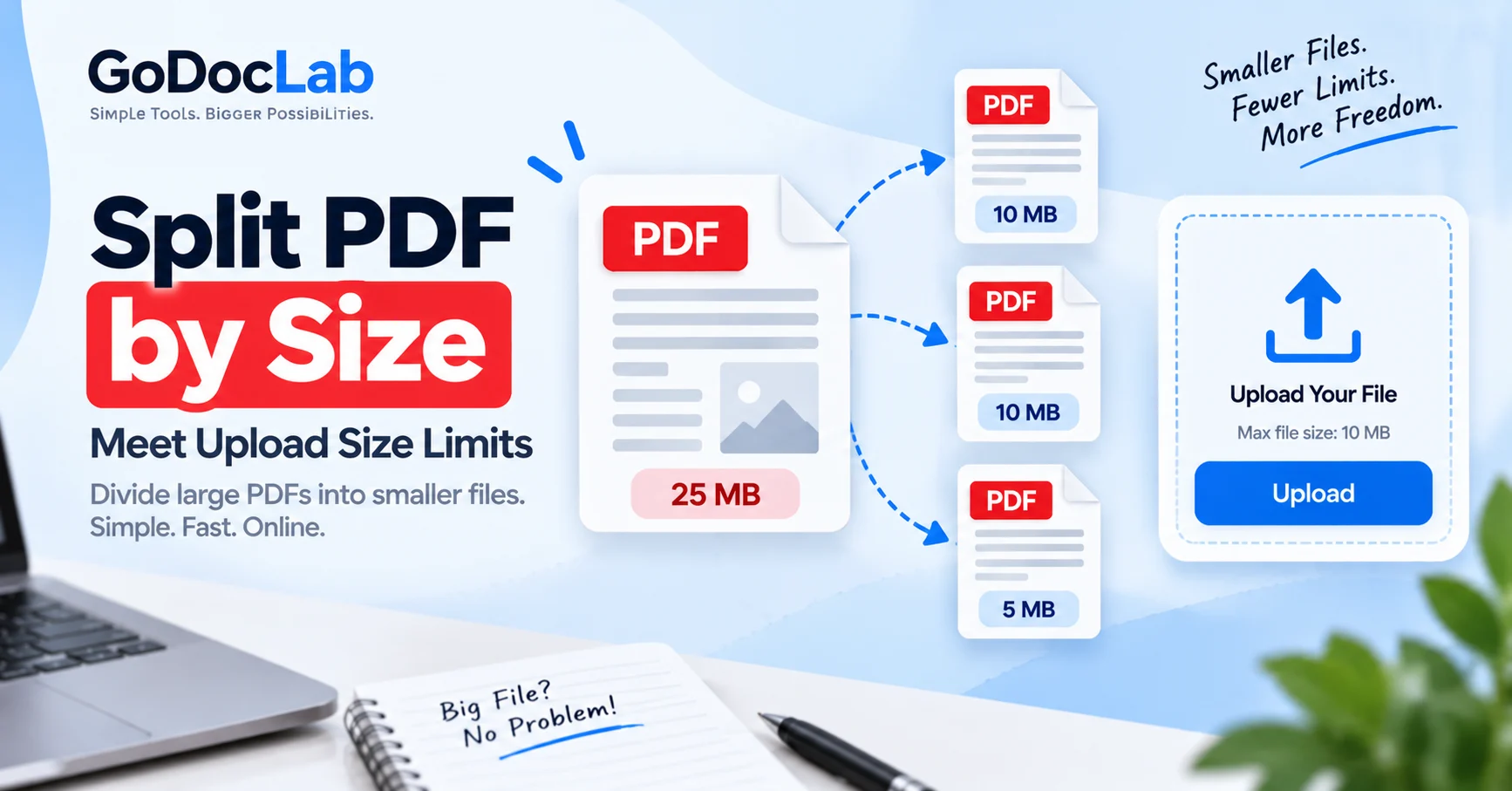
A PDF can be perfectly fine until a website refuses to accept it. Maybe the document is 38 MB and the upload form accepts 20 MB. Maybe a client portal has a stricter cap. Either way, the problem is simple: the file is too large for the place you need to send it.
The easiest fix is often to Split PDF by size. Instead of guessing how many pages should go into each part, a size-based splitter aims to create smaller PDF files around a target size. That makes the method useful for application portals, document systems, school uploads, and other services with file size limits.
Quick Answer: How to Split PDF by Size
A size-based PDF splitter divides one large document into several smaller PDFs according to a file-size target. Adobe Acrobat, for example, supports splitting a PDF by maximum file size, page count, or top-level bookmarks.
A simple workflow looks like this:
Check the upload limit on the site where you plan to send the file.
Open a PDF splitter that supports file-size targets.
Upload the large PDF.
Choose a target size below the upload limit.
Process the document.
Download the smaller files.
Check each output file before uploading it.
GoDocLab has a dedicated for this job. Its current page accepts PDF uploads up to 100 MB and returns the split files as a ZIP download.
Why Split a PDF by File Size?
A normal page-range splitter asks where the document should break. A size-based splitter answers a different question: how small does each output file need to be?
That matters when the problem is an upload size limit rather than document structure. If a portal rejects a 30 MB PDF, creating neat 10-page sections does not help if one of those sections is still too large.
Using Split PDF by size can make the output easier to upload while keeping the document in PDF format. It also avoids deleting useful pages just to make the file smaller.
Split by Size vs Compress PDF
Splitting and compression both help with large PDFs, but they solve the problem in different ways.
Adobe says PDF optimization can reduce file size by compressing or downsampling images, changing font data, and removing some unnecessary items. That makes PDF compression useful when you must keep one file.
If the service allows several files, Split PDF by size may be cleaner because you can keep the content and send it in parts.
How to Split PDF to Meet Upload Size Limit
Start with the actual limit shown by the upload form. Do not assume every website accepts the same file size. Limits vary by platform, form, account, and document type.
If the limit is 10 MB, choose a target below 10 MB rather than exactly 10 MB. Leaving some room lowers the chance of another rejection.
Then open GoDocLab’s , upload the PDF, configure the target, process it, and download the ZIP file. GoDocLab describes the tool as a way to divide a large PDF into smaller files based on a target file size.
After you Split PDF by size, open each result and make sure the page sequence still makes sense.
Choose a Target Below the Upload Limit
If a site gives you a hard file-size cap, leave some room instead of aiming at the exact ceiling.
For example, if the stated limit is 25 MB, a target below that mark gives you a safer margin. There is no single margin that works for every service.
The key idea is simple: Split PDF by size based on the destination requirement, not on a random number that looks tidy.
When Compression Is Better Than Splitting
Sometimes the upload form accepts only one file. In that case, creating three smaller PDFs may not solve the problem.
Use a PDF compressor when you need one document and can reduce its size enough without hurting readability. GoDocLab has a , while Adobe Acrobat also offers PDF compression and optimization options.
Try compression first if one-file submission is required. Use Split PDF by size if the site accepts multiple parts or if compression still leaves the file above the limit.
When Standard Split PDF Is Better
Size is not always the best way to divide a document. If your PDF contains clear chapters, invoices, case files, or monthly reports, page ranges may make more sense.
GoDocLab’s standard divides a document into separate pages or page ranges. That gives you direct control over where each section begins and ends.
Use size-based splitting for upload limits. Use page-range splitting when the content structure matters more than the number of megabytes.
Keep Split PDF Parts Easy to Follow
Once one file becomes several, naming matters. A receiver should be able to tell the correct order without opening every part.
Use simple names such as:
Application-Part-01.pdf
Application-Part-02.pdf
Application-Part-03.pdf
Report-Appendix-Part-01.pdf
Report-Appendix-Part-02.pdf
Keep the same base name and add a clear number. This is especially useful when you Split PDF by size for portals that allow several attachments.
Can You Merge the Files Again Later?
Yes. Splitting does not mean the document has to stay in pieces forever.
If you later need one document again, use GoDocLab’s to combine the PDF parts. Put the files in the correct sequence before processing the merge. GoDocLab lists Merge PDF as the tool for combining several PDF files into one document.
If pages end up in the wrong order, GoDocLab’s can help reorder, remove, or rearrange pages.
Check Every File Before Uploading
Do not trust file size alone. A 9 MB file can still be the wrong 9 MB file.
Check these points before submission:
Each part opens without an error.
Page order remains correct.
No page is missing between two parts.
Text and images remain readable.
Signatures and stamps appear correctly.
Each file sits below the destination’s stated limit.
File names show the correct sequence.
This check can prevent a much longer email explaining why Appendix B arrived without Appendix A.
What About Scanned and Image-Heavy PDFs?
Scanned PDFs often contain a full-page image for every sheet. That can make the file larger than a PDF made mainly from digital text.
If a scanned PDF is huge, compression may reduce its size before or after splitting. Adobe says its optimization tools can downsample and compress images, which can lower file size.
Be careful with small text, signatures, stamps, diagrams, and receipts. If compression makes those details hard to read, keeping larger files and using Split PDF by size may give you a better result.
Common Mistakes to Avoid
One common mistake is splitting by page count when the real problem is megabytes. Another is compressing a document so much that small text becomes hard to read.
People also forget to check whether the receiving site accepts multiple files. A neat three-part PDF set is not useful if the form gives you one upload box.
Before you Split PDF by size, check the destination rules first. The file tool should fit the submission method.
Final Check Before You Upload
The best way to Split PDF by size starts with one question: what does the receiving website actually allow?
If it accepts several files, a size-based splitter can divide one large PDF into smaller pieces that fit the limit. If it accepts only one file, compression may be the better first option.
Use GoDocLab’s for target-size splitting, for page ranges, for a smaller single file, and when you need to put the parts back together.
A rejected upload is annoying. A clean set of correctly sized, clearly named PDF parts is much easier to deal with.
FAQs
Frequently asked questions
Yes. If the site accepts multiple files, you can Split PDF to meet upload size limit rules by creating smaller parts based on a target file size. Adobe Acrobat supports splitting by maximum file size, and GoDocLab provides a size-based splitter.