
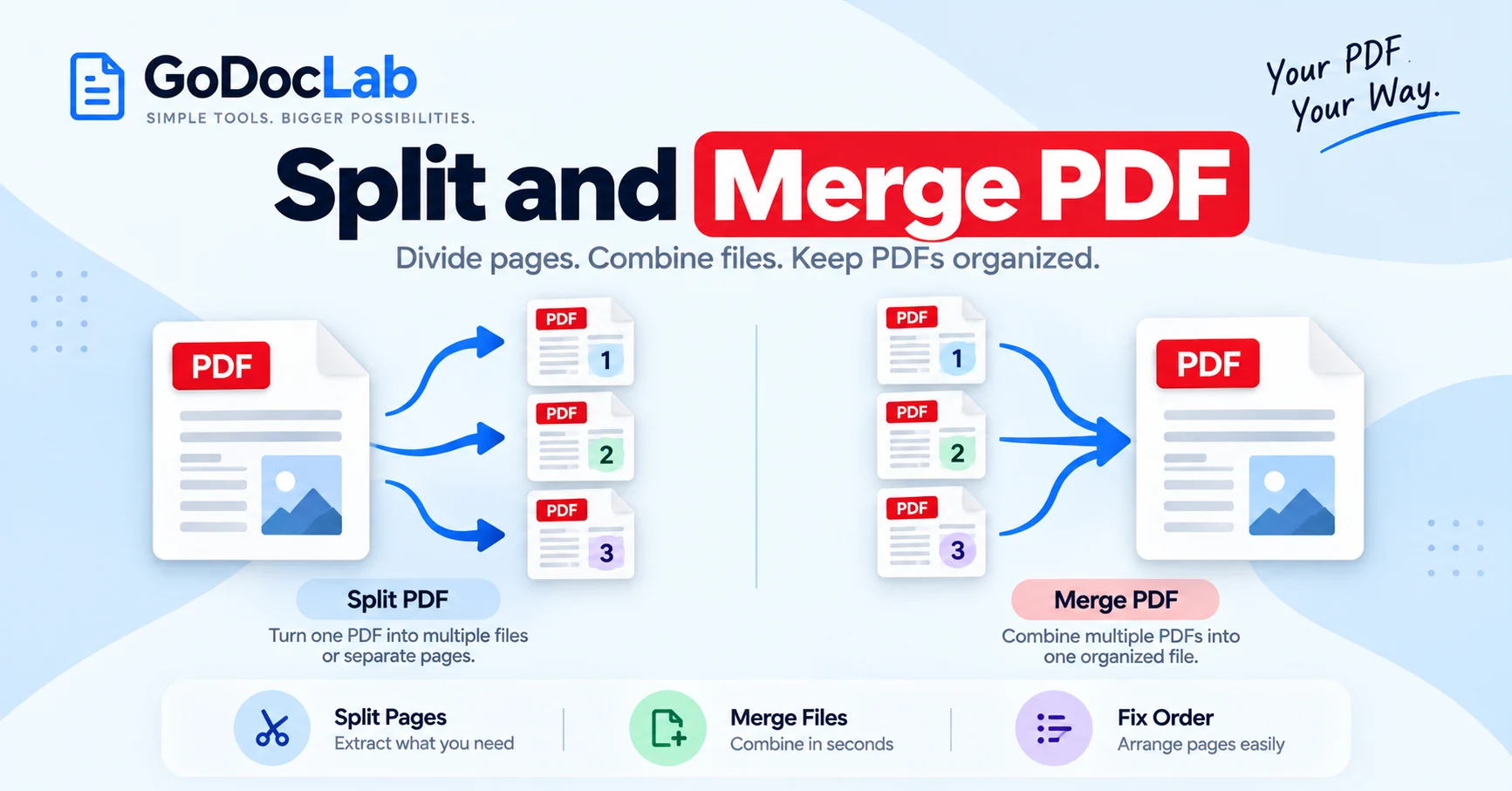
Large PDF files can become messy fast. One report may contain several chapters, old pages, attachments, and sections that different people need separately. Then, after splitting the file, you may need to put some parts back together.
That is where a split and merge PDF workflow helps. You can divide one PDF into smaller files, keep the sections you need, combine selected files again, and fix the final page order without rebuilding the document from zero.
This guide explains the process in plain English, with practical checks that can save you from sending page 18 before page 7.
Quick Answer: How to Split and Merge PDF Files
The basic process has two jobs: split the original PDF, then merge the parts you want.
Use this simple workflow:
Open a PDF splitting tool.
Upload the PDF you want to divide.
Choose the pages or page ranges you need.
Download the split files.
Open a PDF merging tool.
Add the parts you want to combine.
Put them in the correct order.
Merge the files and check the result.
GoDocLab’s divides a PDF into separate pages or page ranges, while its combines multiple PDF files into one document.
What Does Split and Merge PDF Mean?
To split a PDF means to divide one document into smaller files. You may split by individual pages, page ranges, file size, or bookmarks, depending on the tool.
To merge a PDF means to combine two or more PDF files into one file. A combined workflow often uses both actions in the same job.
For example, a 60-page manual can become three 20-page sections. You can later combine only the sections a team needs.
Adobe says Acrobat can split PDFs by page count, file size, or top-level bookmarks. Adobe also provides tools for combining multiple PDFs into one document.
Split PDF vs Merge PDF
The main difference is direction. Splitting turns one file into several. Merging turns several files into one.
If you need both, a split and merge PDF process gives you more control over what stays in the final document.
How to Split a PDF Into Pages or Page Ranges
Start by deciding how the document should break apart. Random splitting creates extra work later, so check the page numbers and section headings first.
GoDocLab’s lets you separate a PDF into pages or page ranges. Its current tool page lists PDF support and a maximum upload size of 100 MB.
Suppose pages 1 to 5 contain a summary, pages 6 to 20 hold the main report, and pages 21 to 30 contain appendices. You can create three clear files instead of one long document.
This keeps the process organized because each file has a clear purpose.
How to Merge PDF Files After Splitting
Once you have the sections you need, open a PDF merger and add the files in the order they should appear.
GoDocLab’s combines multiple PDFs into one document. Its page uses a simple upload, process, and download flow.
Name files clearly before merging. Names such as 01-summary.pdf, 02-report.pdf, and 03-appendix.pdf are easier to follow than new1.pdf, new2.pdf, and final-final-4.pdf.
Clear file names keep the job from becoming a guessing contest.
When Should You Split and Merge PDF Files?
This method helps whenever one PDF contains content for different people or different tasks.
A company may split a monthly report by department and merge selected sections for each manager. A teacher may do the same with lessons.
You can also split and merge PDF files for invoices, project reports, research files, scanned records, application packs, and client documents.
Use Selective Page Merge for Specific Pages
Sometimes you do not need to split full documents first. You may only need page 3 from one PDF, pages 8 and 9 from another, and page 1 from a third.
GoDocLab’s can combine specific pages from different PDF documents into one file.
This can shorten a split and merge PDF task because you choose exact pages instead of joining full files first.
Split by Page Range, File Size, or Bookmark
Different splitting methods fit different files. Chapters may suit bookmarks, while invoices may suit fixed page ranges.
Adobe Acrobat supports splitting by number of pages, file size, or top-level bookmarks. GoDocLab also lists Split PDF by Size and Split PDF by Bookmark tools in its PDF tool group.
Pick the method that matches the document. If every invoice uses two pages, page ranges make more sense than splitting by file size.
A smart split and merge PDF plan starts with the document structure.
Fix Page Order After Merging
A merge can finish without errors and still put pages in the wrong order. Always review the finished file before sharing it.
GoDocLab’s changes the sequence of pages inside a PDF. Its can reorder, remove, or rearrange pages in one document.
If page 12 appears before page 11, reorder it instead of splitting everything again. An organizer can also remove unwanted pages.
The goal of a split and merge PDF workflow is a clean final file, not more editing than you need.
Split, Extract, Delete, or Merge?
These actions solve different problems. Split a PDF when you need several separate files. Extract pages when you want selected pages copied into a new file.
Delete pages when a whole page should disappear. Merge files when several PDFs should become one. GoDocLab’s creates a new PDF from selected pages.
Choosing the right action early keeps the split and merge PDF process shorter and lowers the chance of removing useful content.
Check the Files Before You Merge Again
Before building the final PDF, open the split parts and make sure each file starts and ends where you expect.
Check visible page numbers, headings, dates, signatures, tables, and appendices. A page that looks like a duplicate in thumbnail view may contain a different date, note, or signature.
For scans, zoom in on faint pages. Tiny handwritten notes often become obvious right after someone deletes them.
A quick review gives you a safer split and merge PDF result.
What If the Final PDF Is Too Large?
Splitting makes individual files smaller, but merging many image-heavy PDFs can create a large final file again.
If the result is too large, GoDocLab’s can reduce file size. Adobe also provides PDF compression tools.
Keep a higher-quality copy if small text, scans, diagrams, or photos matter. Heavy compression can make fine details harder to read.
Common Mistakes to Avoid
Watch for wrong page ranges, missing pages between sections, old and new file versions mixed together, duplicate sections, unclear file names, and a skipped final review.
Check the first and last page of every split file. Then open the merged PDF and scan the page thumbnails before you send it.
Can Adobe Acrobat Split and Merge PDFs?
Yes. Adobe’s current Acrobat guide says users can split PDFs by page count, file size, or top-level bookmarks. Adobe’s merge tool also lets users combine PDFs and set the file order before merging.
GoDocLab also offers related tools for selective merging, reordering, organizing, extracting, and compression.
Final Check Before You Share
A good split and merge PDF workflow is simple: divide the document with a clear plan, keep the parts you need, merge them in the right order, and inspect the final file.
Use when one document needs several parts. Use when several files need to become one. If you need only certain pages, may save a step.
After merging, use Reorder Pages or Organize PDF if the sequence needs work. Compress the file only if size becomes a problem.
The tools handle the page work. Your final check makes sure the document still reads in the right order.
FAQs
Frequently asked questions
Yes. Split the source into sections, then add only the sections you want to the merge tool.