
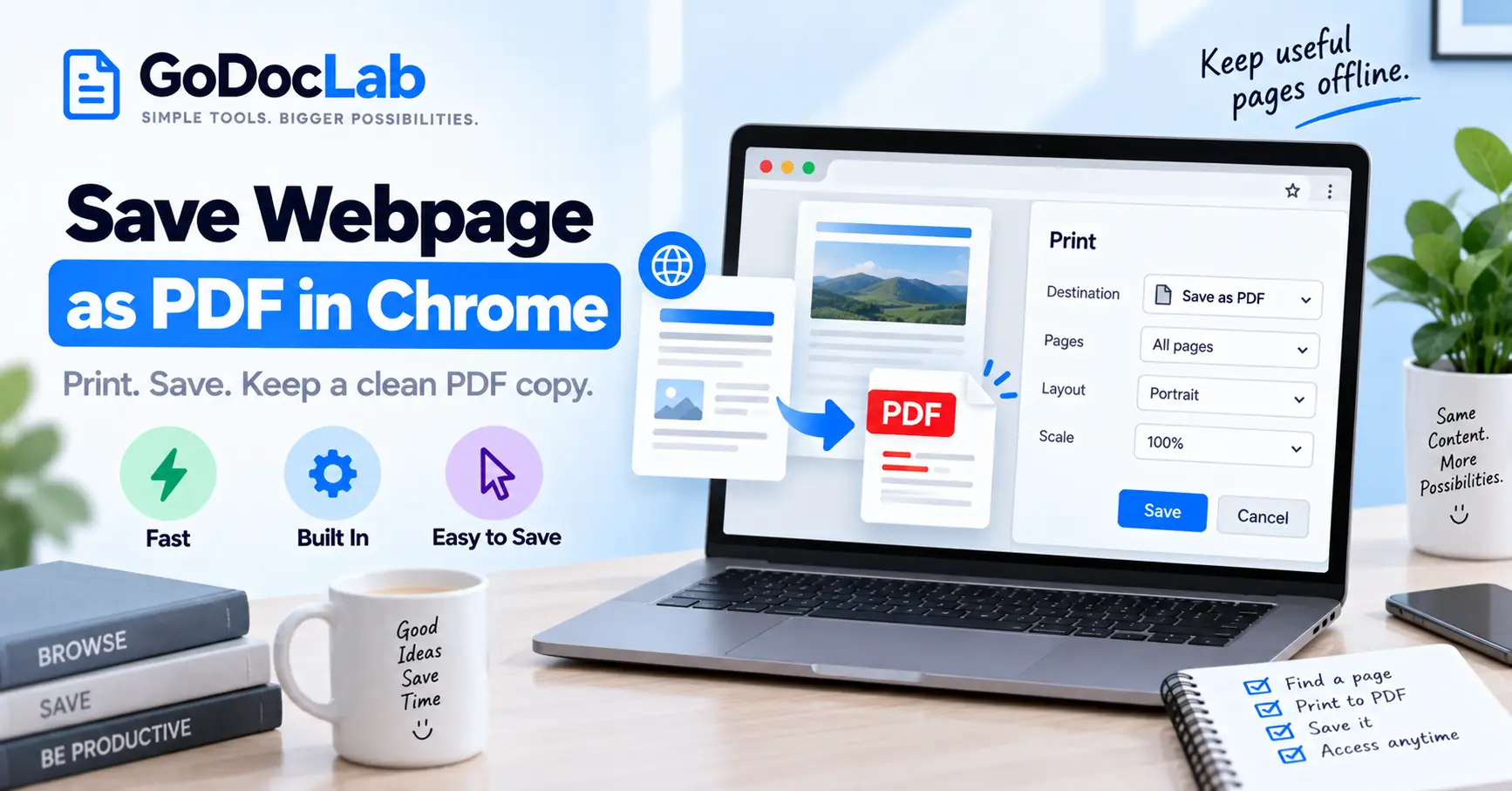
Windows and Linux: Open the webpage in Chrome, press Ctrl + P, choose Save as PDF, then click Save.
Mac: Press Command + P, choose Save as PDF as the destination, and save the document.
Android: Open Chrome's More > Share > Print menu, select Save as PDF, and save the file.
iPhone or iPad: Chrome's official instructions describe AirPrint rather than a dedicated Save as PDF option. Safari offers a documented webpage-to-PDF workflow.
Better layout: Check the page range, orientation, margins, scaling, headers, and background graphics.
Important: A PDF saves a printable representation of a webpage, not all of its live interactive behavior.
Want to save an online article, receipt, guide, or reference page so you can read it later without opening the website again? You can save a webpage as PDF directly in Google Chrome. On a Windows PC or Mac, open the webpage, press Ctrl + P or Command + P, choose Save as PDF as the destination, and save the file to your device.Chrome also supports PDF saving through the print menu on Android. On iPhone, the process is different, so we'll cover a reliable Apple-supported alternative. You don't need to install a PDF converter for ordinary browser printing. The main thing is to check the preview so your saved file includes the content you actually need.
How to Save a Webpage as PDF in Chrome on a Computer
Google Chrome includes a built-in print feature that can generate a PDF instead of sending the page to a physical printer.
This is usually the simplest option when you want a readable copy of the webpage you already have open.
Step 1: Open the Webpage
Launch Google Chrome on your Windows, Mac, Linux, or ChromeOS computer.
Go to the page you want to save.
Wait for the text and images to load. If the page has an expandable section that you want to include, open it before printing.
For example, if you're saving an online tutorial with hidden instructions under an accordion, expand the relevant instructions first.
Step 2: Open Chrome's Print Menu
Use the keyboard shortcut for your computer:
Operating system | Shortcut |
Windows | Ctrl + P |
Linux | Ctrl + P |
Mac | Command (⌘) + P |
Chromebook | Ctrl + P |
Alternatively, click Chrome's three-dot menu and choose Print.
This opens the print preview.
Step 3: Select Save as PDF
In the print preview, find Destination.
Choose Save as PDF.
If the destination shows a physical printer, use the dropdown to change it.
You don't need a connected printer to create the PDF.
Step 4: Check the Preview
Before saving, review the page thumbnails and document settings.
Check that:
The article title is visible.
Important images are present.
Paragraphs aren't cut off.
Tables fit within the page.
The page count looks reasonable.
No unrelated sections have been included.
If the preview doesn't look right, adjust the available settings before saving.
Step 5: Save the PDF
Click Save.
Choose the folder where you want to keep the document and enter a recognizable filename.
For example:
website-research-notes.pdf
Click Save again to create the file.
Step 6: Open the Saved File
Find the PDF in your selected folder.
Open it in Chrome or another PDF viewer.
Scroll through the document to confirm that the content you need is present.
For a long webpage, check both the first and last pages along with important sections in the middle.
How to Save a Chrome Webpage as PDF on Android
Chrome for Android also supports saving a webpage through the print interface.
The layout of the menus may vary slightly by Android version and device manufacturer.
Step 1: Open Chrome on Android
Launch Google Chrome.
Visit the webpage you want to save and wait for the required content to appear.
Step 2: Open the Share Menu
Tap the three-dot More menu.
Choose Share.
Then select Print from the available sharing options.
Step 3: Choose Save as PDF
In the print preview, open the printer or destination selector.
Choose Save as PDF.
You may also be able to adjust paper size, page range, or other printing settings.
Step 4: Save the File
Tap the print or PDF-saving control shown by your device.
Choose where to save the PDF, then confirm.
The document will be available from the folder or storage location you selected.
For the current supported steps, see Google's official Chrome printing instructions for Android.
How to Save a Webpage as PDF on iPhone
Chrome on iPhone doesn't follow exactly the same workflow as Chrome on Android.
Google's current Chrome instructions for iPhone and iPad describe using Share > Print with AirPrint. They do not document a Chrome-specific Save as PDF destination like the one available on Android.
If you need a PDF file rather than a printed page, Safari provides an Apple-documented method.
Option: Use Safari to Save the Webpage as PDF
Open the webpage in Safari on your iPhone.
Open the page's Share menu.
Choose Markup.
Make any desired annotations.
Tap Done and choose Save File To.
Give the file a name and save it.
Depending on your Safari layout and iOS version, the Share control may appear in a different position.
Apple explains the current process in its guide to saving a webpage as PDF in Safari.
If the webpage is already open in Chrome, copy its URL and open it in Safari before following those steps.
Best Chrome Print Settings for a Clean PDF
Chrome's default print settings often work well for ordinary text-based webpages.
However, the right settings can make a substantial difference for articles, reports, receipts, and tables.
Page Range
If the webpage creates a long PDF but you only need certain pages, use the Pages or page-range setting.
For example, if a printed guide spans 12 pages but you need only pages 3–5, select that range.
Be aware that printed page numbers refer to Chrome's generated pages, not headings or sections on the website.
Portrait vs Landscape
Portrait is normally a good choice for articles and standard text.
Landscape may work better for wide tables, diagrams, or dashboards.
If a table is cut off in portrait mode, preview it in landscape before changing the scale.
Paper Size
Choose a suitable page size, such as A4 or Letter.
The choice may depend on your location and whether you intend to print the saved PDF.
For digital-only reading, readability matters more than matching a particular physical paper size.
Margins and Scale
Margins control how much blank space surrounds the printed content.
Scaling affects the size of webpage content on the PDF page.
If a table extends beyond the page, try changing the orientation or scale.
Avoid shrinking the entire document so much that the text becomes difficult to read.
Headers and Footers
Chrome can add information such as the webpage URL, title, date, or page numbers.
These can be useful when saving research material because they help identify the source later.
For a cleaner handout, open More settings and turn off Headers and footers where available.
Background Graphics
Some websites use background colors, shaded panels, or other decorative elements.
If those elements are important for understanding the page, enable Background graphics where supported.
For a simpler document, leaving the option off may reduce visual clutter.
Always check the preview after changing this setting.
How to Fix Common Chrome PDF Problems
Images Are Missing from the PDF
Some websites load images only when you scroll to them.
Before opening print preview, scroll through the webpage and allow the images you need to load.
Then reopen the print dialog and check whether they appear.
If not, the website's print styling or rendering behavior may be responsible.
The PDF Has Too Many Blank Pages
Try adjusting margins, scale, orientation, and page range.
Some websites have large advertising areas or layout sections that do not translate cleanly into printable pages.
A different print layout can reduce unnecessary whitespace, although results depend on the website.
Part of the Webpage Is Cut Off
Check whether the content is wider than the page.
Try Landscape orientation or a suitable scale.
This is especially useful for tables, code examples, charts, and webpages designed primarily for desktop screens.
Only Part of the Article Appears
Some pages load additional content as you scroll or require you to open sections manually.
Return to the webpage and make sure the desired content is visible before printing.
If the website restricts access to certain content, the PDF will not automatically include material you cannot view.
The PDF Doesn't Include Videos or Interactive Features
Chrome's print-to-PDF feature creates a page-based document.
It does not preserve the full functionality of interactive dashboards, videos, live forms, or animations.
A chart that changes when you click filters may be captured as a static visual.
If the interaction itself matters, a PDF is not a complete substitute for the live page.
The PDF Looks Different from the Website
Websites may use separate styles for screens and printing.
For example, navigation menus, sidebars, and some decorative elements may disappear.
This is often intentional.
Compare the saved content rather than expecting every part of the browser view to look identical.
Save as PDF Isn't Available
On a desktop computer, check the Destination selector in Chrome's print preview.
If a printer is selected, change the destination to Save as PDF.
On a work-managed device, printing options may also be affected by administrator settings.
On iPhone, remember that Google's Chrome documentation doesn't describe the same built-in PDF destination as on Android.
Chrome Print to PDF vs HTML to PDF
There are two different workflows worth understanding.
Chrome Print to PDF converts the printable representation of a webpage that is already open in your browser.
HTML to PDF conversion works from HTML content or a supported HTML file.
If your goal is simply to save an article for offline reading, Chrome's built-in method is usually the most direct choice.
If you have an .html or .htm file that you want to convert, a dedicated HTML-to-PDF tool may be useful.
GoDocLab provides an HTML to PDF converter with a file uploader for HTML and HTM documents.
Its published page lists a maximum upload size of 100 MB and a PDF download named converted.pdf.
Which Method Should You Choose?
Need | Recommended starting point |
Save an open website for offline reading | Chrome Print > Save as PDF |
Save a webpage on Android | Chrome Share > Print > Save as PDF |
Save a webpage as PDF on iPhone | Safari's PDF workflow |
Convert a saved HTML or HTM file | GoDocLab HTML to PDF |
Preserve a live interactive webpage | Keep the URL or use a suitable interactive archive |
Save a webpage as evidence of its current appearance | PDF plus source URL and relevant capture details |
The right choice depends on whether you need readable text, a printable snapshot, or the functionality of the live website.
Privacy, Accuracy, and Archiving Tips
Chrome's built-in Save as PDF workflow does not require you to upload the webpage to a separate third-party conversion website.
However, the webpage itself may already contain personal information, such as account details, order history, or private messages.
Before sharing the PDF, review every page for information that should remain private.
Also remember that saving a webpage as PDF doesn't prove when its content was originally published or whether it has changed since you captured it.
For research, keep the source URL and note the date you saved the document.
If you're using GoDocLab's HTML-to-PDF service, its Privacy Policy states that uploaded files are transferred using HTTPS, processed on its servers, and automatically removed after processing. Those are the website's stated practices rather than an independent security audit.
For confidential material, prefer an approved local workflow.
Final Thoughts
The simplest way to save a webpage as PDF in Chrome is to use the browser's own print feature.
On a computer, open the page, press the print shortcut, choose Save as PDF, and check the preview. On Android, use the Share and Print options.
For iPhone, Safari offers a documented way to save a webpage as PDF. If you're working with a saved HTML file instead of a live page, you can also explore GoDocLab's HTML to PDF converter.
Before sharing your PDF, check the page count, important images, links, and any sensitive information. A useful saved copy should preserve the information you need—not merely the appearance of a webpage.
FAQs
Frequently asked questions
Open the webpage, press Ctrl + P on Windows or Command + P on Mac, choose Save as PDF as the destination, and save the file.