
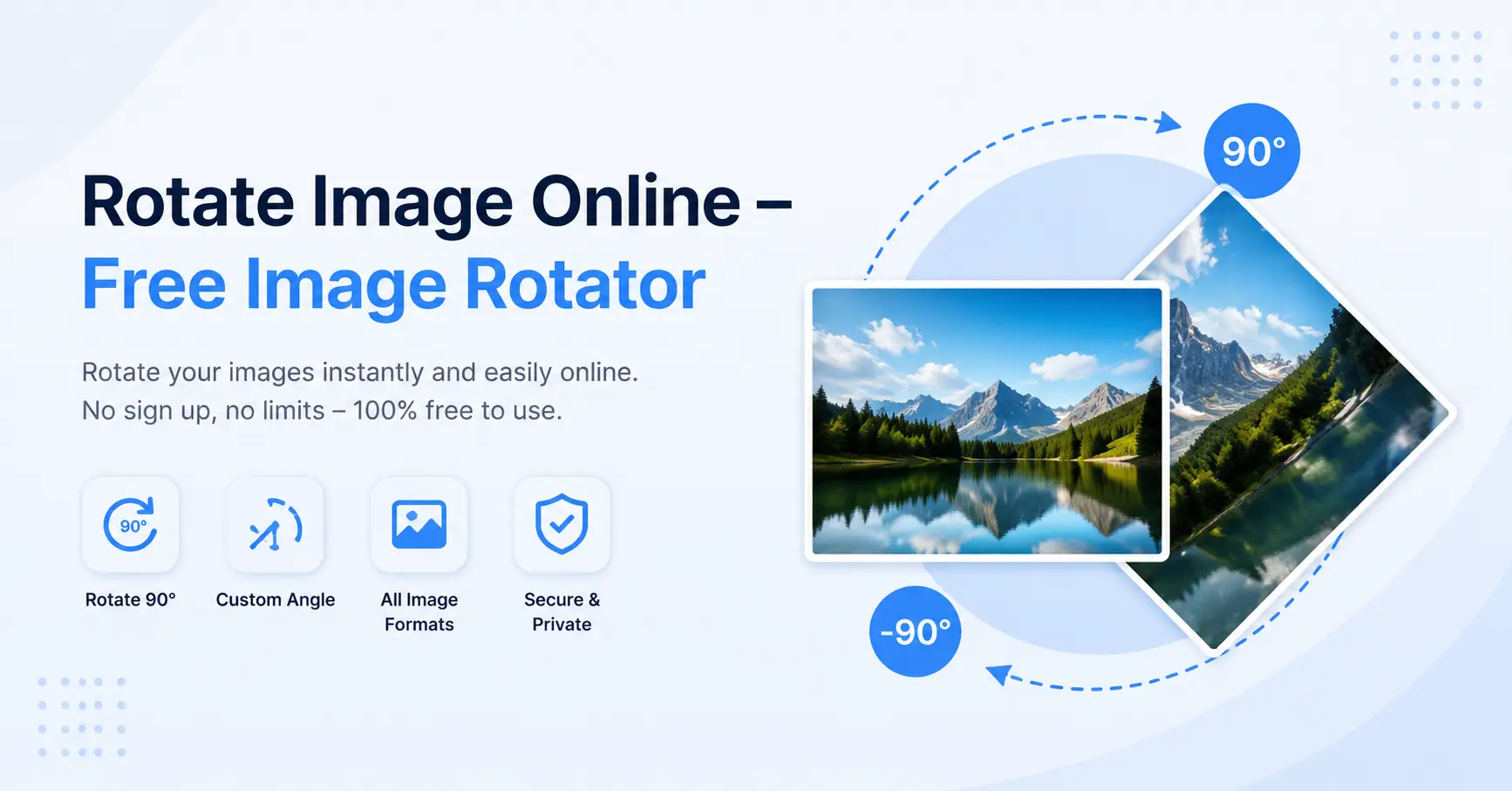
Need to rotate an image online because your photo is sideways, upside down, or slightly tilted? An online image rotator lets you change its orientation without installing complicated photo-editing software.
Quick method: Open an image rotation tool, select your photo, choose the appropriate rotation angle, and download the corrected image. 90° rotation: Fixes pictures that appear sideways. 180° rotation: Turns an upside-down picture upright. 270° rotation: Produces the opposite quarter-turn from a 90° clockwise rotation. Image quality: Check the exported result, particularly when saving JPEG files or rotating by non-right angles. Privacy: Review the provider's file-processing practices before uploading personal or confidential images.
Bottom line: Use a simple rotation tool for orientation problems. If your image also needs straightening, cropping, or perspective correction, choose an editor with the appropriate additional controls.
How to Rotate an Image Online
A photograph can appear sideways after you upload it to a website, attach it to an email, or open it in another application.
This often happens with pictures captured on smartphones, screenshots, scanned documents, and images that contain orientation metadata.
Fortunately, fixing the problem usually takes only a few steps.
To rotate images online, open a compatible image editor, upload your picture, select the correct rotation direction, and export the result.
For example, if a product photograph appears sideways on an online store, a 90-degree turn may restore the intended orientation.
However, choosing the correct angle matters. A photograph that only needs a quarter-turn should not be unnecessarily flipped or rotated at an arbitrary angle.
How to Rotate Images With GoDocLab
GoDocLab lists a dedicated Rotate Image utility within its Image Tools section.
It also offers a separate Tilt & Flip tool for custom tilting and horizontal or vertical flipping.
For an ordinary orientation correction, start from the GoDocLab image tools and locate Rotate Image under Visual Effects.
Step 1: Open the Image Rotation Tool
Visit GoDocLab and navigate to the Rotate Image utility.
Choose the image you want to correct.
Keep an untouched copy of the original, particularly if the photo is important or cannot be recreated.
Step 2: Select Your Image
Use the tool's file-selection interface to choose the picture from your device.
Confirm that the file format and file size meet the requirements shown on the tool page.
Common image formats include JPG, JPEG, PNG, and WebP, but supported formats should always be checked against the selected utility.
Step 3: Choose the Rotation
Review the rotation controls available in the tool.
For a sideways photo, select the appropriate left or right rotation.
For an upside-down photo, choose a 180-degree rotation if the interface provides that option.
Use a custom-angle or tilt option only when the picture needs an adjustment beyond a simple quarter-turn.
Step 4: Process the Image
Apply the selected rotation using the tool's processing control.
If the tool offers a preview, inspect it before downloading the result.
Make sure the subject is correctly oriented and that no important content has been cropped.
Step 5: Download and Check the Result
Save the corrected image using the available download option.
Open the downloaded file and verify that it displays in the correct direction.
Check the picture's clarity, dimensions, file format, and any text within the image.
For an important photograph, compare the exported result with the original before deleting or replacing any files.
What Does Rotating an Image Actually Do?
Image rotation changes the orientation of an image around a reference point.
It is a geometric transformation rather than a process that automatically improves brightness, color, sharpness, or resolution.
For example, imagine a rectangular photograph with a width of 1200 pixels and a height of 800 pixels.
After a simple 90-degree rotation that preserves the complete image, its dimensions would generally become 800 × 1200 pixels.
The picture has changed from landscape to portrait orientation.
A 180-degree rotation turns the image upside down while normally preserving the same width and height.
Rotation can be useful for correcting photographs, preparing website images, adjusting screenshots, and making scanned documents easier to read.
Common Image Rotation Angles
Rotation Effect Typical use 90° clockwise Turns the image one quarter-turn to the right Fixing pictures tilted left 90° counterclockwise Turns the image one quarter-turn to the left Fixing pictures tilted right 180° Turns the image upside down Correcting inverted photographs 270° clockwise Same orientation as 90° counterclockwise Correcting sideways images Custom angle Rotates by a specified amount Straightening tilted horizons or artwork
A full 360-degree rotation returns the image to its original orientation, although exporting it again may still involve re-encoding.
Rotate an Image 90 Degrees
A 90-degree rotation is one of the most common ways to correct image orientation.
It changes a landscape image to portrait orientation or vice versa.
Suppose you photograph a certificate while holding your phone vertically, but the saved image displays sideways.
Rotating the picture 90 degrees in the appropriate direction can make the certificate readable.
Clockwise vs. Counterclockwise Rotation
Clockwise rotation turns the image in the same direction as the hands of a clock.
Counterclockwise rotation turns it in the opposite direction.
Imagine an arrow pointing upward.
After rotating it 90 degrees clockwise, the arrow points right.
After rotating it 90 degrees counterclockwise, the arrow points left.
If you choose the wrong direction, undo the operation or return to the original before trying the opposite angle.
Rotate an Image 180 Degrees
A 180-degree rotation is useful when a photo appears completely upside down.
For example, imagine scanning a document with the paper positioned incorrectly.
The resulting image may have its text at the bottom and upside down.
Rotating it 180 degrees can restore the correct reading direction.
Unlike a 90-degree turn, a 180-degree rotation generally keeps the same width-to-height relationship.
The picture remains landscape or portrait, but its content is inverted.
Rotate an Image 270 Degrees
A 270-degree clockwise rotation is equivalent in orientation to a 90-degree counterclockwise rotation.
Both produce a quarter-turn to the left.
Some image editors offer 270 degrees as a preset, while others provide separate Rotate Left and Rotate Right buttons.
Choose whichever control gives the desired orientation.
You don't need to rotate an image three times if the editor already provides a direct option for turning it left.
How to Straighten a Slightly Crooked Image
Not every incorrectly oriented picture is exactly 90 or 180 degrees out of position.
Sometimes a photograph has a tilted horizon or a scanned document appears slightly diagonal.
In these situations, a custom-angle rotation is more useful.
For example, a landscape photograph might need to be rotated by two or three degrees to straighten the horizon.
The correct angle depends on the individual image.
What Happens to the Corners?
Rotating a rectangular image by an angle other than a multiple of 90 degrees can create empty areas around its corners.
The editor must decide how to handle these spaces.
Some editors expand the canvas to preserve the complete image.
Others crop the edges or fill the new background areas with a selected color or transparency.
If you need to preserve every detail, check the cropping behavior before saving.
Rotation vs. Perspective Correction
A photograph of a paper document taken at an angle may look trapezoidal.
Rotating it can straighten the overall direction, but it cannot fully correct the perspective distortion.
For that, you need a perspective correction or document-scanning feature that adjusts the shape of the photographed page.
A simple image rotator should not be expected to perform full perspective correction.
How to Rotate JPG, PNG, and WebP Images
The basic concept of rotation is the same across common image formats, but exporting the result can affect the file.
Rotate JPG or JPEG Images
JPEG is widely used for photographs because it provides effective compression.
You can rotate a JPEG image using compatible online or desktop tools.
However, many editors re-encode JPEG data when saving.
Repeatedly editing and saving compressed images can introduce additional quality loss.
For important photographs, keep the original and create a separate corrected copy.
Rotate PNG Images
PNG is useful for screenshots, graphics, illustrations, and images that require transparency.
A PNG can be rotated using an editor that supports the format.
PNG uses lossless compression, although custom-angle rotations may still require pixel interpolation.
If transparency is important, make sure the editor's exported format preserves it.
Rotate WebP Images
WebP is commonly used for images on websites.
Compatible editors can rotate WebP files, but supported output formats and transparency handling vary between tools.
If your destination platform doesn't accept WebP, you may need a compatible format-conversion tool after rotation.
GoDocLab lists an Any-to-Any Image Converter for image format conversion.
Check the output image after any additional conversion.
Which Image Rotation Method Is Best?
Tool Best for Main advantage GoDocLab Simple image orientation tasks Dedicated image utilities iLoveIMG Rotating several images Batch-oriented rotation controls Pixlr Rotation plus photo editing Additional image-adjustment features Canva Images used in designs Rotation within a design workspace Windows Photos Quick edits on Windows Built into supported Windows systems Mac Preview Quick edits on macOS Built into macOS
For a simple sideways image, a basic image rotator is usually sufficient.
For editing a larger visual design, an editor with cropping, alignment, and layout tools may be more appropriate.
How to Rotate an Image on Windows Without Uploading It
Windows includes image rotation functionality in the Photos application.
According to Microsoft's official documentation, Photos supports clockwise and counterclockwise rotation, incremental rotation, and other image adjustments.
To rotate an image:
Open the photograph in the Windows Photos app.
Select Edit image.
Open the crop or rotation controls.
Choose the desired rotation direction.
Review the result.
Save the corrected image using the available option.
You can use this method when you want to make a simple change without uploading the file to an online service.
For confidential photographs or documents, approved local editing may be preferable.
How to Rotate an Image on Mac Using Preview
Mac users can rotate images with Apple's built-in Preview app.
Apple's official documentation confirms that Preview provides rotation and flipping features.
Follow these steps:
Open the image in Preview.
Select the image.
Click the Rotate Left button to turn the image counterclockwise.
Continue clicking if another quarter-turn is necessary.
To rotate right, hold the Option key and use the corresponding rotation control.
Save the result.
Preview also supports horizontal and vertical flipping through the Tools menu.
For ordinary 90-degree corrections, this method may be simpler than using an online editor.
How to Rotate Photos on Android and iPhone
Most smartphones provide basic image editing through their photo applications.
Android
On Android, open the image in your device's photo editor.
Look for an Edit, Crop, or Rotate option.
Use the available rotation control to turn the image to the desired orientation, then save the change or a copy.
The exact steps depend on your device manufacturer and photo application.
iPhone
On iPhone, you can rotate images using Apple's Photos app.
Open the photograph, select Edit, open the crop controls, and use the rotation option.
Save the corrected image when finished.
If you need a file in a specific format or want additional rotation settings, a compatible image editor may be more appropriate.
Why Do Some Photos Appear Sideways?
Sometimes a photo appears upright in one application but sideways in another.
This may happen because of image orientation metadata.
Certain camera and smartphone image files include Exchangeable Image File Format (EXIF) information.
EXIF orientation metadata can indicate how the image should be displayed.
For example, a camera may save image pixels in one orientation while recording metadata that instructs compatible software to rotate the image during display.
If another application handles the metadata differently, the same file may appear sideways.
How to Fix an EXIF Orientation Problem
Try opening the image in a reliable editor and exporting a new corrected version.
This can create an image whose visible orientation is consistent with the saved result, depending on how the editor handles metadata.
Open the exported file in the destination application to verify that the problem has been resolved.
For website images, check the file in the actual publishing environment rather than relying only on the preview inside your editor.
Does Rotating an Image Reduce Quality?
Rotation does not always reduce visible image quality, but the result depends on the rotation method and export settings.
A 90-degree rotation can sometimes be performed without resampling image pixels.
Other workflows may decode and re-encode the image.
Custom-angle rotation generally requires interpolation, which estimates new pixel values.
This may slightly soften fine details, particularly around edges and text.
Repeated JPEG saving can also introduce compression artifacts.
How to Preserve Image Quality
Keep a copy of the original image.
Use a single editing and export workflow where practical, rather than repeatedly saving and reopening the same compressed file.
Avoid unnecessarily reducing image resolution.
For screenshots and line drawings, choose an output format appropriate for crisp graphics.
Before publishing or printing, examine small text and fine details at a useful zoom level.
Rotation vs. Flipping vs. Cropping
These operations may appear together in an image editor, but they produce different results.
Operation | What it changes | Example |
Rotate | Image orientation | Turn a sideways photo upright |
Flip horizontally | Left-to-right direction | Create a mirror image |
Flip vertically | Top-to-bottom direction | Reverse the image vertically |
Crop | Visible image area | Remove unwanted edges |
Resize | Pixel dimensions | Make an image smaller for a website |
Perspective correction | Geometric alignment | Straighten a photographed document |
A rotation should not be confused with a mirror flip.
For example, flipping a photo horizontally may reverse text so that it reads backward.
If you only need to correct a sideways photo, rotation is usually the appropriate operation.
GoDocLab provides a separate Tilt & Flip utility for image tilting and flipping workflows.
Common Image Rotation Problems and Solutions
Problem Possible cause Recommended solution Image remains sideways Incorrect rotation direction Try the opposite quarter-turn Image becomes upside down Unintended 180-degree rotation Undo or rotate again Photo appears cropped Canvas dimensions don't fit the rotated image Use an expanded-canvas option if available Empty corners appear Custom-angle rotation Crop or choose an appropriate background Image looks blurry Resampling or compression Use the original and review export quality Text appears backward Image was flipped instead of rotated Undo the flip and apply rotation Image displays differently elsewhere Orientation metadata handling Export a corrected copy and test again Tool rejects the file Unsupported format or size Check requirements or convert the image format
Why Is My Rotated Image Cut Off?
When an image rotates around its center, some corners may extend beyond the original canvas.
If the editor keeps the same canvas size, parts of the image can be clipped.
Choose an option that expands the canvas when available, or use a different tool that preserves the full rotated image.
Why Does the Downloaded Image Still Look Sideways?
The exported file may not reflect the intended transform, or the viewing application may interpret orientation metadata differently.
Open the downloaded file in another compatible viewer.
If necessary, return to the original and export a corrected version.
How to Check the Finished Image
Before sharing, make sure the image is upright, text is readable, the important subject is fully visible, and the output format is accepted by the destination platform.
If the image will appear on a website, test it in the actual page layout on desktop and mobile.
Is It Safe to Rotate Images Online?
Online image editing may involve uploading images to a remote server, although some tools process files locally in the browser.
The processing method depends on the service and its implementation.
GoDocLab publishes information about processing uploaded files on its servers and using HTTPS for data transfer.
Before submitting private photographs or confidential documents, review the service's published privacy practices.
For sensitive files, consider using an approved local application such as Windows Photos or Mac Preview instead of an external upload service.
Avoid assuming that a website guarantees privacy or automatic deletion without confirming those practices.
Frequently Asked Questions
How can I rotate an image online for free?
Open a suitable image rotator online, select your photograph, choose a rotation angle, and save the result. iLoveIMG, Pixlr, and Canva provide rotation tools with free-use options.
Can I rotate an image by 90 degrees?
Yes. A 90-degree rotation turns the image one quarter-turn clockwise or counterclockwise, depending on the direction selected.
How do I rotate an upside-down photo?
Apply a 180-degree rotation to turn the photograph upright.
Can I rotate images without installing software?
Yes. Browser-based image editors provide online rotation workflows. Windows Photos and Mac Preview also offer built-in rotation features without requiring another editing application.
Is a 270-degree rotation the same as a 90-degree rotation?
A 270-degree clockwise rotation produces the same orientation as a 90-degree counterclockwise rotation. They are opposite quarter-turns when expressed in the same clockwise direction.
Can I rotate JPG and PNG files?
Yes. Many image editors support JPG and PNG rotation. Supported formats and export options vary by tool.
Can I rotate multiple images at once?
Some tools, including iLoveIMG, support batch image rotation. Not every online editor provides this feature.
Does rotating an image change its dimensions?
For a standard 90-degree or 270-degree rotation, the width and height typically swap. A 180-degree rotation generally preserves the original dimensions. Custom-angle rotations may require a different canvas size.
Why is my photo sideways on a website but upright on my phone?
The difference may involve EXIF orientation metadata or how the applications interpret and display the image.
Can I rotate an image in 3D online?
A three-dimensional perspective transformation is different from ordinary 2D rotation. Use an editor with 3D transform or perspective features if you need to tilt an image in depth.
Final Thoughts: Fix Image Orientation the Right Way
If a photo is sideways or upside down, a basic rotation is often all you need. An online image rotator can help you correct orientation without opening a complex editing application. For more involved adjustments, tools such as Pixlr and Canva offer additional image editing capabilities. Windows Photos and Mac Preview are useful alternatives when you prefer to work locally. Choose the correct angle, keep the original image, and inspect the exported file before publishing or sharing it. Ready to fix your image? Explore GoDocLab's image tools and choose Rotate Image for a straightforward orientation correction, or use Tilt & Flip when your image needs an angle or mirror adjustment.