
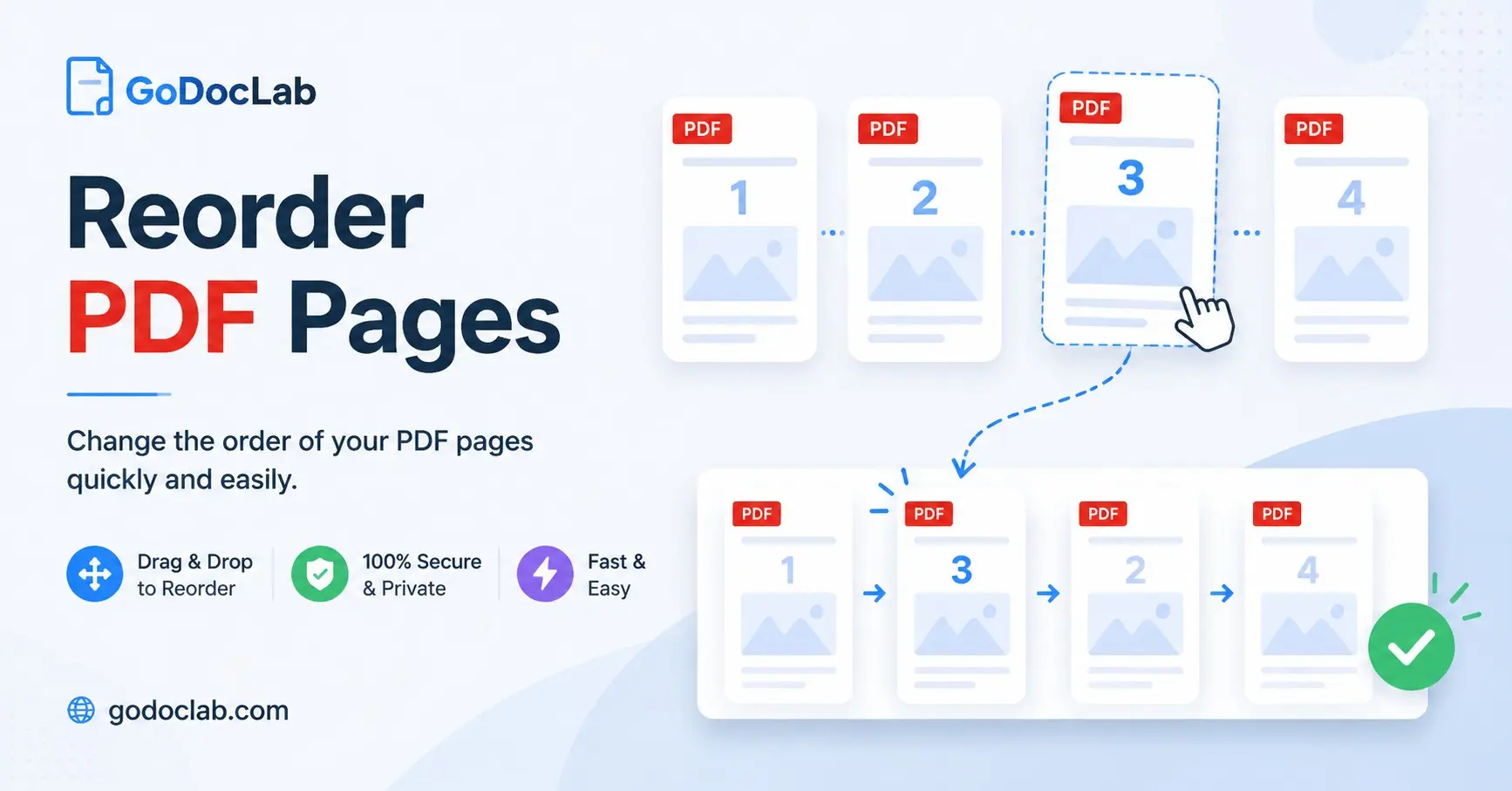
Reorder PDF Pages: A Simple Guide to Organizing Your PDF Files
A PDF file can look perfect at first, but one small mistake can ruin the whole document. A cover page appears at the end, a report section sits in the wrong place, or an important page gets buried somewhere in the middle. Luckily, you do not need to rebuild the entire file. You can simply reorder pdf pages and create a clean document in a few clicks.
PDF files are widely used because they keep the same layout across different devices and systems. The PDF format follows international standards that help documents stay consistent when people view, share, or print them.
In this guide, you will learn how to reorder pages in pdf, why page order matters, the easiest methods to fix page arrangement, and how tools like GoDocLab can help you manage PDF files faster.
Why Do You Need to Reorder PDF Pages?
A PDF is often created from multiple sources. A business report may combine charts, text pages, and forms. A student may merge notes from different files. A company may collect customer documents into one file. During this process, pages can appear in the wrong order.
Common reasons people need a pdf page reorder include:
Fixing a scanned document with mixed pages
Moving a title page to the beginning
Arranging chapters in the correct order
Placing signatures or forms in the right position
Preparing reports for clients or teachers
Cleaning up merged PDF files
Think of a PDF like a book. You would not want chapter five before chapter one unless you are trying to confuse your reader. The same rule applies to digital documents.
How to Reorder PDF Pages Online
Many users search for reorder pdf pages online because they want a quick solution without installing software.
Online PDF tools usually work in a simple way:
Upload your PDF file.
View page thumbnails.
Drag pages into the correct position.
Save the updated document.
A good online tool should make the process simple and protect your file during editing. GoDocLab helps users manage PDF tasks without making the process complicated. If you need to fix a document quickly, you can visit GoDocLab and explore its PDF tools.
How to Reorder Pages in PDF Step by Step
Many people search for how to reorder pages in pdf because they think editing a PDF requires advanced skills. The truth is much easier.
Follow these steps:
1. Open Your PDF Tool
Choose a trusted PDF editor or online service. Upload your document and wait for the pages to appear.
2. Check Page Thumbnails
Most PDF editors show small previews of every page. These previews help you find pages quickly.
3. Move Pages Into Place
Click the page you want to move and drag it to the correct location.
For example:
Move the introduction before the main report
Place images near related text
Put the final page at the end
Tools such as Adobe Acrobat also use page thumbnails and drag-and-drop actions for organizing PDF files.
4. Save the New PDF
After checking the order, save the file with a new name. Keeping the original file is a smart habit because it gives you a backup.
Reorder PDF Pages Free Without Extra Software
Many people look for reorder pdf pages free options because they only need a simple change. Paying for advanced software is unnecessary if your task is only moving pages.
Free online tools can help with basic tasks such as:
Moving pages
Removing unwanted pages
Combining files
Rotating pages
Creating a cleaner document
Before using any free tool, check a few things:
Does the website explain how it handles uploaded files?
Does it provide a clear editing process?
Does it avoid asking for unnecessary information?
A simple PDF task should stay simple. You should not need ten steps to move one page.
PDF Reorder Pages After Combining Multiple Files
A common reason for wrong page order is merging different PDFs.
For example, imagine you combine:
A cover letter
A resume
A portfolio
Certificates
The final PDF may place pages in an unexpected order. This happens because files join together based on their original sequence.
After merging, you may need to use pdf reorder pages tools to arrange everything correctly.
A good workflow looks like this:
Combine your PDF files.
Review every page.
Move pages into the right order.
Remove duplicate or empty pages.
Save the final version.
Adobe also explains that users can rearrange pages after combining PDF files by moving page thumbnails into new positions.
How a Watermark Remover From PDF Tool Helps
Sometimes a PDF needs more than page changes. Users may also need to clean unwanted marks before sharing a document. A watermark remover from pdf tool can help remove visible watermarks from documents when you have the right permission to edit the file.
Examples include:
Removing your own company watermark before updating a template
Cleaning personal documents before reuse
Preparing a fresh version of a document you created
Always make sure you have permission before removing any watermark. Some watermarks protect ownership or confidential information.
Benefits of Organizing PDF Pages Properly
A well-organized PDF creates a better reading experience.
Here are some benefits:
Makes Documents Easier to Read
Readers can follow information in the correct order. They do not need to jump around and guess where each section belongs.
Creates a Professional Look
A messy PDF can make good information look careless. A clean page order shows attention to detail.
Saves Time
Finding information becomes faster when pages follow a logical structure.
Reduces Mistakes
Correct page order helps avoid sending incomplete reports, wrong forms, or confusing files.
Common Mistakes People Make While Reordering PDF Pages
Even simple tasks can go wrong. Here are some mistakes to avoid.
Forgetting to Check the Final File
After moving pages, always open the saved PDF again. A quick review can catch mistakes.
Editing the Only Copy
Keep the original file before making changes. This small step can save a lot of trouble later.
Using Unknown Websites
Avoid uploading private documents to websites you do not trust. Be careful with files that contain personal or business information.
Moving the Wrong Page
Large PDF files can contain hundreds of pages. Page numbers and previews help prevent mistakes.
Reorder Pages PDF Tools: What Features Should You Look For?
A useful PDF tool should provide basic features without confusion.
Look for:
Simple page movement
Clear previews
Fast processing
Safe file handling
Easy download options
For most users, a tool does not need hundreds of buttons. The best tool is often the one that solves the problem quickly.
Why Choose GoDocLab for PDF Tasks?
GoDocLab focuses on making PDF work easier for everyday users. Many people do not need complicated software. They need a simple place where they can fix common PDF problems without wasting time.
Whether you need to organize pages, remove unwanted elements, or manage documents, GoDocLab provides tools that help make PDF editing easier.
Visit GoDocLab to explore available PDF solutions.
Frequently Asked Questions
Can I reorder PDF pages without downloading software?
Yes. Online PDF tools allow you to move pages directly through your browser.
Is it possible to reorder only a few pages?
Yes. Most PDF editors let you select specific pages and move them without changing the rest of the document.
Can I reorder pages in a large PDF file?
Yes, but large files may take more time to process. Always check the final document after editing.
Will reordering pages change the PDF design?
Usually, moving pages does not change the text, images, or layout inside each page. It only changes the order of pages.
Final Thoughts
A PDF with the wrong page order can create confusion, but fixing it is simple. With the right tool, you can arrange documents, prepare reports, and create cleaner files in minutes.
The key is choosing a safe and easy method. Whether you need to reorder pages pdf, fix a merged document, or prepare a file for sharing, a simple PDF editor can save time and effort.
A good document tells a clear story. The right page order helps your readers follow that story from the first page to the last.