
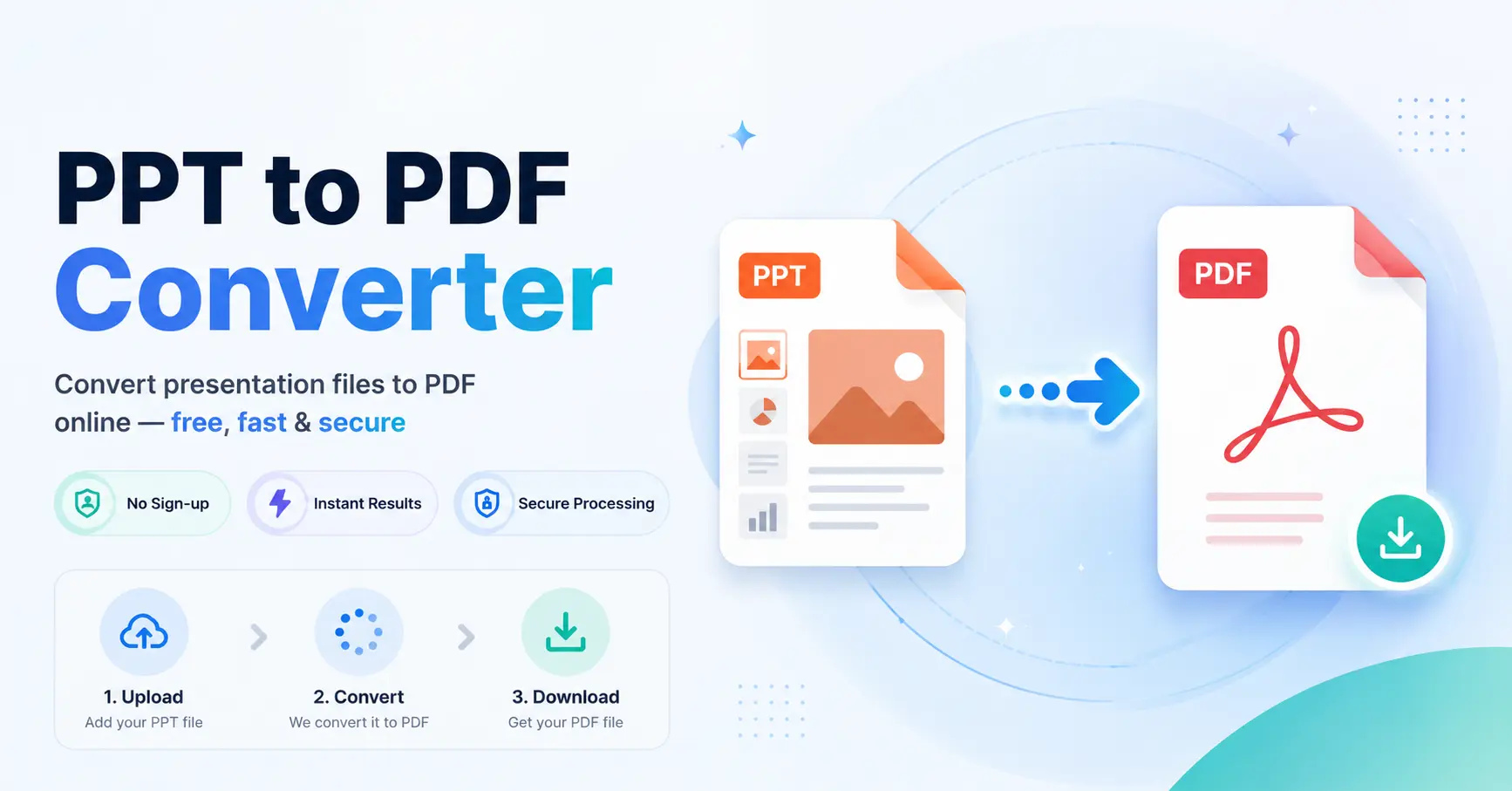
Quick online method: Open the GoDocLab PowerPoint to PDF Converter, upload a .ppt or .pptx file, select Process PowerPoint to PDF, and download the result. Free option: GoDocLab advertises free online conversion without mandatory signup or an output watermark. Microsoft PowerPoint: Use File > Export > Create PDF/XPS on Windows, or save/export as PDF on Mac. Adobe Acrobat: Use Acrobat's online PowerPoint-to-PDF conversion workflow as an alternative. Formatting: Check fonts, images, charts, hyperlinks, and slide dimensions after conversion. Important limitation: Animations, slide transitions, audio, and video do not function in an ordinary static PDF.
Bottom line: Use an online converter for a straightforward file conversion, or export directly from PowerPoint when you need more control over slide ranges, handouts, and print quality.
A PowerPoint presentation is ideal for creating and delivering slides. You can edit text, arrange images, add charts, and build animations to guide an audience through your ideas.
But when the presentation is finished, you may not want recipients to edit it. They might only need a copy to read, print, submit, or review.
That's when converting PPT to PDF makes sense.
A PDF presents the slides as fixed pages, making the finished document easier to distribute without requiring everyone to use the same presentation software.
This guide explains how to convert PowerPoint files online, use Microsoft PowerPoint or Adobe Acrobat, maintain slide quality, and solve common problems.
How to Convert PPT to PDF Online for Free
If you have a PowerPoint file and want a PDF without installing additional software, an online converter is a convenient starting point.
GoDocLab provides a browser-based PowerPoint to PDF tool.
Its published page lists support for both .ppt and .pptx files, with a maximum upload size of 100 MB.
Step 1: Open the PPT to PDF Converter
Visit the GoDocLab PPT to PDF Converter.
Locate the upload area labeled Select PowerPoint file.
The website accepts presentations in PPT and PPTX formats.
Step 2: Upload Your PowerPoint Presentation
Click the upload area and select the presentation from your device.
You can also use the drag-and-drop area.
Before proceeding, make sure you've chosen the latest version of your file.
For example, if you have both sales-presentation-draft.pptx and sales-presentation-final.pptx, select the correct version rather than relying on the filename alone.
Step 3: Check Your Selected File
Review the uploaded filename.
If the converter displays any configuration options, inspect them before processing.
Don't assume that every online converter includes controls for speaker notes, hidden slides, custom page ranges, or PDF quality.
Those options vary by service.
Step 4: Start the Conversion
Select Process PowerPoint to PDF.
The service will attempt to turn your slides into PDF pages.
Wait until the operation finishes.
Avoid closing the page while the file is still processing.
Step 5: Download the PDF
Download the finished file.
GoDocLab identifies its output filename as converted.pdf.
Rename it to something meaningful, such as sales-presentation-final.pdf.
Step 6: Review the Converted Presentation
Open the PDF and compare it with your original slides.
Check slide order, fonts, images, tables, charts, and text placement.
Pay particular attention to slides that use custom typefaces or complex layouts.
If the original deck contains 20 slides and you expect one PDF page per slide, confirm that the result contains 20 pages.
Tip: Keep the original PowerPoint file. The PDF is your distribution copy, while the PPT or PPTX remains the editable source.
What Is a PPT to PDF Converter?
A PPT to PDF converter transforms a PowerPoint presentation into a Portable Document Format (PDF) document.
PowerPoint files typically use one of two extensions:
PPT: An older PowerPoint presentation format.
PPTX: The modern PowerPoint presentation format used by current versions of Microsoft PowerPoint.
Both formats are designed to store slide-based presentations.
PDF serves a different purpose. It represents content in a page-based format suited to consistent viewing, printing, and distribution.
During conversion, slides are rendered into PDF pages.
The visible slide content can generally be preserved, but interactive presentation features may not survive.
PPT vs. PPTX vs. PDF
Feature PPT PPTX PDF Primary purpose Editable presentations Editable presentations Viewing and distributing documents Typical use Older slide decks Modern slide decks Final presentations and handouts Editable slide objects Yes, in compatible software Yes, in compatible software Not like native PowerPoint objects Animations and transitions Supported in PowerPoint Supported in PowerPoint Not preserved as functioning slide animations Fixed-page viewing Not its main design Not its main design Yes Printing Supported Supported Well suited Requires PowerPoint to view Not always Not always No
Neither format is better for every task.
Use PPT or PPTX when you expect to continue editing and presenting.
Use PDF when you need a finished copy for reading or printing.
Why Convert PowerPoint to PDF?
A PDF can make a completed presentation more convenient to share.
Share Slides Without Requiring PowerPoint
Your recipient may not have Microsoft PowerPoint installed.
A PDF can be opened using many browsers and PDF viewers.
This makes it useful for clients, students, colleagues, and other readers who only need to examine the finished content.
Preserve a More Consistent Layout
Microsoft describes PDF export as a way to preserve presentation formatting and layout.
Unlike an editable slide deck, a PDF is not dependent on the recipient opening the file in the same presentation editor.
However, conversion itself can introduce changes, so review the output.
Prepare Presentation Handouts
A presentation PDF can serve as a reference document during training, workshops, or classes.
For example, a teacher might distribute a PDF version of lecture slides so students can follow along or print them.
Reduce Accidental Editing
Sending a PDF instead of a PPTX reduces the likelihood that someone will accidentally change text boxes or rearrange slides in the original presentation.
However, PDF is not automatically protected against editing. Compatible PDF software can modify many PDF documents.
Use appropriate access controls or signing mechanisms when document integrity or confidentiality matters.
Archive a Final Version
Keeping a PDF copy can help preserve the appearance of a presentation at a particular stage.
Retain the editable PowerPoint source as well, especially when future updates may be needed.
How to Convert PowerPoint to PDF Using Microsoft PowerPoint
If you already have Microsoft PowerPoint, exporting directly from the application is often the most predictable method.
It also provides additional controls in supported versions.
Convert PPT to PDF on Windows
Open your presentation in PowerPoint. Select File > Export. Choose Create PDF/XPS Document. Click Create PDF/XPS. Choose the folder and filename. Review the available optimization and output options. Select Publish. Open the saved PDF and inspect it.
Microsoft provides two common output quality choices:
Standard: Appropriate when higher-quality viewing or printing matters.
Minimum size: Designed to produce a smaller file, for example when sending an email attachment.
The exact controls can vary by PowerPoint edition.
Export Selected Slides Instead of the Entire Presentation
You may not want to distribute every slide.
For example, an internal sales deck might contain 25 slides, but only 12 are suitable for a client.
In supported Windows versions of PowerPoint, the PDF export dialog offers an Options control.
You can choose a slide range instead of exporting the whole presentation.
Check the available range settings and select the slides you actually need.
Then create the PDF and verify that no internal-only slides were included.
Convert PowerPoint to PDF on Mac
Microsoft PowerPoint for Mac supports saving or exporting presentations as PDFs.
A typical workflow is:
Open your PPT or PPTX file.
Choose File > Export or File > Save As.
Select PDF as the file format.
Choose the destination.
Adjust the available quality settings.
Save or export the PDF.
Review the resulting document.
Microsoft notes that some PDF export settings differ between Windows and Mac.
For example, PowerPoint for Mac may offer fewer options for selected slides or handouts through its PDF export feature.
If a specific output arrangement is essential, check the controls available in your version.
Convert PowerPoint to PDF on the Web
PowerPoint for the web also supports PDF downloads.
Open the presentation in the web version of PowerPoint, select File, and use the relevant export option to download a PDF.
Microsoft documents a Download as PDF command in supported web workflows.
This approach can be useful when your presentation is stored online and you don't need a separate converter.
How to Convert PPT to PDF With Adobe Acrobat
If you are looking for an Adobe PPT to PDF converter, Adobe Acrobat offers a browser-based method.
Its official instructions describe converting Microsoft Office documents, including PowerPoint presentations, into PDFs.
Step 1: Open Adobe Acrobat Online
Open the Acrobat web interface.
Locate the conversion tools.
Step 2: Choose PowerPoint to PDF
Select Convert > Convert to PDF.
Choose the appropriate PowerPoint conversion option.
Step 3: Select Your Presentation
Upload or select your PPT or PPTX file through the provided file picker.
Choose Continue when prompted.
Step 4: Convert the File
Allow Acrobat to process the presentation.
Adobe documents saving the converted file to Adobe cloud storage in this workflow.
Step 5: Review the PDF
Download or open the result using the controls available to your account.
Check important slides for layout and content accuracy.
Adobe's available features and usage limits may depend on the service and account plan.
It describes a simple process: choose a file, start conversion, and download the PDF.
Which Method Should You Choose?
Method Good starting point for Main consideration GoDocLab Simple online PPT/PPTX conversion Review the converted slides Microsoft PowerPoint Presentations you can open and edit Offers native export settings Adobe Acrobat Adobe-based workflows Cloud processing and account limits may apply Smallpdf Quick browser-based conversion Check free-use limits iLovePDF Occasional PowerPoint conversion Review output and service terms PDF24 Free online PowerPoint conversion Check the resulting layout
A conversion tool is only useful if the resulting PDF accurately represents the presentation you intended to share.
How to Convert PPT to PDF Without Losing Formatting
Preserving slide formatting is often the biggest concern when converting presentations.
A slide might contain several fonts, charts, images, shapes, and text boxes.
The conversion software must render these elements into a fixed PDF page.
Some files convert cleanly, while others need correction.
Check Fonts Before Conversion
Custom fonts can cause problems when the conversion environment does not have access to them.
A substituted font may be wider or narrower than the original, changing line breaks and text positioning.
Before converting, open the deck in its intended presentation software and confirm that the text looks correct.
If you use unusual fonts, inspect those slides especially carefully in the PDF.
Review Slide Size and Aspect Ratio
Most modern presentation decks use widescreen dimensions, but other slide sizes are possible.
The output should preserve the intended page proportions.
If the PDF appears stretched or surrounded by unexpected margins, review the export method and page settings.
Inspect Charts and Tables
Charts and tables may contain small text, fine lines, legends, and data labels.
These elements are easy to overlook when reviewing the PDF at a reduced zoom level.
Check important numerical information against the original.
Verify Images and Logos
Look for missing images, altered transparency, blurred graphics, or misplaced logos.
If an image appears wrong, correct the PowerPoint source and export again.
Test Hyperlinks
Some PowerPoint-to-PDF workflows preserve hyperlinks, while others handle them differently.
Microsoft notes that PDF hyperlinks from PowerPoint for Mac can behave differently from those exported using PowerPoint for the web.
Test any important links in the final PDF.
For example, a presentation's website or registration link should open the correct destination before you send it to an audience.
What Happens to PowerPoint Animations and Videos?
A PDF is not a full replacement for an interactive PowerPoint slideshow.
This matters when a presentation relies heavily on movement or media.
Animations and Transitions
PowerPoint animations can reveal content in stages.
A PDF usually captures a static representation of the slide instead.
Transitions between slides do not function as PowerPoint transitions in an ordinary PDF.
If an animation is necessary to understand the content, consider producing separate static slides that clearly show each required stage.
Embedded Videos
A video embedded in a PowerPoint presentation may not be carried over as playable media.
If the video is important, provide a separate link or include an appropriate reference within the presentation before converting.
Speaker Notes
Presenter notes are separate from the visible slide content.
Some PowerPoint export or print workflows can include notes in the PDF, but the available options vary by application and operating system.
Check the settings carefully rather than assuming that notes will be included automatically.
Hidden Slides
Hidden slides can cause unexpected results if the export settings include or exclude them differently from what you intended.
Review the output page count and compare it with the presentation.
For confidential internal content, inspect every page before distributing the PDF.
How to Convert PPT to PDF on Android and iPhone
A mobile device can be useful when you need to share a presentation while away from your computer.
Use an Online Converter
Open a compatible PPT-to-PDF converter in your mobile browser.
Select the presentation from your files, start conversion, and download the PDF.
GoDocLab advertises support for phone, tablet, and desktop browsers.
The exact upload and download experience depends on your browser and device.
Use a Compatible Presentation App
Mobile presentation applications may offer PDF export or sharing options.
For example, Apple's Keynote on iPhone supports exporting a presentation as a PDF.
The precise controls depend on the application version.
Before sharing the PDF from your phone, open it and check the slide order, images, and text.
A desktop computer can be more practical for reviewing complex slides.
How to Create PDF Handouts From PowerPoint
Sometimes you want to print several slides on one sheet rather than creating one PDF page per slide.
This is common for training materials, classroom notes, and meeting handouts.
Microsoft PowerPoint for Windows provides export options that can include handout layouts.
Depending on the chosen settings, you may be able to place multiple slides on a page.
For example, a three-slide handout can leave room for handwritten notes.
If your software doesn't offer the arrangement you need through PDF export, try its print controls.
Always inspect the final page layout to make sure slides aren't cropped or too small to read.
Why Is My PDF Larger Than the PowerPoint File?
A converted PDF can sometimes be larger than the presentation.
This may happen because of embedded images, fonts, vector graphics, and the converter's output settings.
Choose an Appropriate Quality Setting
For printing, use settings that preserve image clarity.
For email sharing, a smaller output may be more convenient.
Microsoft PowerPoint's Windows export workflow offers Standard and Minimum size options.
Reduce Oversized Images in the Source
Large photographs can increase file size.
If your presentation uses images far larger than their visible slide dimensions require, optimizing them before export may help.
Avoid reducing quality unnecessarily when fine details matter.
Compress the PDF After Conversion
If your PDF is too large for email or upload requirements, try a separate PDF compression workflow.
GoDocLab provides a Compress PDF tool.
Check the compressed output to make sure text, charts, and images remain readable.
Compression results depend on how the original PDF is constructed.
Common PPT to PDF Conversion Problems
Problem Possible cause Recommended solution Fonts look different Original font unavailable Use accessible fonts or convert from PowerPoint Text overlaps Font substitution or layout differences Correct the source slide Charts look distorted Rendering differences Compare and recreate problematic graphics Hyperlinks don't work Export method doesn't preserve them Use a compatible export workflow and retest Animations disappear PDF is a static format Create separate slides for important animation stages Video won't play Embedded media wasn't preserved Provide a separate video link Speaker notes are missing Notes weren't included in export Choose a notes or handout option if supported Hidden slides appear Export range includes them Check slide selection File is too large High-resolution images or export settings Adjust quality or compress the PDF Upload fails Unsupported file or size limitation Check file requirements PDF page count is unexpected Slides or handouts exported differently Review output settings PDF is blurry Low-quality export or source images Use a higher-quality setting
Why Are Some Slides Missing?
The export may have been restricted to a slide range, or certain slides may have been skipped.
Compare the PDF's pages with the original presentation.
If needed, export the full deck again.
Why Did My PowerPoint Fonts Change?
The conversion environment may have substituted a different font.
Try converting directly from the PowerPoint application where the original presentation displays correctly.
For critical designs, consider using fonts that are available in your intended workflow.
Why Are My Charts Blurry?
Some converters rasterize graphical content or apply image compression.
Use a higher-quality output setting when available.
Also make sure the source chart is sufficiently clear.
Why Is My PDF Not Editable Like PowerPoint?
PDF is intended primarily for consistent document viewing.
Even when you can select some text in a PDF, its structure is not the same as editable PowerPoint slide objects.
Keep the original PPT or PPTX file for future revisions.
Is It Safe to Convert PPT to PDF Online?
Presentations can contain confidential client information, internal business plans, employee details, financial figures, or unpublished research.
Online conversion services may upload presentations to remote servers.
GoDocLab states that transfers use HTTPS and that files are removed after processing.
These are the website's published practices, not independent security guarantees.
Before uploading sensitive slides, review the provider's privacy policy and your organization's document-handling requirements.
When a presentation must remain on your device, exporting through approved desktop software may be preferable.
Also inspect the PDF for hidden or unintended content before distribution.
For example, don't assume that internal slides, notes, or confidential details have been excluded until you check the exported document.
Frequently Asked Questions
How do I convert PPT to PDF for free?
Use a free online converter such as GoDocLab or PDF24, or export directly through a compatible version of Microsoft PowerPoint. Upload or open the presentation, create the PDF, and review it before sharing.
Can I convert PPTX to PDF?
Yes. PPTX is the standard format for modern PowerPoint presentations. GoDocLab lists both PPT and PPTX as supported inputs.
How do I convert from PPT to PDF without PowerPoint?
Use an online conversion service that accepts PPT files, such as GoDocLab, Smallpdf, iLovePDF, or PDF24.
Does converting PPT to PDF preserve formatting?
PDF conversion is designed to preserve the visible slide layout, but results vary. Review fonts, images, charts, and text alignment.
Can I convert only certain slides to PDF?
Yes, in supported PowerPoint export workflows. On Windows, the PDF export options allow you to choose slide ranges.
Can I include speaker notes in a PDF?
Some PowerPoint print or export workflows support presenter notes or handout layouts. Check the settings available in your version.
Will PowerPoint animations work in PDF?
No, ordinary PDFs don't reproduce PowerPoint slide animations and transitions as functioning slideshow effects.
Can I convert PPT to PDF on Mac?
Yes. Microsoft PowerPoint for Mac supports PDF export, and Apple Keynote can also export presentations as PDF files.
Can I use Adobe Acrobat to convert PowerPoint to PDF?
Yes. Adobe Acrobat provides a PowerPoint-to-PDF workflow through its online conversion features.
Does converting PPT to PDF reduce file size?
Sometimes, but not always. File size depends on the content and export settings. Compression may help if the resulting PDF is too large.
Can I convert a password-protected presentation?
Some conversion tools may not support protected files. If you're authorized to edit the presentation, use the appropriate password and an approved export method.
Can I open a PDF presentation without PowerPoint?
Yes. A PDF can be opened in many web browsers and compatible PDF viewers.
Final Thoughts: Turn Your PowerPoint Into a Shareable PDF
A PPT to PDF converter is useful when your presentation is finished and your audience needs a document they can view, print, or share. GoDocLab provides a straightforward browser-based option for PPT and PPTX files. Microsoft PowerPoint, Adobe Acrobat, PDF24, Smallpdf, and iLovePDF offer additional workflows. For the best result, use a complete source presentation, choose an appropriate export method, and check the PDF carefully. Keep your original PowerPoint file so you can make changes later, and treat the PDF as a separate distribution copy. Ready to convert your slides? Open the GoDocLab PPT to PDF Converter, upload your presentation, select Process PowerPoint to PDF, and download the finished PDF for review.