
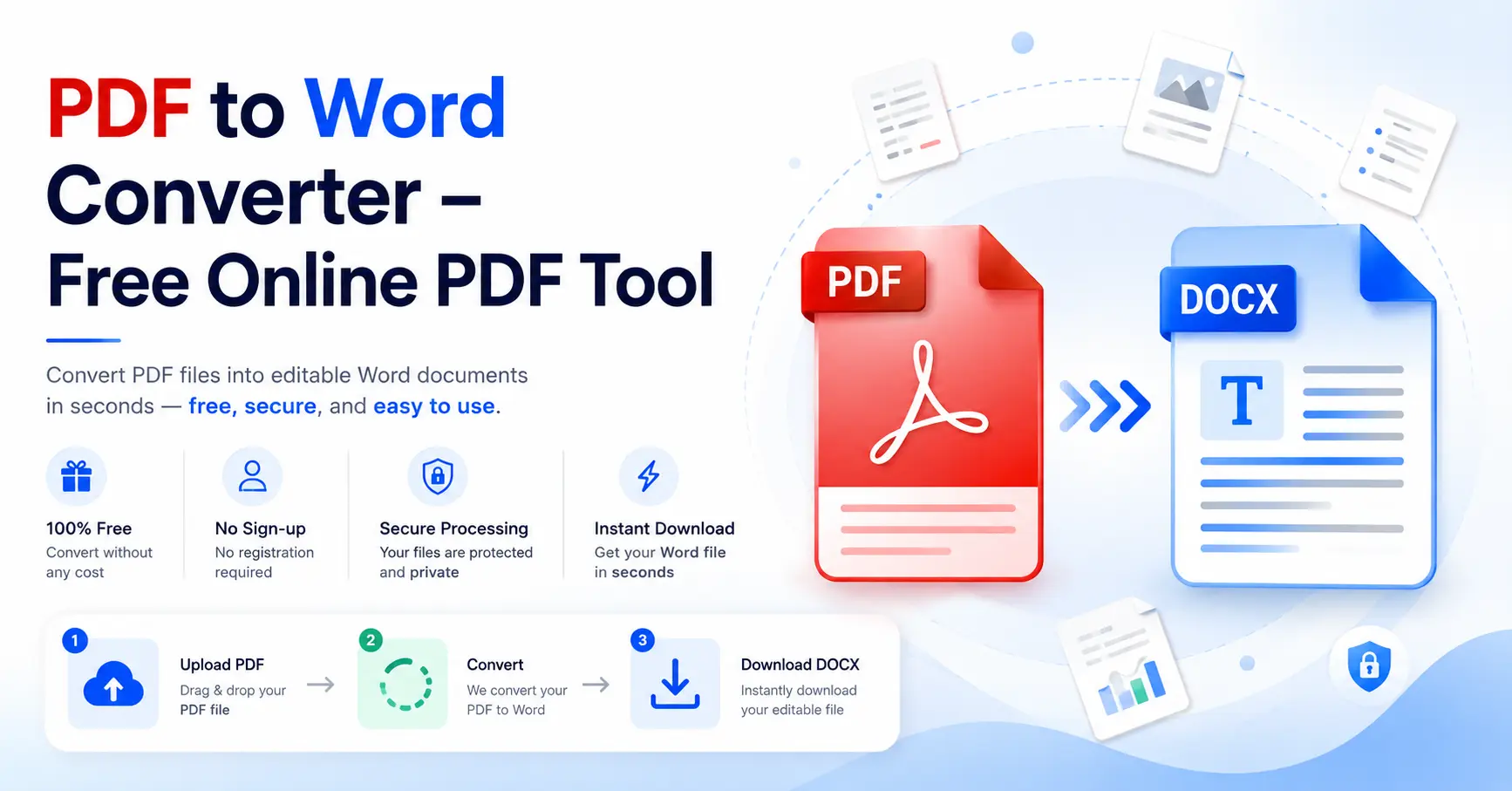
Need to edit a PDF without recreating the entire document? A PDF to Word converter can turn a PDF into an editable Word document, usually in DOCX format.
Quick method: Open the GoDocLab PDF to Word Converter, upload your PDF, select Process PDF to Word, and download the DOCX file. Free conversion: GoDocLab currently advertises free PDF-to-Word conversion without mandatory registration. No extra software: Browser-based conversion works without installing a separate PDF application. Formatting: Most converters attempt to preserve text, images, tables, and layout, but some elements may move or change. Scanned PDFs: You may need OCR (optical character recognition) before converting scanned pages into editable text. Other methods: Microsoft Word, Adobe Acrobat, iLovePDF, Smallpdf, and PDF24 provide alternative conversion workflows.
Bottom line: If you need to convert PDF to Word free, start with a suitable online converter or use Microsoft Word if you already have it. Open the converted DOCX and check the formatting before making important edits.
How to Convert PDF to Word Online
PDF documents are useful for sharing files that should maintain a consistent appearance. Editing them, however, can be inconvenient when you need to change text, update a table, or reuse document content.
A PDF to Word converter makes this easier by transforming a PDF into a Word document that you can edit using Microsoft Word or another compatible application.
For example, imagine receiving a five-page project proposal as a PDF. You need to update the budget, correct a few paragraphs, and add a new section.
Instead of rebuilding the document from scratch, you can convert it into DOCX format, make the necessary changes, and save the revised version.
The basic process is straightforward: upload or open the PDF, convert it to Word, download the document if necessary, and review the result.
However, not every PDF converts perfectly. Complex tables, unusual fonts, scanned pages, and complicated layouts may need additional attention.
How to Use GoDocLab's PDF to Word Converter
GoDocLab offers a browser-based PDF to Word Converter for converting PDF files into editable DOCX documents.
According to its published tool page, the converter accepts PDF files up to 100 MB, produces a Word document named converted.docx, and does not require a mandatory account to download the result.
Step 1: Open the PDF to Word Tool
Visit the GoDocLab PDF to Word Converter.
The page includes an upload area where you can select the PDF you want to convert.
Step 2: Upload Your PDF
Click Select PDF to convert, or drag and drop the document into the upload area.
Choose the PDF you want to edit.
Before continuing, make sure the file opens correctly and includes the pages you need.
If the document is password-protected or contains confidential information, check the appropriate permissions and processing requirements first.
Step 3: Start the Conversion
Confirm that you selected the correct file.
Click Process PDF to Word to start converting the document.
The tool will attempt to reconstruct the PDF content into a Word-compatible format.
The quality of the result depends on the source PDF's structure, fonts, images, and layout.
Step 4: Download the Word Document
Once processing finishes, download the resulting converted.docx file.
Save it in a convenient location, such as your Documents or Downloads folder.
Step 5: Open and Review the DOCX File
Open the converted document in Microsoft Word or another compatible word processor.
Check that the text is editable and that the layout is usable.
Pay particular attention to headings, tables, images, page breaks, and numbered lists.
For example, if your original PDF has a table containing names and amounts, confirm that each amount still appears next to the correct name.
Important: A successful conversion does not guarantee that every page will look exactly like the original PDF. Review the output before sharing or submitting it.
What Is a PDF to Word Converter?
A PDF to Word converter is software that transforms a PDF document into a Word-compatible file, usually DOCX.
The main purpose is to make information easier to edit.
PDF and Word documents handle content differently.
A PDF focuses on preserving how a document appears. Word uses editable paragraphs, headings, tables, images, and other document elements.
During conversion, software must interpret the PDF's structure and rebuild it as editable content.
PDF vs. DOC vs. DOCX: What's the Difference?
Format Main purpose Typical use PDF Preserve document appearance Sharing finalized reports, forms, and documents DOC Older Microsoft Word format Legacy Word documents DOCX Modern Microsoft Word format Editing, formatting, and collaborating on documents
Most modern PDF-to-Word tools generate DOCX rather than the older DOC format.
DOCX is generally the better choice for current word-processing applications.
What Happens During Conversion?
Suppose your PDF contains a heading, three paragraphs, a table, and an image.
A converter attempts to recreate these elements in Word.
The paragraphs may become editable text. The table may become a Word table. The image may be inserted as a picture.
However, some elements may be reconstructed differently or flattened into images.
The result depends on how the original PDF was produced.
A PDF exported from Word often converts more cleanly than a scanned paper document or a design-heavy brochure.
How to Convert PDF to Word for Free Without Losing Formatting
One of the biggest concerns when converting PDF to Word is whether the original formatting will remain intact.
A good conversion should preserve enough of the document's structure to make editing practical.
However, perfect page-by-page reproduction isn't guaranteed.
Microsoft explains that its own Word PDF conversion feature works best with documents containing mostly text. Complex graphics and some layout features may not convert as expected.
Why Formatting Sometimes Changes
PDFs store content in ways optimized for consistent display.
Word documents use editable structures that can change when fonts, margins, or page settings differ.
Common problems include:
Different line breaks.
Changed fonts.
Misaligned tables.
Images moving to different positions.
Headings losing their original spacing.
Page numbers shifting.
Headers or footers appearing incorrectly.
For example, a two-page PDF might become three pages after conversion because Word uses different font metrics or paragraph spacing.
This doesn't necessarily mean text is missing. It may simply mean the layout has been rebuilt differently.
How to Improve Formatting Results
Start with a high-quality PDF.
If possible, obtain the original Word document rather than converting a PDF copy.
If conversion is necessary, review the following settings and document elements afterward:
Page size: Check whether the document uses A4, US Letter, or another page size.
Margins: Compare the left, right, top, and bottom margins with the original.
Fonts: Replace substituted fonts with suitable alternatives.
Tables: Confirm that rows and columns remain aligned.
Images: Check picture placement and resolution.
Page breaks: Correct unnecessary or missing breaks.
Lists: Verify numbering and bullet indentation.
For important submissions, compare the completed Word document with the original PDF before sending it.
Which PDF to Word Converter Should You Choose?
Tool Best suited to Main consideration GoDocLab Straightforward browser-based PDF conversion Review formatting and editability after conversion Microsoft Word Text-heavy PDFs when Word is already installed Complex layouts may change Adobe Acrobat Professional PDF editing and conversion Some features require paid access iLovePDF Everyday online conversion Scanned-document OCR requires premium access Smallpdf Browser-based conversion and related PDF tools OCR is a Pro feature PDF24 Online conversion with configurable settings Output quality depends on the source PDF and settings
The best PDF to Word converter is the one that handles your document accurately enough for the edits you need to make.
How to Convert a Scanned PDF to Editable Word
A scanned PDF is different from a PDF created directly by word-processing software.
Scanned documents often contain pictures of printed pages rather than selectable text.
If you open a scanned PDF in Word, the page may appear as an image instead of editable paragraphs.
To extract the words from scanned pages, you generally need optical character recognition (OCR).
OCR analyzes images and identifies characters that can be used as text.
Step 1: Check Whether the PDF Is Scanned
Open the PDF in a reader.
Try selecting a sentence.
If you can highlight individual words, the document probably contains a text layer.
If the page behaves like a picture, OCR may be necessary.
Some scanned PDFs already contain hidden OCR text, so this is a preliminary check.
Step 2: Use an OCR Tool
Choose software that explicitly supports recognizing text in scanned PDFs.
GoDocLab provides an OCR PDF tool that its website describes as making scanned PDFs searchable.
Its OCR page lists PDF input and PDF output.
This means the OCR step is separate from creating a Word document.
Step 3: Convert the OCR-Processed PDF
After OCR, open the resulting searchable PDF in a PDF-to-Word converter.
Select the conversion option and download the DOCX file.
Step 4: Review Recognition Errors
OCR is not always accurate.
It can confuse similar-looking characters, especially when the document has low-resolution scans, handwriting, unusual fonts, or small print.
For example, the number 0 may be confused with the letter O.
Check names, figures, dates, and important technical information before relying on the converted document.
How to Convert PDF to Word on Windows, Mac, and Mobile
You can convert PDF to Word online free using compatible browser-based tools, regardless of your operating system.
However, the available editing options may differ by device.
Windows
Windows users can choose between online converters and desktop software.
If you have a supported version of Microsoft Word, you can open a PDF directly and let Word convert it.
Alternatively, use a browser-based PDF-to-Word tool and download the DOCX file.
Mac
On Mac, you can use an online converter or a compatible desktop application.
Open the converter in your browser, upload the PDF, and download the Word document.
You can edit the resulting file using Microsoft Word for Mac or another DOCX-compatible application.
Apple Preview can display PDFs, but it doesn't provide a general built-in method for converting complete PDFs into fully editable Word documents.
Android
On Android, open a PDF-to-Word converter using a supported browser.
Select the PDF from your device, start conversion, and download the DOCX file.
Use Microsoft Word or another compatible mobile word processor to review the result.
iPhone and iPad
On iPhone or iPad, you can use a browser-based converter and select documents through the available file picker.
Download the resulting Word file and open it using a compatible application.
For complex layout corrections, editing on a desktop computer may be more comfortable.
PDF to Word vs. PDF to Text: Which Format Is Better?
Before converting, consider whether you need the full document structure or only its written content.
Your goal | Better option | Why |
Edit paragraphs and headings | Word (DOCX) | Supports rich text formatting |
Update tables | Word (DOCX) | Can support editable table structures |
Reuse plain text | TXT | Simpler text-only output |
Preserve images | Word (DOCX) | Can contain images and other document elements |
Extract text for notes | TXT | Removes most visual formatting |
Revise a resume or report | Word (DOCX) | Better suited to structured document editing |
If you only need the document's words, GoDocLab also provides a PDF to Text converter.
For documents containing complex financial tables, a PDF to Excel converter may be more suitable.
Remember that conversion tools may not reconstruct every table or formula correctly.
Common PDF to Word Conversion Problems and Solutions
Even when the conversion finishes successfully, the Word document may need adjustments.
Problem | Possible cause | Recommended solution |
Word file has missing text | Scanned or unsupported PDF content | Try OCR or another conversion method |
Text appears in the wrong order | Complex columns or text positioning | Correct the reading order manually |
Tables are misaligned | Table reconstruction differences | Adjust column widths and cell formatting |
Fonts have changed | Original fonts are unavailable | Use suitable replacement fonts |
Images are missing | Unsupported graphics or extraction errors | Reinsert images from an authorized source |
Document has extra pages | Changed margins or page breaks | Review page layout settings |
PDF won't upload | File-size or access restrictions | Check the file requirements |
DOCX won't open | Damaged or incomplete output | Download again or try another converter |
Password-protected PDF fails | Access or editing restrictions | Obtain authorized access |
Why Does the Word Document Look Different From the PDF?
PDFs preserve the appearance of pages, while Word dynamically arranges text around margins, fonts, and other formatting rules.
When conversion software reconstructs the document, even small changes in spacing can affect where lines and pages end.
Compare the original and converted versions side by side.
Correct the most important layout problems before editing the content extensively.
Why Can't I Edit Some Text?
The text may have been inserted as part of an image.
This often happens with scanned PDFs or certain complex document elements.
Try selecting a single word in the Word document.
If the entire area becomes selected as a picture, you may need OCR or manual reconstruction.
How to Verify Your Converted Word File
Before distributing the DOCX document, confirm that:
Important paragraphs are present.
The reading order is correct.
Tables contain the right values.
Images appear where expected.
Headings and numbered lists are consistent.
Page breaks are reasonable.
Any required links still work.
A converted Word document can look acceptable at first glance while containing subtle errors.
For legal, academic, business, or financial documents, compare critical information against the original PDF.
Is It Safe to Convert PDF to Word Online?
Online PDF converters can be convenient, but privacy matters when working with confidential documents.
Some services upload files to remote servers for processing.
GoDocLab states that it processes files on its servers, uses HTTPS for transfers, and removes files after processing.
These are its published practices rather than independently audited security guarantees.
Before uploading a document, review the provider's privacy policy and any organizational requirements.
If your PDF contains confidential contracts, medical records, private financial information, or other sensitive data, use an approved processing method.
When external uploads are not permitted, consider a suitable desktop application that supports local PDF conversion.
When Is PDF to Word Conversion Useful?
Converting PDF documents into Word format is particularly helpful when the original editable file is unavailable.
Editing Business Reports
You may need to update paragraphs, replace figures, or revise tables in a report.
A Word document provides a more convenient editing environment than a static PDF.
Updating Resumes and Cover Letters
A resume saved only as a PDF can be difficult to modify.
Converting it to Word may help you update your work experience, contact details, or qualifications.
Always check alignment, margins, and bullet points afterward.
Revising Academic Documents
Students and researchers may receive course notes, papers, or reading material in PDF format.
Conversion can make approved content easier to annotate, reorganize, and revise.
Respect copyright and academic citation requirements when reusing material.
Preparing Client Documents
A freelancer may need to revise a proposal or statement of work originally supplied as a PDF.
Converting the document to Word can provide a starting point for editing, although important formatting should be checked before the file is sent back.
Frequently Asked Questions
How do I convert a PDF to Word for free?
Use a free PDF to Word converter, upload your PDF, start the conversion, and download the DOCX file. GoDocLab and PDF24 currently advertise free online options.
Can I convert PDF to Word without installing software?
Yes. Online converters work through a browser and generally don't require installing a desktop PDF application.
Can I convert PDF to Word using Microsoft Word?
Yes. Supported desktop versions of Word can open PDFs and convert them into editable documents. The feature works best with PDFs containing mostly text.
Will the converted Word document keep the original formatting?
Some formatting may be preserved, but fonts, tables, page breaks, and images can change. Always review the DOCX before sharing it.
Can I convert a scanned PDF to Word?
Yes, but scanned documents may need OCR before their text becomes editable.
What's the difference between DOC and DOCX?
DOC is an older Microsoft Word format. DOCX is the modern format widely used by current Word applications.
Can I convert a password-protected PDF?
Some software can process protected PDFs when valid credentials and appropriate permissions are available. If access is restricted, request an authorized copy from the owner.
What is the best free PDF to Word converter?
For basic browser-based conversion, GoDocLab, PDF24, iLovePDF, and Smallpdf are options worth considering. Microsoft Word is convenient if you already have a supported desktop version. The best choice depends on your PDF's complexity, OCR needs, and privacy requirements.
Final Thoughts: Turn Your PDF Into an Editable Word Document
A PDF to Word converter can save you from manually recreating a document when you need to update its text, tables, or other content. For straightforward online conversion, GoDocLab provides a browser-based PDF-to-DOCX workflow. Microsoft Word, Adobe Acrobat, iLovePDF, Smallpdf, and PDF24 offer alternative methods. Remember that conversion quality depends on the source PDF. For text-heavy documents, the process is often straightforward. For scanned pages, complicated tables, or design-heavy files, additional editing may be necessary. The most important step is checking the converted file before using it. Ready to convert your PDF into an editable document? Open the GoDocLab PDF to Word Converter, upload your PDF, and review the resulting DOCX file before making your changes.