
PDF to Text Converter: Turn Any PDF into Editable Text in Seconds
Ever tried to copy a paragraph from a PDF and got a jumbled mess of broken lines and random spaces? You are not alone. PDFs are great for keeping documents looking the same on every device, but they are terrible when you actually need to edit or reuse the text inside them.
That is where a good PDF to Text Converter comes in. It strips away the layout and gives you the raw words, ready to paste, search, or edit anywhere you want.
In this guide, we will cover how these tools work, when to use OCR, and how to pick a converter that will not wreck your formatting or your privacy.
What Is a PDF to Text Converter and Why You Need One
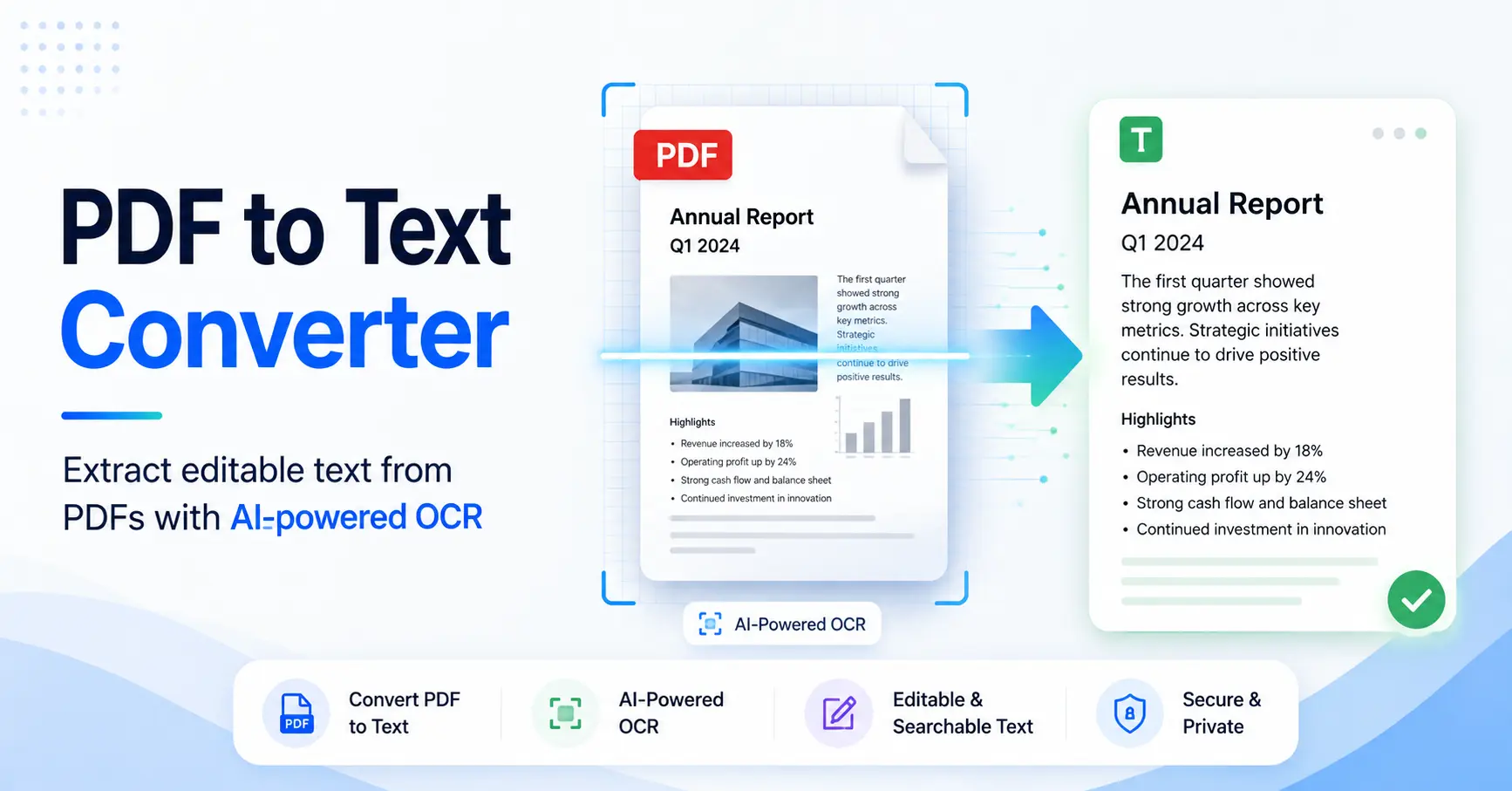
A PDF to Text Converter does exactly what it sounds like. It takes a PDF file and pulls out the readable text, saving it as a plain document you can open in Notepad, Word, or any text editor.
This matters more than people think. Students copy notes from lecture slides. Lawyers pull clauses from contracts. Developers scrape text for data projects. In every case, the goal is the same: get the words out of the PDF cage.
A solid PDF File to text converter should do three things well:
Keep the words accurate
Handle multiple pages without crashing
Work whether the PDF has real text or just images of text
If a tool fails at any of these, you end up doing manual cleanup, which defeats the whole point.
How to Convert PDF to Text Online for Free
You do not need to install software just to pull text out of a document. A free online PDF to text converter lets you upload a file, wait a few seconds, and download a clean text version. No account, no email spam, no software eating up space on your laptop.
Here is the usual process for an online PDF converter:
Open the tool in your browser
Upload your PDF file
Let the tool scan the pages
Download the result as a Plain Text File or PDF to TXT Converter output
GoDocLab's PDF to Text Converter follows this exact flow. It runs in the browser, so there is nothing to download and nothing left behind on your device once you close the tab. That is the whole idea behind a browser-based PDF tool: convenience without the extra baggage.
If you deal with PDFs often, bookmark a tool like this. It saves more time than people expect, especially when you are converting the same type of document over and over.
PDF to Text OCR Converter: Handling Scanned and Image-Based PDFs
Not every PDF is created equal. Some are typed directly from Word or Google Docs, and the text inside is already selectable. Others are just photographs of paper, scanned and saved as a PDF. Try to copy text from one of those, and nothing happens, because there is no text to copy. It is a picture, not a document.
This is where Optical Character Recognition (OCR) steps in. A PDF to text OCR converter looks at each page like an image, recognizes the shapes of letters, and turns them into actual, selectable characters.
According to Wikipedia's overview of optical character recognition, the technology covers the mechanical or electronic conversion of images of typed, handwritten, or printed text into machine-encoded text. It has been around for decades, but modern versions are far more accurate, especially with clean scans.
If you regularly deal with old paperwork, receipts, or scanned forms, an OCR PDF converter online is worth having in your toolkit.
Convert Scanned PDF to Text: Step by Step
Attempting to convert a scanned PDF to text differs somewhat from converting a standard PDF. The tool has to recognize letters first, then assemble them into words and sentences.
Here is what a smooth conversion looks like:
Upload the scanned document
The tool runs OCR on every page
It builds a text layer from the recognized characters
You get an editable, searchable result
Good OCR software also handles image-based PDF to text conversion for photos taken with a phone camera, not just flatbed scans. That is useful if you snap a picture of a printed page and need the text fast, without typing it out yourself.
One tip: scan quality matters a lot. A blurry photo will confuse even the best OCR engine. Good lighting and a straight angle make a real difference in accuracy.
AI PDF to Text Converter: What Is Actually Changing
AI PDF to text converter tools are becoming more common, and the improvements are real, not just marketing talk. Traditional OCR matches shapes to a library of known characters. Newer, AI-driven AI text extraction models understand context, so they can guess a smudged or oddly shaped letter based on the words around it.
This helps with:
Handwritten notes
Old, faded documents
Documents in mixed fonts or languages
The result is a more reliable PDF text extraction tool, especially for messy source files. That said, no tool is perfect. Always give the output a quick read-through, especially for names, numbers, and dates, since those are the easiest things for any OCR system to get wrong.
Extract Text from PDF Without Losing Formatting
A common complaint about extract text from PDF tools is that they wreck the layout. Paragraphs get split oddly, bullet points disappear, and tables turn into a wall of numbers.
Good document conversion software fights this by reading the PDF's internal structure, not just grabbing characters in random order. This means it can tell the difference between a heading, a paragraph, and a table row.
If you need to convert PDF without losing formatting, look for tools that mention structure-aware PDF processing, rather than a basic PDF parser that just dumps raw characters. The difference shows up the moment you open your file and compare it to the original.
PDF to Text vs PDF to Word: Which One Do You Need
This is a question worth answering before you convert anything.
Choose a Convert PDF to Plain Text or Convert PDF to Text File option when you need:
Raw content for a script or database
A quick copy-paste job
A file with no formatting at all
Choose a PDF to Word converter instead when you need:
Bold text, headings, and tables to stay intact
A document you plan to edit like a normal Word file
Something ready to send to a client or colleague
Both jobs are common, and a solid platform should offer both. GoDocLab's blog covers the differences between these formats in more depth if you want a deeper comparison before picking a tool.
Other Handy Tools You Will Want Alongside a PDF to Text Converter
Converting text is rarely the only step in a real workflow. Most people who need a PDF text extractor also end up needing a few other things done to the same file, either before or after extraction.
A few tools worth having nearby:
Merge PDF – combine multiple files into one before extracting text from all of them at once
Split PDF – pull out just the pages you need instead of processing the whole document
Compress PDF – shrink large scanned files so OCR runs faster
Extract PDF Pages—grab specific sections without touching the rest
Delete PDF Pages—remove blank or irrelevant scans before conversion
PDF to HTML Converter – useful for putting extracted content directly on a webpage
PDF to CSV Converter and PDF to XML Converter – handy when the extracted text includes tables or structured data
PDF to Image – the reverse job, turning pages into pictures instead of text
Word to PDF, JPG to PDF, and Excel to PDF – for when you need to go the other direction entirely
Having all of these under one roof saves you from bouncing between five different websites for one task. It is one of the reasons a browser-based document platform makes sense for anyone handling files on a regular basis.
Is It Safe to Convert PDFs Online?
Secure file conversion matters more than most people realize, especially with contracts, IDs, or financial paperwork. Before uploading anything sensitive, check a few basics:
Does the site use HTTPS?
Does it say whether files are deleted after processing?
Does it require an account or payment info for a basic conversion?
A trustworthy fast PDF conversion tool should not need your personal data just to strip text from a document. If a site asks for more information than the job requires, that is a signal to look elsewhere.
Final Thoughts
Digital documents are not going anywhere, and neither is the need to pull text out of them. Whether you are dealing with a clean, typed PDF or a scanned pile of old paperwork, the right converter saves time and frustration.
For a simple, no-download way to copy text from PDF files, convert PDF into editable document formats, or run OCR on scanned pages, a browser-based platform like GoDocLab covers the basics without extra steps. And if you are curious about the technology behind text recognition, the Wikipedia entry on OCR is a solid starting point for the background.
Pick a tool that respects your formatting, your time, and your file's privacy. That is really all a good best PDF to text converter needs to get right.