
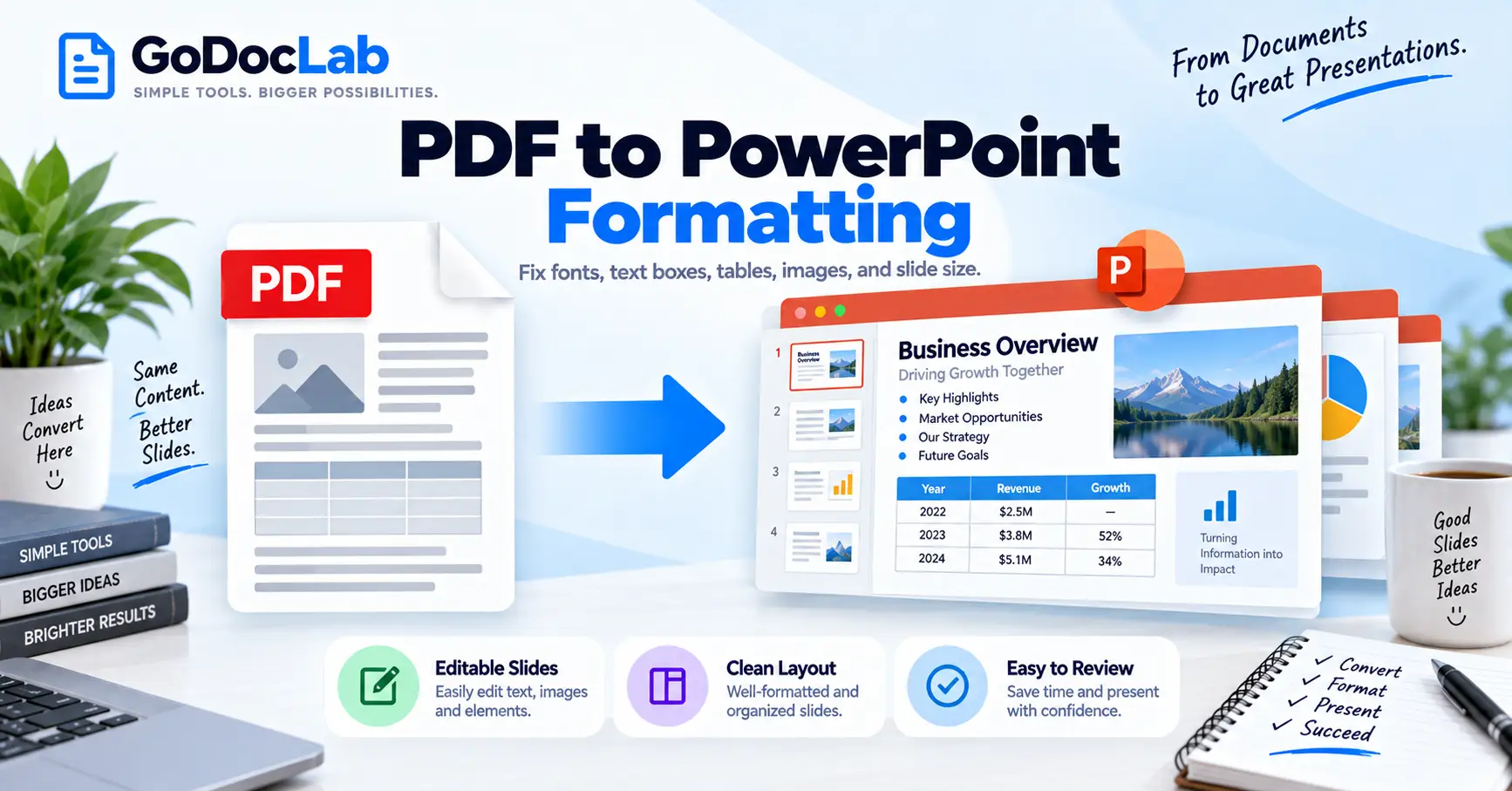
Turning a PDF into a presentation sounds simple until text boxes move, fonts change, or a chart lands partly off the slide. Good PDF to PowerPoint formatting is about more than creating a PPTX file because the deck still needs to look clear, editable, and ready to present. A short review after conversion can save you from rebuilding every slide by hand.
PDF and PowerPoint store content differently. A PDF preserves a finished page, while a presentation needs editable slide objects such as text boxes, pictures, shapes, and tables. That difference explains why PDF to PowerPoint formatting can change even when the converter captures all visible content.
Quick Answer: How to Keep PDF to PowerPoint Formatting Clean
Start with a clear PDF, convert it to PPTX, then check slide size, fonts, text boxes, images, tables, and alignment. Adobe says Acrobat can convert PDFs into editable PowerPoint presentations, while GoDocLab’s PDF to PowerPoint tool currently accepts PDF files up to 100 MB.
Use this workflow:
Check that the source PDF looks correct.
Run OCR first if the PDF contains scanned pages.
Convert the PDF into PPTX.
Check slide size before making large edits.
Review fonts, text boxes, images, tables, and charts.
Use alignment tools to fix spacing.
Compare key slides with the original PDF.
Save a clean working copy.
Common PDF to PowerPoint Formatting Problems
Some files convert with little cleanup, while others need several fixes. A simple report with clear headings usually behaves better than a brochure with multiple columns, layered graphics, and unusual fonts. The source PDF has a big effect on the final PDF to PowerPoint formatting result.
A converter can rebuild much of the page, but it cannot always know the design intent behind every element. A decorative line may become a separate shape, while one heading may arrive as several text boxes. That is why checking the deck slide by slide is worth a few extra minutes.
Convert PDF to PowerPoint With GoDocLab
The converts PDF pages into editable PPTX slides and currently lists a 100 MB maximum PDF size. The tool uses an upload, process, and download flow, which fits one-off jobs where you want a browser method.
After conversion, compare the first few slides with the PDF. Check one text-heavy slide, one image-heavy slide, and any slide with a table because those areas often show differences first. This gives you a quick read on the overall PDF to PowerPoint formatting quality before you edit the full deck.
Check Slide Size Before You Fix Everything Else
A PDF page may use A4, Letter, square, or another page shape, while PowerPoint commonly uses 4:3 or 16:9 slides. Microsoft says PowerPoint lets you choose Standard, Widescreen, or a custom slide size, and changing the size can cause content to scale.
Check slide size early instead of after moving dozens of objects. If you change it later, PowerPoint may ask whether you want to maximize the content or make it fit inside the new slide area. Fixing the size first gives PDF to PowerPoint formatting a stable base.
Fix Text Boxes and Fonts
Converted PDF text may arrive in several boxes instead of one clean paragraph. Some boxes can be too narrow, which creates odd line breaks or pushes one word onto its own line. Resize or combine the boxes before you spend time rewriting the copy.
Fonts can also change when the original typeface is not available on the computer opening the PPTX. Even a similar replacement can use different character widths, which changes spacing and wrapping. Consistent fonts make PDF to PowerPoint formatting look planned instead of patched together.
Use Alignment Tools for Cleaner Slides
Microsoft provides Align, Distribute, Guides, Gridlines, and Smart Guides for arranging objects on slides. These tools can line up pictures, shapes, and text boxes and can space several objects evenly.
Turn on guides and check major edges such as titles, body text, images, and chart blocks. Use distribution tools when a row of objects has uneven gaps. Clean spacing is one of the fastest ways to improve PDF to PowerPoint formatting without redesigning the whole slide.
Check Images, Charts, and Tables
PDF graphics can arrive as pictures, separate objects, or flatter page elements depending on the source file. Microsoft notes that one manual option is to place a picture of PDF content on a slide, but a picture does not give you editable text and shapes.
Tables need extra care because borders, merged cells, narrow columns, and wrapped text can change during conversion. Compare important values with the source PDF before presenting the deck. Strong PDF to PowerPoint formatting puts readable tables ahead of copying every line exactly.
If you only need static page images, the can turn PDF pages into JPG or PNG files. That route can keep the visual page closer to the source, but you lose normal text editing inside the image.
Scanned PDFs Need OCR First
A scanned PDF may contain pictures of words instead of real text. In that case, conversion may give you page images rather than editable text boxes. GoDocLab also provides an OCR PDF tool that makes scanned PDFs searchable before you send them through the PDF-to-PPTX process.
Run OCR when you cannot select normal text inside the source PDF. Then review names, dates, figures, and technical terms because OCR can misread similar characters. This step can improve PDF to PowerPoint formatting by giving the converter actual text instead of a page photograph.
Use the before conversion when the source contains scanned pages. Keep the original PDF beside the converted deck until you finish checking the text. That makes it easier to spot a number or name that changed during text recognition.
Adobe Acrobat as Another Conversion Route
Adobe Acrobat can export a PDF into Microsoft PowerPoint PPTX format. Adobe also says its export tools can retain layout and text flow when moving PDF content into editable office formats.
Complex PDF design can still need cleanup after conversion because fixed pages do not always map neatly to normal slide objects. Treat PDF to PowerPoint formatting as conversion plus review rather than a one-click design promise. Check repeated problems across the deck before spending time on tiny corrections.
Convert the Finished Deck Back to PDF
After fixing the presentation, you may need a stable copy for sharing or printing. The accepts PPT and PPTX files and currently lists a 100 MB maximum file size.
Keep the PPTX as the editable master and use the PDF as the sharing copy. That approach avoids repeated back-and-forth conversions, which can create more cleanup work. It also beats file names such as final-final-v7-really-final.pptx, which usually means everyone has stopped trusting the folder.
Common Mistakes to Avoid
Check the whole deck in thumbnail view first, then open slides that look different from the source. This gives you a faster picture of where the layout needs work. Fix repeated problems first so you do not make the same correction on every slide.
Avoid these mistakes:
Editing text before checking slide size
Ignoring font changes
Leaving overlapping text boxes
Trusting table values without comparing them
Stretching images out of proportion
Skipping OCR on scanned PDFs
Using page screenshots when editable content is required
Deleting the source PDF before the deck is finished
Final Check Before You Present
A good converted deck should look clean, read well, and remain easy to edit. Check slide size, fonts, text boxes, images, tables, alignment, and scanned text before you call the job finished. Compare key slides with the original PDF so you can catch missing details quickly.
For the direct workflow, use GoDocLab PDF to PowerPoint to create the PPTX, OCR PDF when the source contains scans, and PowerPoint to PDF when you need a fixed sharing copy after editing. Microsoft’s alignment and slide-size tools can help with cleanup, while Adobe confirms that editable PPTX export is a supported PDF workflow. That keeps PDF to PowerPoint formatting focused on accurate content, clean slides, and easier editing.
FAQs
Frequently asked questions
Yes. Adobe Acrobat supports export from PDF to editable PowerPoint PPTX, and GoDocLab offers a PDF to PowerPoint converter that creates PPTX slides. The amount of editing you get can depend on whether the source contains clean text and shapes, scans, or complex graphics.