
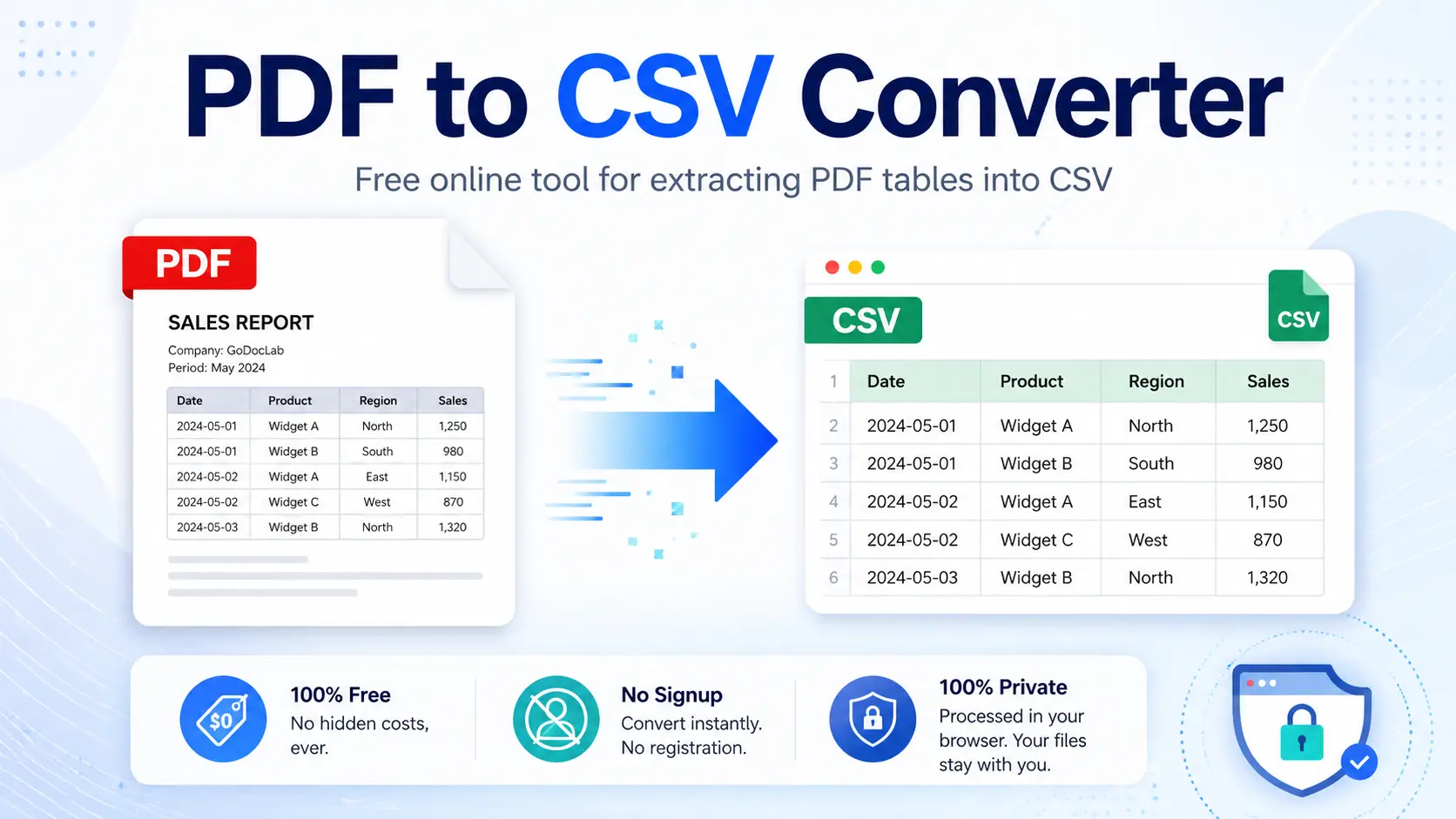
PDF to CSV Converter: Convert PDF Files into Editable CSV Data Easily
PDF files are great for sharing documents, but they are not always easy to work with. A PDF can keep a report, invoice, bank statement, or table looking exactly the same on every device. The problem starts when you need to edit the data, analyze numbers, or move information into a spreadsheet.
This is where a pdf to csv converter becomes useful. It helps turn information stored inside PDF files into CSV files that work with spreadsheet programs like Microsoft Excel, Google Sheets, and accounting software. At GoDocLab, users can quickly handle document conversions without dealing with complicated software. A good converter should save time, keep data accurate, and make daily file tasks easier.
Why Convert PDF to CSV?
PDF files are mainly created for viewing and sharing. They are not built for data editing. A table inside a PDF may look perfect, but copying the information manually can create many problems. For example, imagine entering hundreds of rows from a financial report into a spreadsheet. Even a small mistake, such as missing one number, can create bigger problems later. A convert pdf to csv process changes this.
It extracts table data from a PDF and places it into a CSV format where users can sort, filter, edit, and analyze information. CSV stands for Comma-Separated Values. It is a simple file format that stores data in rows and columns. Many business tools, accounting platforms, and spreadsheet applications support CSV files.
How Does a PDF to CSV Converter Work?
A pdf to csv converter tool uses different methods to read information from PDF documents. The process usually includes several steps:
- The user uploads a PDF file.
- The converter checks the document structure.
- It identifies tables, rows, columns, and text.
- It extracts the data.
- The information is saved as a CSV file.
Some PDF files contain real text that computers can read directly. Other files are scanned images. In those cases, the tool may need optical character recognition technology, also known as OCR, to understand the content. The quality of the final CSV file depends on the original PDF. A clean table usually produces better results than a poorly scanned document.
Convert PDF File to CSV Format Without Manual Copying
Many people still copy data from PDFs into spreadsheets by hand. This method works for small files, but it becomes slow and risky with large documents. A converter helps users convert pdf file to csv format in a faster way. Instead of spending hours entering data, users can process the document within a short time and review the results.
Common documents that people convert include:
- Financial reports
- Sales records
- Customer lists
- Inventory documents
- Research tables
- Business invoices
- Bank statements
The goal is simple: move useful information from a locked PDF format into a flexible data format.
PDF to CSV Converter for Business and Accounting Tasks
Businesses often handle large amounts of financial information. Accountants, small business owners, and finance teams regularly receive statements and reports in PDF form. A convert pdf bank statement to csv feature can make financial work easier. Instead of entering every transaction manually, users can move transaction details into spreadsheet software for review.
For example, bank statements often contain:
Transaction dates
Payment descriptions
Deposits
Withdrawals
Account balances
After conversion, this information can be organized and checked more easily. Many users also look for ways to convert pdf to csv for quickbooks because accounting software often works better with structured data. Before importing files into any financial system, users should check the format requirements of their software.
What Makes a Good PDF to CSV Converter?
Not every conversion tool provides the same results. A useful converter should focus on accuracy, speed, and ease of use. Here are some features users should look for:
Accurate Table Extraction
A good tool should keep rows and columns in the correct order. If numbers move into the wrong columns, the final file may become difficult to use.
Simple User Interface
People should not need technical skills to convert files. The process should be clear:
Upload a file
Start conversion
Download the CSV file
Support for Different PDF Types
PDF files can contain text, images, and complex tables. A helpful converter should handle different document structures.
Privacy Protection
Documents often contain private information. Users should choose tools that explain how files are handled and protected.
Online PDF to CSV Converter: A Simple Option for Everyday Users
Many people prefer browser-based tools because they do not want to install extra programs. An online pdf to csv converter allows users to complete the task directly from a web browser.
This option is useful for:
Students working with research tables
Freelancers handling client documents
Businesses processing reports
Users who need quick file changes
A browser-based tool can be especially helpful when working from different devices because users do not need to install the same software everywhere. GoDocLab provides easy document conversion options that help users manage common file tasks without unnecessary steps.
Free Options: Are They Good Enough?
Many users search for a pdf to csv converter solution because they only need occasional conversions. A free tool can be useful for simple documents. However, users should check important factors before choosing one:
Does it keep table formatting?
Does it support larger files?
Does it protect uploaded documents?
Does it add unwanted limits?
A free pdf to csv converter may work well for basic needs, while professionals handling many files may need extra features. The best choice depends on how often you convert files and how important accuracy is for your work.
How to Convert PDF to CSV: Step-by-Step Guide
Many users ask, how to convert pdf to csv because they want a simple way to move data from a PDF file into a spreadsheet. The process does not need advanced computer skills. Most tools follow a similar method.
Here is a simple process:
Step 1: Select Your PDF File
Choose the PDF document that contains the data you need. Make sure the file is clear and readable. A PDF with proper tables usually gives better results than a scanned document with poor image quality.
Step 2: Upload the File to a Converter
Open a trusted conversion website such as GoDocLab and upload your document. A good online pdf to csv converter should make the upload process simple and explain what happens to your file after conversion.
Step 3: Start the Conversion
After uploading, start the conversion process. The tool reads the PDF content and creates a CSV version. The time required depends on:
File size
Number of pages
Table complexity
Image quality
Step 4: Check the CSV File
After conversion, open the CSV file in Excel, Google Sheets, or another spreadsheet program.
Check:
Column placementNumbers
Dates
Special characters
A quick review helps catch mistakes before using the data.
How to Convert PDF to CSV File for Different Documents
Different PDF files have different structures. A simple table is easier to process than a document filled with images and mixed layouts. For example, a product list with clear columns may convert smoothly. A scanned invoice with handwritten notes may need extra checking. Users often search how to convert pdf to csv file because they want to reuse information from documents instead of typing everything manually.
Common examples include:
Expense reports
Employee records
Product catalogs
Customer information
Survey results
The main benefit is saving time while reducing manual errors.
**How Do I Convert a PDF to a CSV File? Common Questions Answered
A common question is, how do i convert a pdf to a csv file?
The answer is simple: use a conversion tool that can read PDF tables and export the information as CSV.
The basic steps are:
Upload the PDF.
Choose CSV as the output format.
Run the conversion.
Download and review the file.
Users who need regular conversions should choose a tool that provides accurate results and supports their document type. Another common question is how do you convert a pdf to a csv file? The method stays almost the same across most tools. The main difference is how well each tool handles complex files.
Best Way to Convert PDF Bank Statements into CSV
Bank statements are one of the most common reasons people need conversion tools. Searching for the best way to convert pdf bank statements into csv usually means users want to organize financial records, track spending, or prepare information for accounting.
A reliable process includes:
Choosing a clear bank statement PDF
Checking extracted transaction details
Reviewing dates and amounts
Confirming balances before use
Financial data needs extra attention. A single incorrect number can affect reports or budgeting decisions. For business users, converting statements can reduce repetitive work and make financial tracking easier.
Convert PDF to CSV on Mac: What Users Should Know
Mac users often search convert pdf to csv mac or how to convert pdf to csv on mac because they want tools that work well with their devices. The good news is that most browser-based converters work on Mac without requiring special software.
The general process is:
Open the converter in Safari or another browser.
Upload the PDF.
Select CSV output.
Download the converted file.
Users who prefer desktop programs can also find applications that support Mac systems.
Comparing Free and Paid Conversion Options
A best free pdf to csv converter can be useful for personal tasks, small reports, and occasional use. However, professional users may need more features, such as:
Larger file support
Better table recognition
More privacy options
Faster processing
A pdf to csv converter freeware option may handle basic documents well, but complex business files may require stronger tools. The right choice depends on your needs. Someone converting one small table every few months has different requirements from a company processing hundreds of reports.
Converting CSV Files Back to PDF
File conversion works in both directions. Sometimes users need to turn spreadsheet data into a document that is easier to share. A CSV file is useful for editing, but PDF is better for presenting information in a fixed layout. A csv to pdf converter helps users create readable documents from spreadsheet data.
Common reasons to convert CSV files into PDF include:
Sharing reports
Creating printable documents
Sending information to clients
Preparing business records
Users looking for a free csv to pdf converter can find online options that handle basic files.
How to Convert CSV to PDF Easily
The process of converting CSV files is also simple. To convert csv file to pdf, users usually follow these steps:
Upload the CSV file.
Select PDF as the output format.
Start the conversion.
Download the finished document.
A csv to pdf converter online free option can help users quickly prepare documents without installing software. Before sharing the PDF, check the formatting. Large tables may need adjustments to look clean on the page.
Common Problems During File Conversion
File conversion tools are helpful, but users should know about possible issues.
Some common problems include:
Incorrect Table Layout
Complex tables may not convert perfectly. Merged cells, unusual spacing, or decorative designs can confuse some tools.
Missing Data
Scanned PDFs may have unclear text. OCR technology can help, but users should review important information.
Formatting Changes
CSV files store data differently from PDFs. Colors, fonts, and page layouts usually do not transfer.
The purpose of CSV is data organization, not visual appearance.
Why Choose GoDocLab for Document Conversion?
People need tools that save time and make file work easier. GoDocLab focuses on simple document solutions that help users handle everyday conversion needs.
A good conversion platform should offer:
Easy file handling
Clear instructions
Useful document tools
Support for common file formats
Whether you need to convert pdf to csv free online or change CSV files into PDF documents, having a reliable tool can make the process faster. The best tools do not make users search through confusing menus or learn complicated settings. They help users complete the task and move on with their work.
Final Thoughts
PDF and CSV files serve different purposes. PDF is excellent for sharing documents while keeping the same appearance. CSV is better for editing, organizing, and analyzing data. A pdf converter to csv helps connect these two formats by turning fixed documents into usable data files. Whether you need to manage reports, organize financial records, or prepare business information, choosing the right converter can save time and reduce manual work.
Before selecting a tool, check accuracy, privacy features, and ease of use. A simple conversion process can make daily document tasks much easier. GoDocLab helps users handle common file conversion needs with practical tools that keep the process clear and simple.