
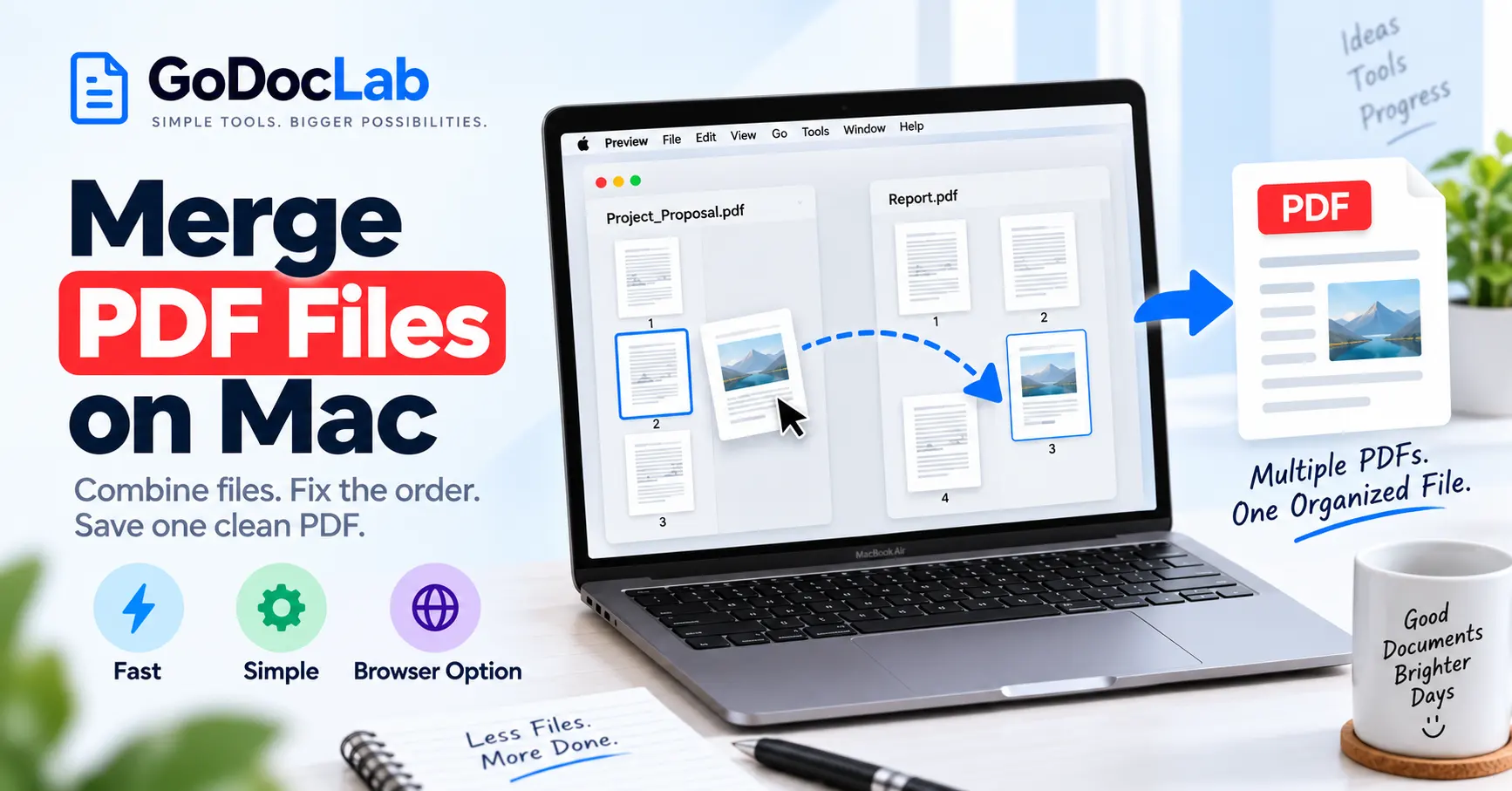
Need to merge PDF files on Mac without installing extra software? Apple's built-in Preview app is usually the easiest starting point. You can combine entire PDFs, move selected pages between documents, and rearrange the final page order.
Built-in method: Open the PDFs in Preview, select View > Thumbnails, and drag the pages from one PDF into another.
Protect your originals: Preview automatically saves document changes, so choose File > Duplicate before editing important source files.
Online method: Use the GoDocLab Merge PDF tool to upload multiple PDFs and download one combined document.
Selected pages: Preview and GoDocLab Selective Page Merge provide ways to combine only the pages you need.
Offline alternative: PDFsam Basic offers free desktop PDF merging for macOS.
Final check: Verify page order, page count, bookmarks, signatures, and file size before sharing the document.
Bottom line: Use Preview when you want a free local method. Choose an online PDF merger for a browser-based workflow, or specialized desktop software when you need additional page-management controls.
Combining PDF files on a Mac is useful when your documents are scattered across separate files.
You might need to submit a cover letter and resume together, organize scanned receipts, combine chapters of a report, or prepare one PDF containing several business documents.
Instead of sending multiple attachments, you can merge PDF files into one document that's easier to review and share.
This guide explains how to combine PDFs using macOS Preview, online tools, and dedicated PDF software. It also covers selected-page merging, common problems, document privacy, and the checks that help prevent missing or misplaced pages.
How to Merge PDF Files on Mac Using Preview
Preview is the PDF and image application included with macOS.
Apple's official documentation confirms that Preview can combine complete PDF documents and selected pages from different files.
You don't need Adobe Acrobat or another downloaded application for this method.
Step 1: Open Your PDFs in Preview
Locate the PDF files in Finder.
Open the first document in Preview, then open the second PDF.
If another application opens your PDFs by default, Control-click a file, select Open With, and choose Preview.
Step 2: Create Copies of the Originals
Before merging, preserve your original documents.
Apple warns that Preview automatically saves changes.
To avoid unintentionally altering an important source file, open it in Preview and choose File > Duplicate.
Work with the duplicate rather than the only copy of your document.
This is especially important when combining contracts, academic records, financial documents, or files you may need to reuse later.
Step 3: Show the Page Thumbnails
In each open PDF, select:
View > Thumbnails
Preview displays the document's pages in a sidebar.
The thumbnail view makes it easier to see where new pages should be inserted.
Step 4: Drag Pages Into the Other PDF
Select the pages you want to add from one PDF's thumbnail sidebar.
Drag them into the sidebar of the destination PDF.
You can place them at the end of the document or between existing pages.
If you want to combine an entire PDF, Apple also supports dragging the PDF file icon directly from Finder into the thumbnail sidebar of an open document.
Step 5: Arrange the Pages
Review the page sequence.
If something appears in the wrong position, drag its thumbnail to the correct location.
For example, a business document might need this sequence:
Cover page
Executive summary
Main report
Financial tables
Supporting documents
Arrange the pages so readers encounter the information in the intended order.
Step 6: Save the Combined Document
Save your completed PDF under a descriptive name.
For example, quarterly-report-combined.pdf is easier to recognize than document-final-3.pdf.
Because Preview may automatically save changes, working in a duplicate is the safest way to preserve an unchanged original.
Step 7: Verify the Result
Open or review the combined PDF.
Confirm that all expected pages are present, no pages are duplicated, and the reading order is correct.
Also check links, bookmarks, and any interactive elements that matter to your document.
How to Merge Multiple PDF Files Into One on Mac
You can use the same Preview workflow when combining three, five, or even more PDF documents.
The main difference is that you must manage a longer page sequence.
Suppose you have these files:
01-cover-letter.pdf
02-resume.pdf
03-certificates.pdf
04-portfolio.pdf
Open the destination document in Preview, display its thumbnails, and add the contents of the other PDFs in the correct order.
Numbering files before you start makes the workflow easier to follow.
Keep Track of the Page Count
Imagine you are combining three documents:
Document | Pages |
Cover letter | 2 |
Resume | 3 |
Portfolio | 8 |
Expected total | 13 |
If you include every page, the finished PDF should contain 13 pages.
A different total could indicate that you accidentally missed or duplicated a page.
Page counting is a simple check, but it can catch mistakes that aren't obvious when you're working with many files.
What if the PDFs Have Different Page Sizes?
Your documents may use different page dimensions.
A resume might use US Letter, while a certificate might use A4 landscape.
Merging them does not necessarily make their pages uniform.
Preview can combine PDFs containing differently sized pages, so inspect the result to ensure that each page remains readable.
If a consistent page size is required for printing or submission, you may need a separate page-resizing workflow.
How to Merge PDF Files Online Free on Mac
If you prefer a browser-based workflow, you can use an online PDF merge tool.
This approach can be useful when you don't want to work with several Preview windows or need to complete a quick document-merging task from a browser.
GoDocLab provides a dedicated Merge PDF tool for combining multiple PDF documents.
Its published tool page lists PDF as the supported input format, a 100 MB upload maximum, and a merged.pdf output.
GoDocLab currently advertises free use without mandatory account registration.
Step 1: Open the GoDocLab PDF Merger
Visit the GoDocLab Merge PDF page in your Mac's browser.
The website provides an upload area labeled Select PDF files to merge.
Step 2: Add Your PDF Files
Select the PDFs you want to combine.
You can use the file-selection interface or the displayed drag-and-drop upload area.
Before proceeding, confirm that you've selected the correct documents.
Step 3: Review the Selected Files
Check the uploaded files and any available configuration options.
If the tool provides ordering controls, use them to arrange the documents before processing.
If your project requires precise control over individual pages, consider a selected-page merging method instead of merging every page automatically.
Step 4: Process the Merge
Select Process Merge PDF.
The service will attempt to combine your uploaded PDF files into one output document.
Avoid navigating away from the page while the processing operation is underway.
Step 5: Download the Combined PDF
Once the operation completes, download the resulting merged.pdf.
Rename it to something meaningful and save it in an appropriate folder.
Step 6: Check the Final Document
Open the downloaded PDF in Preview.
Review the page sequence and make sure all source documents appear where expected.
For important files, compare the output against your original PDFs before sharing it.
Preview vs. Online PDF Merger: Which Is Better?
Both methods can combine PDF documents, but they suit different needs.
Feature | Apple Preview | Online PDF Merger |
Installation | Built into macOS | Generally no installation |
Internet connection | Not required for local merging | Usually required |
File processing | Local on your Mac | May involve remote servers |
Selected pages | Supported | Depends on the tool |
Page reordering | Supported | Depends on the tool |
Best for | Private files and everyday merging | Convenient browser workflows |
Choose Preview for Local PDF Merging
Preview is a strong option if your documents contain information you don't want to upload to an external service.
It also provides clear page thumbnails and direct drag-and-drop control.
For most Mac users who only need to combine a few PDFs, Preview is sufficient.
Choose an Online Tool for Browser Convenience
An online merger can be useful when you prefer to upload files, process them, and download the result.
GoDocLab, PDF24, and Smallpdf provide browser-based PDF merging workflows.
However, always review the provider's privacy information before uploading confidential documents.
Choose Desktop Software for Repeated Work
If you regularly combine large collections of PDFs or need particular merging options, a dedicated desktop application may be more suitable.
PDFsam Basic is one example.
How to Merge Only Selected PDF Pages on Mac
Sometimes you don't need complete documents.
For example, you may need page 2 from one PDF, pages 5–7 from another, and the final page from a third.
Merging the entire files would produce unnecessary pages.
Instead, choose a method that supports selected-page merging.
Method 1: Select Pages in Preview
Open the PDFs in Preview and choose View > Thumbnails.
Select the specific pages you need.
For pages that aren't next to each other, hold the Command key while clicking individual thumbnails.
Drag the selected thumbnails into the destination PDF.
Move them into the correct order and review the result.
This method is documented in Apple's Preview user guide.
Method 2: Use GoDocLab Selective Page Merge
GoDocLab provides a separate Selective Page Merge tool.
Its published page describes merging particular pages from different PDF documents into one result.
The general workflow is:
Open the Selective Page Merge tool.
Upload the source PDF documents.
Configure the page-selection options.
Select Process Selective Page Merge.
Download the resulting PDF.
Check that it contains the intended pages.
The tool currently advertises a 100 MB maximum upload.
Always confirm the actual page-selection options in the interface before processing important documents.
How to Merge PDF Files on Mac Using Adobe Acrobat
Adobe Acrobat provides PDF combination features through its desktop software and online service.
For Mac users who already work with Acrobat, its desktop Combine Files feature can be convenient.
Adobe's official instructions describe using File > Combine files on macOS.
Step-by-Step Instructions
Open Adobe Acrobat on your Mac.
Select File > Combine files.
Click Add Files.
Choose the PDFs you want to combine.
Review the uploaded file list and page previews.
Drag files or thumbnails to arrange their order.
Remove unwanted pages where needed.
Click Combine.
Name and save the resulting PDF.
Adobe Acrobat can also combine compatible documents from formats such as Word, Excel, and PowerPoint.
This makes it useful when your project contains more than PDFs.
However, access to desktop combination features depends on the Acrobat application and plan.
If you only need occasional PDF merging, Preview or a free PDF merger may be sufficient.
How to Merge PDFs Offline With PDFsam Basic
PDFsam Basic is a free, open-source PDF organization application available for macOS, Windows, and Linux.
It allows users to merge multiple PDFs locally without uploading them to a remote processing service.
PDFsam Basic is particularly useful if you want a dedicated document-merging application rather than a general PDF viewer.
Step-by-Step Instructions
Download PDFsam Basic from the official website.
Install and open the application.
Select the Merge module.
Drag your PDF documents into the file list.
Arrange them in the intended order.
Choose the output file name and destination.
Click Run.
Open the completed PDF and check its pages.
PDFsam Basic also offers additional PDF organization options, including page ranges and bookmark-related controls.
For people who frequently work with long reports or document collections, these features can be useful.
What if You Need to Combine Pictures and PDFs on Mac?
You may have PDF documents alongside scanned receipts or photographs saved as JPG or PNG files.
If your chosen merging application accepts only PDFs, convert the pictures to PDF first.
You can then combine the converted image pages with your existing documents.
Preview can work with images and PDFs, but the exact process differs depending on whether you're converting a picture or inserting PDF pages.
Another approach is to convert the images separately and then merge the resulting PDFs.
GoDocLab's Image to PDF tool provides an image-conversion workflow for this purpose.
After converting your pictures into PDF pages, add those pages to the main document in the required sequence.
Check Image Orientation and Page Size
Scanned receipts may be tall and narrow, while photographs may be landscape.
The resulting PDF can therefore contain pages of different sizes.
Inspect each converted image to confirm that it isn't cropped, distorted, or difficult to read.
If the final file will be printed, review its page layout before sending it to a printer.
How to Rearrange Pages After Merging PDFs on Mac
Even when every document merges successfully, the pages may not appear in the correct order.
For example, an appendix might appear before the conclusion, or a scanned receipt might appear at the beginning of a report.
You don't necessarily need to repeat the whole merging process.
Reorder Pages in Preview
Open the combined PDF in Preview.
Select View > Thumbnails.
Drag the misplaced page thumbnails into the correct sequence.
Save the updated document and review the final order.
Reorder Pages Online
GoDocLab also offers a Reorder Pages tool.
Its published workflow allows users to upload a PDF, configure the page order, process the change, and download the result.
This can be useful when you've already completed an online merge but want to adjust the document afterward.
What Happens to Bookmarks, Forms, and Signatures?
PDF documents may contain more than ordinary text and images.
Some include bookmarks, fillable form fields, clickable links, annotations, or digital signatures.
Merging software may handle these features differently.
Bookmarks
Bookmarks help readers navigate long PDFs.
A combined file may preserve, reorganize, or omit some bookmarks depending on the tool.
If you're merging a report with a table of contents or chapter navigation, test the bookmarks after saving.
Interactive Forms
Forms can contain text fields, checkboxes, and other interactive elements.
If two source documents contain fields with identical names, their behavior may be affected by the merging method.
Review important forms in the finished PDF.
Digital Signatures
A cryptographic digital signature can become invalid when the signed PDF is modified.
If you need to produce a digitally signed final document, the safer general workflow is to combine the source documents first and sign the finished file afterward.
For already-signed documents, check the recipient's requirements before merging them.
Do not assume that a visible signature image is equivalent to a valid cryptographic signature.
How to Reduce the Size of a Merged PDF
Combining documents can increase file size because the final PDF contains material from multiple sources.
For example, three scanned PDFs containing high-resolution page images may create a large combined document.
If the resulting PDF exceeds an email or upload limit, compression may help.
GoDocLab provides a Compress PDF tool.
Before Compressing
Keep a full-quality copy of your merged document.
If the PDF includes scanned text, diagrams, or photographs, compression settings may affect clarity.
After compression, check small text, signatures, and images carefully.
If your document must be printed at high quality, avoid unnecessary resolution reduction.
Common Problems When Merging PDFs on Mac
Problem | Possible cause | Solution |
Pages are in the wrong order | Incorrect thumbnail placement | Rearrange them in Preview |
Source PDF changes unexpectedly | Preview saved edits automatically | Work with duplicates |
Missing pages | Not all pages were selected | Compare the output with the originals |
Duplicate pages | Pages were added twice | Remove duplicates from an edited copy |
Files won't upload online | File-size limit or unsupported content | Review the tool requirements |
Merged PDF is too large | High-resolution images or many pages | Compress a copy if appropriate |
Password-protected PDF fails | Document permissions or access restrictions | Obtain authorized access |
Bookmarks don't work | Merge tool changed navigation structures | Review bookmarks and try a suitable editor |
Signature becomes invalid | Signed content was modified | Preserve the original signed file |
Why Can't I Drag PDF Pages in Preview?
First, make sure the sidebar is displaying actual page thumbnails.
Select View > Thumbnails, rather than relying on a general file list.
Open the source and destination PDFs separately if that makes the transfer clearer.
If the document is protected or the file is locked, the available editing actions may be restricted.
Why Did Preview Change My Original PDF?
Preview automatically saves some document modifications.
If you edited the original rather than a duplicate, those changes may have been saved.
When possible, use Undo before closing the file or restore an earlier copy from an available backup.
For future edits, choose File > Duplicate before merging.
Why Is the Combined PDF So Large?
Large scanned images, embedded graphics, and multiple document resources can increase the output size.
Compression may reduce the file size, but the reduction depends on the document's content.
Avoid compressing repeatedly unless necessary.
Is It Safe to Merge PDFs Online on a Mac?
An online merger may upload the files to a remote server for processing.
GoDocLab states that it processes uploaded files on its servers and publishes information about HTTPS transfers and file removal.
These are the website's stated practices, not the findings of an independent security audit.
Before uploading confidential contracts, medical records, financial reports, or other sensitive documents, review the service's privacy policy and any applicable organizational requirements.
For documents that must remain on your computer, Preview or PDFsam Basic may be a more appropriate choice.
Local processing avoids uploading the PDF documents to a third-party merging service, although normal device security and backup precautions still matter.
Frequently Asked Questions
How do I merge PDF files on Mac for free?
Use Apple's Preview app. Open the PDFs, choose View > Thumbnails, and drag pages from one PDF into the other. Arrange the thumbnails and save the combined document.
Can I merge multiple PDFs into one file on a Mac?
Yes. Preview can combine entire documents or selected pages from several PDFs. Dedicated applications and online PDF merging tools provide additional options.
Do I need Adobe Acrobat to merge PDFs on Mac?
No. Preview is built into macOS and supports PDF merging. PDFsam Basic and suitable online tools are also alternatives.
Can I merge PDF files online free on Mac?
Yes. GoDocLab and PDF24 provide browser-based PDF merging options. Check their published file limits and privacy practices before uploading documents.
How do I merge only certain pages from different PDFs?
Use Preview's thumbnail sidebar to select specific pages and drag them into another PDF. You can also use an online selective-page merging tool.
Can I combine PDFs on Mac without an internet connection?
Yes. Preview can merge documents locally, and PDFsam Basic provides another offline method once installed.
Does merging PDF files reduce document quality?
Basic PDF merging generally combines existing page content rather than intentionally lowering image resolution. However, processing can vary, so inspect the final output if quality matters.
Can I merge password-protected PDFs?
Some applications can work with protected documents when you provide valid passwords and have the necessary permissions. If editing is restricted, request an authorized copy.
Can I merge JPG images and PDFs?
Yes. Some PDF applications support multiple file formats. If your merger accepts PDF files only, convert the images into PDFs first and then combine them.
Will merging PDFs change the original files?
That depends on the application and workflow. Preview can save document edits automatically. Creating duplicates before combining files protects the originals.
Can I split a merged PDF again later?
Yes. A combined PDF can be separated into smaller documents using an appropriate PDF splitting tool.
Final Thoughts: Choose the Right Way to Merge PDFs on Mac
If you need to merge PDF files on Mac, start with Apple Preview. It's built into macOS, supports complete documents and selected pages, and allows you to control the page order without uploading your files.
For a browser-based alternative, GoDocLab offers a dedicated PDF merging tool. Adobe Acrobat and PDFsam Basic are also useful when your workflow requires additional document-management features.
Whichever method you choose, keep copies of your originals and review the combined file before sharing it.
Want to combine your PDFs online? Open the GoDocLab Merge PDF tool, select your documents, process the merge, and check that the downloaded PDF contains every page in the correct order.
FAQs
Frequently asked questions
Yes. Apple Preview can combine complete PDF files and selected pages. Apple’s explains the thumbnail drag-and-drop method.