
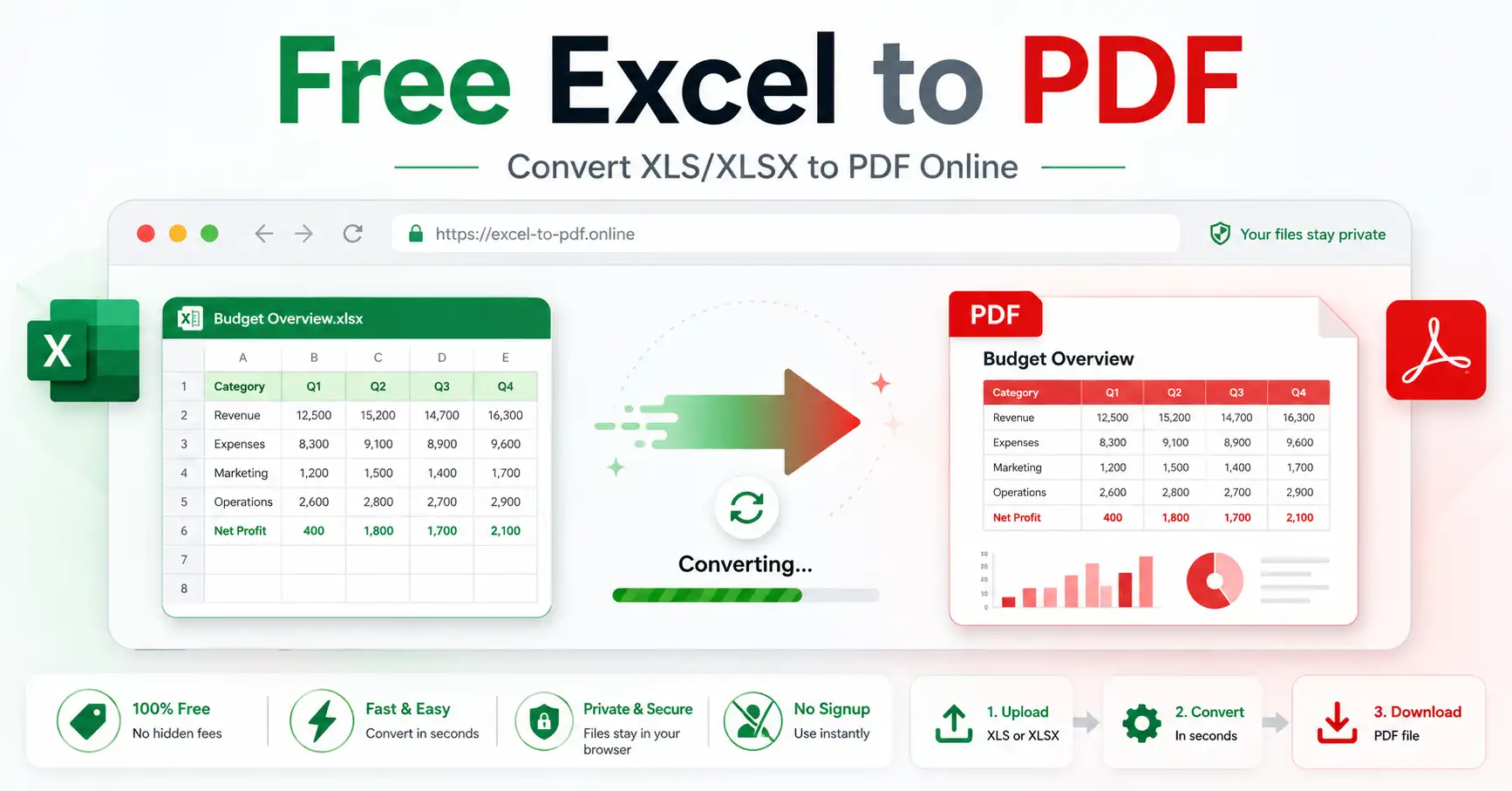
Excel to PDF Converter: How to Convert XLS and XLSX Files
Need to turn an Excel spreadsheet into a PDF without losing columns or making the text too small to read? You can convert an Excel file to PDF using Microsoft Excel's built-in export feature or an online Excel to PDF converter.
If you already have Microsoft Excel, open your workbook, select File > Save As, choose PDF as the file format, and save it. If you prefer a browser-based option, GoDocLab's Excel to PDF converter accepts XLS and XLSX files.
The important part isn't just creating a PDF. It's ensuring your tables, charts, headings, and numbers appear correctly on every page.
This guide explains both methods, shows how to prepare wide spreadsheets for PDF conversion, and helps you fix common formatting problems.
What Is an Excel to PDF Converter?
An Excel to PDF converter turns spreadsheet content into a PDF document that is easier to share, view, or print with a consistent page layout.
Excel spreadsheets are designed for working with data. They can contain formulas, calculations, multiple worksheets, charts, and editable tables.
PDFs serve a different purpose. They present information in a page-based document that readers can open without needing the original spreadsheet application.
For example, you might convert:
A monthly sales spreadsheet into a PDF report for management.
An Excel invoice into a document for a customer.
A class schedule into a printable handout.
A financial summary into a document for review.
Keep your original Excel file. The PDF is suitable for presenting the information, but it does not retain Excel's interactive calculations and editing features.
How to Convert Excel to PDF Online With GoDocLab
GoDocLab provides a browser-based converter for Excel spreadsheets. Its tool page lists XLS and XLSX as supported input formats, PDF as the output format, and a maximum upload size of 100 MB.
You can access the tool without installing Microsoft Excel.
Step 1: Open the Excel to PDF Tool
Visit the GoDocLab Excel to PDF converter.
The page provides a file upload area where you can choose a spreadsheet from your device.
Step 2: Upload Your Excel Spreadsheet
Click Select Excel file, or drag your spreadsheet into the upload area.
The tool lists support for:
XLS: The older Microsoft Excel workbook format.
XLSX: The modern Excel workbook format.
If your file uses another extension, check its format before uploading rather than simply renaming it.
Step 3: Start the Conversion
After selecting your spreadsheet, confirm that the correct file is attached.
Click Process Excel to PDF to start the conversion.
For spreadsheets containing several worksheets, complex formulas, or charts, pay particular attention to the finished result. Different spreadsheet applications and conversion engines may render some formatting differently.
Step 4: Download the PDF
When processing finishes, download the converted PDF.
Open the document and check that:
All required information is included.
Tables fit within the page boundaries.
Numbers, dates, and currency symbols are readable.
Charts and headings appear correctly.
No unexpected blank pages are present.
If the layout needs improvement, adjust the original spreadsheet's page settings and convert it again.
How to Convert Excel to PDF in Microsoft Excel
Microsoft Excel can save workbooks directly as PDF documents. You don't need an additional converter when the desktop application is already available.
This method is particularly useful when you need control over page layout, print areas, and which worksheets appear in the finished document.
Convert Excel to PDF on Windows
Open the spreadsheet in Microsoft Excel.
Select File > Print to preview how the worksheet will appear on paper.
Adjust the page orientation, margins, print area, or scaling if necessary.
Choose File > Save As or Save a Copy.
Select a folder and enter a filename.
In the file-type menu, choose PDF (*.pdf).
Select Options if you need to change which sheets or pages are included.
Choose Save.
Excel also provides PDF optimization choices:
Standard: Better suited to documents intended for printing or high-quality viewing.
Minimum size: Prioritizes a smaller output file.
The available controls can vary by Excel version.
For additional details, see Microsoft's official Excel-to-PDF instructions.
Convert Excel to PDF on Mac
In supported desktop versions of Excel for Mac:
Open the workbook.
Choose File > Save As or Save a Copy.
Open the File Format menu.
Select PDF.
Enter a filename and choose where to save it.
Click Save.
Before exporting a large spreadsheet, use the print preview to review its page breaks and scaling.
How to Make an Excel Spreadsheet Fit Properly in a PDF
One of the biggest challenges with Excel-to-PDF conversion is page layout.
An Excel worksheet can extend across dozens of columns and thousands of rows. A PDF, however, displays that information on individual pages.
Without proper settings, a table might spread across multiple pages horizontally or become too small to read.
1. Choose the Correct Page Orientation
Excel provides two main page orientations:
Portrait works well for narrow tables, invoices, lists, and forms.
Landscape is often better for wide financial reports, schedules, and spreadsheets containing many columns.
To adjust the setting in desktop Excel, open Page Layout > Orientation and choose the appropriate option.
Use Print Preview to see whether the change improves readability.
2. Set the Print Area
Sometimes you only need a small section of a worksheet.
For example, a budget workbook might include working calculations, reference tables, and a final summary. You may want to export only the summary.
In Excel:
Select the cells you want to include.
Open the Page Layout tab.
Choose Print Area > Set Print Area.
Open Print Preview to check the selection.
Excel saves the defined print area with the workbook. If you later need the entire worksheet, choose Page Layout > Print Area > Clear Print Area.
Be aware that multiple separate print areas may produce separate printed pages.
3. Fit Columns Across One Page
If your table is too wide, Excel's scaling settings can help.
Open the Page Layout tab and locate the scaling controls.
For a wide, multi-page report, a useful starting point is:
Width: 1 page
Height: Automatic, allowing as many pages as needed
This keeps the columns together horizontally while letting long tables continue vertically.
Avoid forcing a very large worksheet onto a single PDF page. Although everything may fit technically, the resulting text can become difficult to read.
4. Repeat Column Headings on Long Reports
Imagine a sales report with hundreds of rows.
If its column headings appear only on the first page, readers may struggle to understand the figures on later pages.
Desktop Excel lets you repeat heading rows.
Open Page Layout > Print Titles and specify the row you want repeated under Rows to repeat at top.
This makes multi-page reports easier to follow without manually duplicating headings in the spreadsheet.
5. Check Page Size and Margins
Choose an appropriate paper size, such as A4 or US Letter, based on how the document will be used.
Margins also affect how much spreadsheet content fits on each page.
Narrower margins can create additional room, but avoid removing so much white space that the document feels crowded.
Practical example: For a monthly report containing 12 columns and 300 rows, try landscape orientation, one-page-wide scaling, and repeated column headings. Let the rows continue across multiple PDF pages instead of shrinking the entire report onto one page.
Other Ways to Convert Excel Files to PDF
You don't always need a dedicated converter or a Microsoft Excel installation.
Use Google Sheets
If your spreadsheet is already in Google Sheets, you can prepare a PDF through its print interface.
Open the spreadsheet in Google Sheets.
Select File > Print.
Choose whether to include the current sheet, the complete workbook, or selected cells.
Adjust the page orientation, margins, and other print settings.
Click Next.
In Chrome, choose a PDF destination in the browser's print dialog, if available, and save the file. In Firefox or Safari, Google's documented flow downloads a PDF.
Google Sheets can also adjust page breaks and repeat frozen heading rows when printing.
See Google's spreadsheet printing instructions.
If the spreadsheet starts as a local Excel file, you would first need to open it in Google Sheets. Review confidential-data requirements before uploading the workbook to a cloud service.
Use LibreOffice Calc
LibreOffice Calc provides another desktop method for exporting spreadsheets as PDFs.
Open your spreadsheet in Calc, then choose:
File > Export As > Export as PDF
Review the available export settings and save the document.
This can be useful when you prefer a desktop spreadsheet application and don't have Microsoft Excel.
For workbooks with complex Microsoft Excel features, compare the resulting PDF with the original before distributing it.
Common Excel to PDF Problems and How to Fix Them
Even when conversion succeeds, the finished PDF can contain layout or content problems.
The following table covers common symptoms and practical fixes.
| Problem | Likely cause | What to try |
|---|---|---|
| Columns are cut off | The worksheet is wider than the page | Use landscape orientation or fit the sheet to one page wide |
| Extra blank pages appear | Unnecessary content, formatting, or print areas may extend beyond the intended range | Review Page Break Preview and clear unwanted print areas |
| Text is too small | Scaling has reduced the entire sheet excessively | Allow multiple pages vertically or remove unnecessary columns |
Cells display ##### | The column may be too narrow, or a date/time calculation may have a display issue | Widen the column and check its value and formatting |
| Some worksheets are missing | Only selected sheets or a restricted print range may have been exported | Review the workbook's PDF export options |
| Charts look different | Rendering, fonts, or layout settings may differ | Check the chart in the source spreadsheet and compare the exported PDF |
What if the PDF Doesn't Contain the Latest Numbers?
A PDF doesn't update when the original Excel workbook changes.
Before converting, make sure the spreadsheet displays the intended calculated values. Check any external data connections or calculations that require updating.
After making changes, generate a new PDF.
This is especially important for invoices, financial reports, and documents that contain time-sensitive figures.
What if the Excel File Is Password-Protected?
If you have permission to open the workbook, use the authorized password in a compatible spreadsheet application before attempting conversion.
An online converter may not support protected input files. Check the tool's documented capabilities rather than assuming password-protected workbooks will work.
What Happens to Excel Formulas, Formatting, and Links?
An Excel-to-PDF conversion creates a document representation of the spreadsheet, not another fully functional workbook.
The PDF can show calculated results, tables, and charts, but it doesn't preserve Excel formulas as working spreadsheet formulas.
Other details also deserve attention:
Formatting: Fonts, chart placement, page breaks, and cell widths may differ depending on the conversion method.
Hyperlinks: Microsoft notes that internal links within an Excel workbook can be lost during PDF conversion. Check external links in the resulting PDF as well.
Editing: PDF files can be edited using suitable software. Converting to PDF does not make a document impossible to change.
Document quality: A PDF may look correct visually without meeting every accessibility requirement. Important documents should be checked for readable text and appropriate document structure.
For reliable records, retain both the original workbook and its final PDF copy.
Is It Safe to Convert Excel to PDF Online?
The appropriate conversion method depends partly on the information contained in your spreadsheet.
A workbook with public product prices is different from one containing customer records, confidential financial information, or employee details.
GoDocLab's published privacy policy states that files are uploaded over HTTPS, processed on its servers, and automatically removed after processing.
Because online conversion involves sending the spreadsheet to a remote service, review the service's current terms and privacy practices before uploading sensitive documents.
For confidential workbooks, an offline export using desktop Microsoft Excel or LibreOffice may be preferable, particularly when organizational policies restrict third-party uploads.
Create a PDF That's Ready to Share
An Excel-to-PDF conversion works best when you check the spreadsheet's layout before exporting and review the finished document afterward.
For detailed page control, use Microsoft Excel's built-in PDF export. For a browser-based workflow, open the GoDocLab Excel to PDF converter, choose your XLS or XLSX file, process it, and inspect the downloaded PDF.
A few minutes spent checking page breaks, columns, and numbers can prevent confusion when someone else opens your document.
FAQs
Frequently asked questions
Yes. You can use a browser-based converter that supports Excel files, or open your spreadsheet in another compatible application such as LibreOffice Calc.