
Flip Image Online: Mirror Photos Horizontally or Vertically
Sometimes a photo looks almost right, but something feels off. Maybe the subject faces the wrong direction. A product points away from your text. A selfie looks different from the mirror view you expected. Or a scanned image appears upside down. You do not need a large photo editor to fix any of these problems. You can flip image online with GoDocLab in a few simple steps. The GoDocLab Tilt & Flip tool lets you flip an image horizontally, vertically, or in both directions. It supports JPG, JPEG, PNG, WEBP, BMP, and GIF files up to 100 MB. You can upload, adjust, process, and download the result from your browser. That means no heavy software, no long setup, and no need to watch a 12-minute tutorial just to find one tiny button.
What Does It Mean to Flip an Image?
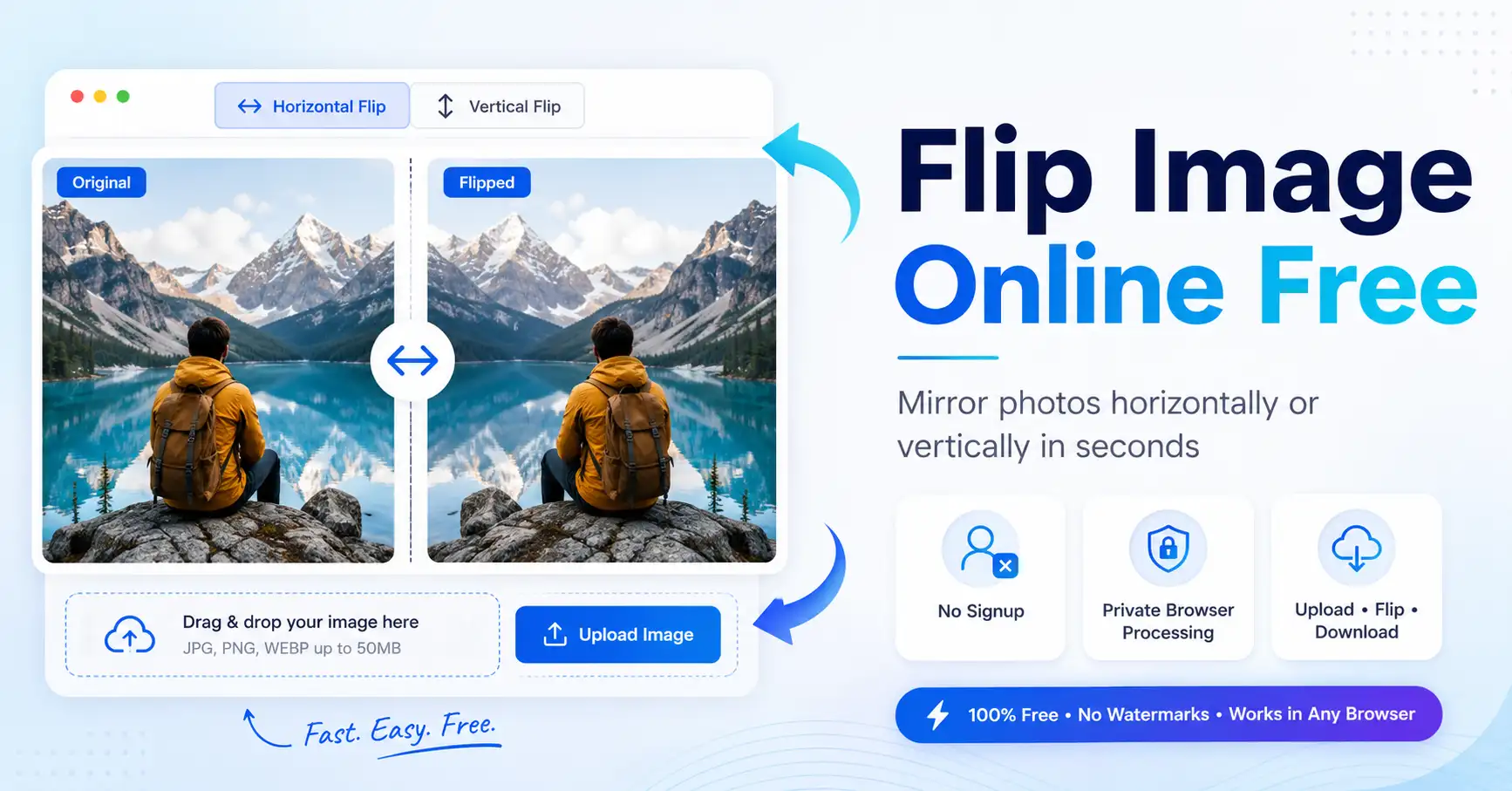
Flipping an image creates a mirrored copy of the original. A horizontal flip swaps the left and right sides. A vertical flip swaps the top and bottom. Flipping in both directions changes both sides at once. People often mix up flipping and rotating, but they are different actions. Rotation turns an image around a fixed point. For example, rotating a photo by 90 degrees moves its top edge to the side. A flip reflects the photo across an invisible line, much like a mirror. Web browsers and image tools commonly handle these actions through image transformations. For example, a horizontal reflection can reverse an item along its x-axis, while a vertical reflection reverses it along its y-axis. MDN confirms that browser transform features can scale, rotate, move, and reflect visual elements. You do not need to know the code behind the effect. GoDocLab handles that part for you.
Flip an Image Online in Four Simple Steps
You can use GoDocLab without installing an app or creating an account.
1. Open the Tilt & Flip Tool
Go to GoDocLab and open the Tilt & Flip image tool. The page gives you a clear upload area, so you do not need to search through several menus.2. Upload Your Image
Drag your file into the upload box or select it from your device.
The tool accepts these common formats:
- · JPG
- · JPEG
- · PNG
- · WEBP
- · BMP
- · GIF
The current file size limit is 100 MB. For most photos, screenshots, social media graphics, and product images, that limit gives you plenty of room.
3. Choose the Flip Direction
Select the direction that fits your goal. Use horizontal flip to swap left and right. Use vertical flip to swap top and bottom. Choose both options when the image needs a full reversal.Check the preview or result before downloading. This small step can save you from flipping the image twice and ending up exactly where you started. Yes, image editing can sometimes feel like walking into a room and forgetting why you went there.4. Process and Download
Click the processing button and download the finished image. GoDocLab lists its normal tool flow as upload, configure, process, and download. It also states that no sign-up is needed for direct use. Your flipped image should now be ready for your website, presentation, store listing, social post, school task, or personal project.Horizontal Flip vs Vertical Flip
Choosing the right direction matters because each option solves a different problem.
Horizontal Image Flip
A horizontal flip creates a left-to-right mirror effect.
Use it when:
- · A person faces away from your page content
- · A product points in the wrong direction
- · A selfie needs a mirror-style view
- · A design looks more balanced after reflection
- · You need matching images for a layout
- · An arrow or visual cue points the wrong way
Suppose you have a banner with text on the left and a person on the right. If the person also looks to the right, their gaze leads the reader away from the message. Flip the image, and the person now looks back at the text. That small visual change can make the layout feel more natural.
Vertical Image Flip
A vertical flip reflects the image from top to bottom.
Use it when:
- · A scanned photo appears upside down
- · You want a water reflection effect
- · A graphic needs a top-to-bottom mirror
- · An art project calls for visual symmetry
- · A camera or scanner saved the file incorrectly
Vertical flips appear less often in normal photo edits, but they work well for creative graphics and reflection effects.
Flip Images Online for Common Projects
An image-flipping tool sounds simple, but it can solve many real design problems.
Social Media Posts
A photo may leave empty space on the wrong side. Flipping it can move the subject away from a caption, logo, or call-to-action button. This fix often works better than cropping because you keep the full image. One warning: check all text, signs, labels, and logos inside the photo. A horizontal flip will reverse them too. Your coffee mug may suddenly display a brand name that looks like it came from another planet.
Product Photos
Online sellers often use several photos of the same item. Flipping one photo can help create a more balanced gallery or make the product face the centre of a page. Still, accuracy matters. Do not flip a product photo if the change could mislead buyers. For example, avoid reversing controls, ports, labels, zippers, buttons, or parts that sit on a specific side. A clean layout helps, but honest product details matter more.
Website Banners
Website designers often place a headline beside a person, object, or device. The direction of the subject can guide the viewer’s eyes. If the subject faces the headline, the whole banner may feel more connected. If the subject faces the edge of the screen, the design may feel less focused. A quick flip can fix the balance without a new photo shoot.
School and Office Work
Students and office workers may need to correct scanned diagrams, ID images, charts, or presentation graphics. Instead of opening a full editing program, they can make the change online and return to the main task. After all, nobody wants to spend half an hour fixing a two-second problem.
Creative Design
Designers can flip flowers, shapes, patterns, faces, and other objects to build symmetry. You can also duplicate an image, flip the copy, and place both versions beside each other. This method works well for posters, thumbnails, covers, and decorative graphics.
Why Use GoDocLab for Image Flip Online Tasks?
A useful online tool should save time and keep the process clear. GoDocLab offers more than 80 PDF and image tools across several categories. Its image section includes tools for flipping, rotating, resizing, cropping, compressing, converting, blurring, removing backgrounds, and adding watermarks. Here are a few practical reasons to use its Tilt & Flip tool.
No Software Installation
The tool works in a web browser, so you do not need to install a large editing app. GoDocLab states that its tools work across Windows, Mac, Linux, iOS, and Android. This helps when you use a shared computer, a work device, a phone, or a tablet.
No Account Required
You can use the tool without creating an account. That removes extra steps such as email confirmation, password setup, and account forms. Open the tool, add the file, make the change, and download the result.
Support for Common Image Formats
The Tilt & Flip tool supports JPG, JPEG, PNG, WEBP, BMP, and GIF files. This format support covers most images used on websites, social platforms, online stores, documents, and personal devices.
Clear Editing Process
The tool follows a simple order:
- 1. Upload
- 2. Configure
- 3. Process
- 4. Download
A clear process matters because users should not need editing skills to complete a basic task.
File Safety Information
GoDocLab states that uploads use HTTPS connections. The site also says it removes processed files from its servers automatically and does not sell or manually review uploaded documents. Even with these stated safeguards, avoid uploading highly private images to any online service unless you feel comfortable doing so. For very sensitive files, local offline editing may remain the safer choice.
Tips for Better Results
Flipping takes only a moment, but a few checks can help you avoid mistakes.
Check Text and Logos
A horizontal flip reverses every visible detail.
Look for:
- · Product labels
- · Street signs
- · Clothing text
- · Number plates
- · Watermarks
- · Logos
- · Dates
- · Clock faces
If readable text matters, flipping the complete photo may cause a problem.
Keep a Copy of the Original
Save the original file before editing. This gives you an easy backup if you choose the wrong direction, overwrite a file, or later need the unchanged photo.
Use a Suitable Format
JPG works well for standard photos. PNG often suits graphics, screenshots, and images with transparent areas. WEBP can provide smaller file sizes for web use. Choose a format based on the final use of the image, rather than changing formats without a clear reason.
Review Faces Carefully
People know their own faces very well. A flipped selfie can feel strange, even when nothing is technically wrong. Compare both versions and choose the one that looks right for your purpose. For formal records or identity documents, follow the rules of the organisation receiving the image.
Check the Final File
Open the downloaded image before closing the browser tab. Make sure the flip direction, format, image quality, and file name match what you need.
Can Flipping Reduce Image Quality?
Flipping by itself does not need to remove image detail. It changes the position of the pixels rather than cutting part of the photo away. Still, final quality can depend on the tool, output format, compression settings, and repeated editing. For the best result, start with the clearest original file you have. Avoid saving and editing the same compressed image many times, especially in JPG format. If the final image looks soft, check whether another edit resized or compressed it. The flip may not be the cause.
Is It Better to Flip or Rotate an Image?
Use a flip when you need a mirror effect. Use rotation when the entire image sits at the wrong angle.
For example:
- · A person facing the wrong side needs a horizontal flip.
- · An upside-down scanned page needs a 180-degree rotation in many cases.
- · A sideways phone photo needs a 90-degree rotation.
- · A water-style reflection needs a vertical flip.
GoDocLab lists separate tools for image rotation and image tilt or flip, which helps users choose the correct edit.
Frequently Asked Questions
Can I flip a JPG image online?
Yes. GoDocLab supports JPG and JPEG files, along with PNG, WEBP, BMP, and GIF. The listed maximum upload size is 100 MB.
Can I flip an image on my phone?
Yes. GoDocLab says its browser tools work on iOS and Android, as well as desktop operating systems.
Do I need to create an account?
No. The site allows direct tool use without sign-up. An account may offer extra saving features, but it is not required for the standard upload and download process.
Can I flip an image both horizontally and vertically?
Yes. The Tilt & Flip tool lets you choose horizontal, vertical, or both directions.
Will a horizontal flip reverse text?
Yes. It mirrors the full image, including letters, numbers, signs, and logos.
Is flipping the same as rotating?
No. Flipping reflects an image across an axis. Rotating turns it around a point.
Flip Your Image Without Making a Simple Task Hard
You should not need expensive editing software to mirror a photo. With GoDocLab, you can upload a supported file, choose a flip direction, process the image, and download the result from your browser. The tool works well for social posts, product photos, website graphics, presentations, scans, and personal images. Use the horizontal option to swap left and right. Use the vertical option to swap top and bottom. Check text and logos before saving, and keep the original file as a backup. Ready to fix the direction of your photo? Visit the GoDocLab Tilt & Flip tool and flip an image online in a few clicks.