
How to Extract Pages from PDF: A Simple Guide to Removing and Saving Specific PDF Pages
PDF files make sharing documents easy, but they can become difficult to manage when they contain too many pages. A long report, contract, book, or presentation may include pages you do not need. In those cases, you may want to save only a few pages and remove the rest. Learning how to extract pages from PDF files can save time, reduce file size, and make document sharing easier. You can use online tools, desktop software, or built-in PDF features to complete this task in a few steps. GoDocLab offers simple PDF tools that help users manage documents without complicated software. You can visit GoDocLab to explore PDF features that make document work easier. This guide explains different ways to extract PDF pages, common methods, safety tips, and answers to common questions.
What Does Extracting Pages from a PDF Mean?
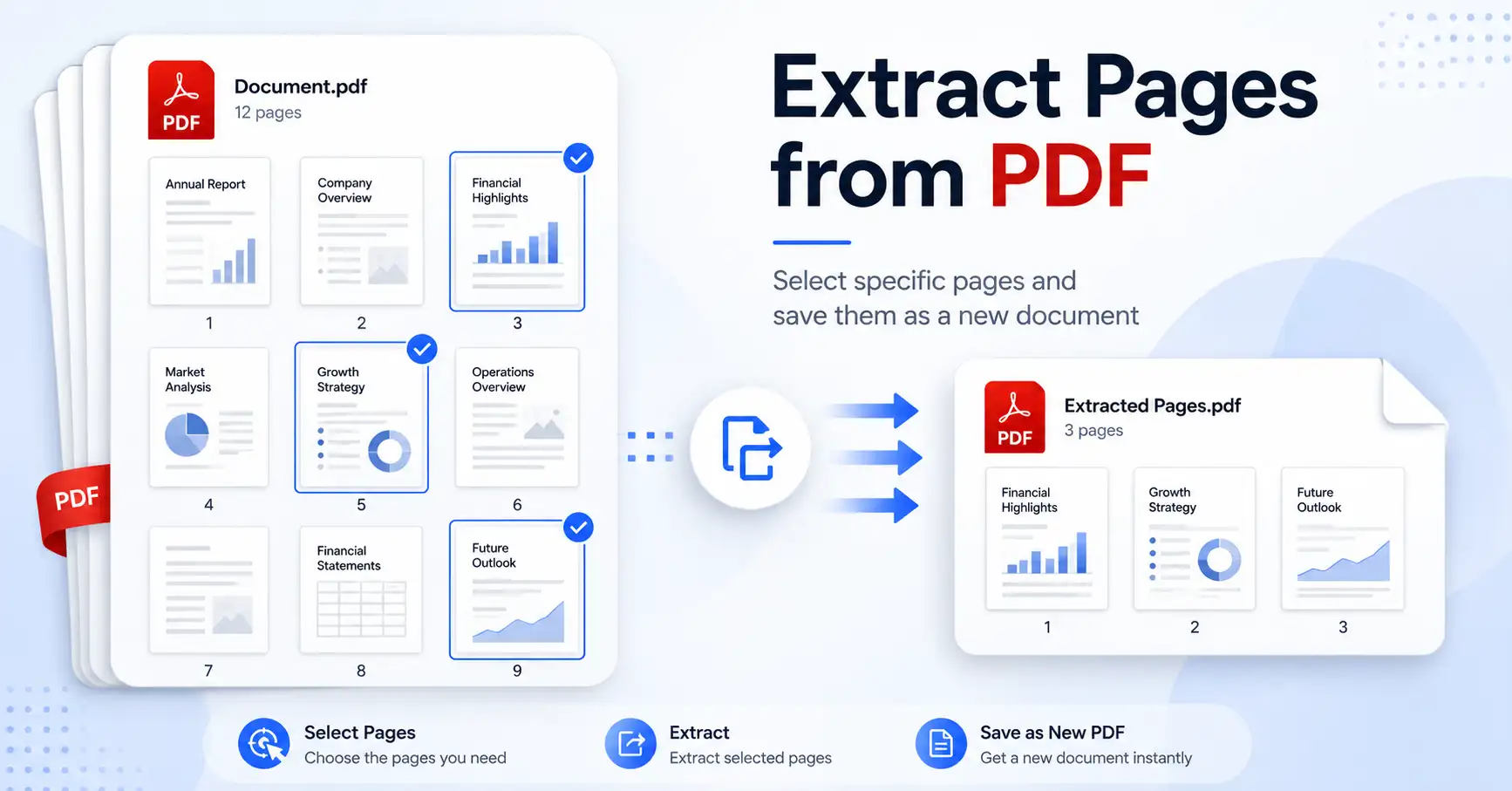
Extracting pages from a PDF means taking selected pages from a larger PDF file and creating a new PDF with only those pages. For example, you have a 100-page report, but you only need pages 5, 6, and 7. Instead of sending the full report, you can extract those pages and create a smaller file. This process does not change the original PDF. It creates a separate document with the pages you choose. People use this feature for many reasons:
Sharing only important sections of a document
Removing unnecessary pages before sending a file
Creating a short version of a long report
Saving storage space
Organizing digital documents
A simple page extraction tool can turn a large document into a cleaner file within minutes.
Extract Pages from PDF: Why Do People Need This Feature?
Many users deal with PDF files every day. Students collect research papers, businesses handle reports, and professionals often work with contracts and forms. A full PDF may contain extra information that the receiver does not need. Sending unnecessary pages can make files harder to read. For example, a student may need only one chapter from a textbook PDF. A business may need to share only the signature page of a contract. A customer may need a specific invoice page from a large statement. PDF extraction solves these problems by giving users control over their documents.
How to Extract a Page from PDF Files Online
Online PDF tools are one of the easiest ways to remove specific pages. They work through a web browser, so users do not need to install software.
The general process looks like this:
Open a PDF extraction tool.
Upload your PDF file.
Select the pages you want to keep.
Start the extraction process.
Download the new PDF file.
Tools like GoDocLab help users complete this task quickly with a simple interface. Online tools are useful for people who need a quick solution. They work well for small files and everyday document tasks.
How to Extract One Page from PDF
Many people ask, how to extract one page from PDF files when they need only a single section from a document.
The process is simple:
Upload the PDF file.
Select the page number you need.
Extract that page.
Save the new PDF.
For example, if you have a 50-page document and only need page 12, you can select page 12 and create a new file containing only that page. This method helps avoid sending extra information and keeps documents focused.
How Do I Extract Pages from a PDF Document?
If you are asking, how do I extract pages from a PDF document, the answer depends on the tool you use.
Most PDF tools follow a similar method:
Choose your PDF file.
Mark the pages you want.
Create a new PDF.
Save the file.
You can select one page or several pages. Some tools also allow you to select a page range, such as pages 10 to 20. The best option depends on your needs. For occasional tasks, an online tool may be enough. For frequent work, desktop PDF software may offer extra features.
Using Adobe Acrobat to Extract PDF Pages
Adobe Acrobat is one of the most well-known PDF programs. It includes tools for editing, organizing, and managing PDF files. With Adobe Acrobat official site, users can organize PDF documents and separate selected pages.
The basic process in Acrobat usually includes:
Open the PDF file.
Choose the page organization feature.
Select the pages you want to remove.
Save the extracted pages as a new PDF.
Many users search for adobe acrobat extract pages from pdf because Acrobat provides a built-in method for this task. However, Adobe Acrobat requires a paid plan for many advanced features. Users who only need basic extraction may prefer free online options.
Extract Pages from PDF Adobe: Is Adobe the Only Option?
No. Adobe Acrobat is one option, but it is not the only way to extract PDF pages. Many free PDF tools can help users separate pages without installing large programs. A free online PDF extractor can be useful for:
Quick document edits
Small PDF files
Occasional page extraction
Simple personal tasks
If you work with sensitive documents, check the privacy policy of any online service before uploading files.
A good PDF tool should explain how it handles uploaded documents and protect user information.
Extract Pages from PDF Free: Can You Do It Without Paying?
Yes, many users can extract pages from PDF free by using online PDF services. Free tools often provide basic functions such as:
Selecting pages
Creating a new PDF
Downloading the result
For normal document tasks, free options are often enough. However, free services may have limits on file size, daily usage, or advanced editing features. Users who work with PDFs often may need additional features from paid software.
Extract Individual Pages from PDF
Sometimes users need different pages saved as separate files. This process is called extracting individual pages from a PDF. For example, a 20-page PDF may need to become 20 separate PDF files. Each page becomes its own document.
This feature helps with:
Sending separate forms
Organizing invoices
Sharing individual certificates
Managing scanned documents
Some tools allow automatic separation, while others require users to select pages manually. The right choice depends on how many pages you need to process.
Extract a Page from PDF Document Without Losing Quality
A common concern is whether extracting pages affects document quality. A good PDF extraction tool keeps the original content unchanged. Text, images, formatting, and page layout should remain the same. The extraction process usually copies selected pages into a new PDF file instead of changing the original file.
To maintain quality:
Use trusted PDF tools.
Avoid converting PDFs into other formats unless needed.
Keep a copy of the original document.
This helps protect your files and prevents accidental changes.
How Do You Extract Pages from a PDF Quickly?
Many users ask, how do you extract pages from a PDF without wasting time. The answer is simple: use a tool that provides clear page selection.
A fast method is:
Open a PDF extraction website.
Upload the document.
Enter the page numbers.
Create the new file.
Download it.
The process takes only a few minutes for most normal PDF files.
A clean tool saves users from dealing with confusing menus or technical steps.
Common Mistakes While Extracting PDF Pages
Although PDF extraction is simple, users can make mistakes.
Selecting the Wrong Pages
Always check page numbers before creating the new file. A small mistake can remove an important section.
Forgetting to Save the Original File
Keep the original PDF until you confirm the new file works correctly.
Uploading Private Documents Without Checking Security
Before using any online service, review its privacy information. Avoid uploading sensitive files to unknown websites.
Ignoring File Names
Give your extracted PDF a clear name. This makes future searches much easier.
Benefits of Extracting PDF Pages
PDF extraction offers several practical benefits.
Easier Sharing: A smaller PDF is easier to send through email or messaging platforms.
Better Organization: You can separate important sections and store them properly.
Faster Reading: Readers can focus only on the pages they need.
Reduced File Size: Removing unwanted pages can make documents smaller and easier to manage.
Frequently Asked Questions
How to extract a page from a pdf?
Upload your PDF file to a PDF extraction tool, select the page you need, and save the new document.
How do you extract a page from a pdf document?
Open a PDF tool, choose the required page, and create a separate PDF file.
How to extract pages from a pdf document with multiple pages?
Select the page range or individual pages you need, then export them as a new PDF.
Can I extract pages from a PDF without Adobe Acrobat?
Yes. Many online PDF tools allow users to extract pages without Adobe Acrobat.
Does extracting pages delete the original PDF?
No. Most extraction tools create a new PDF and leave the original file unchanged.
Final Thoughts
PDF extraction is a simple skill that helps people manage documents better. Whether you need one page, several pages, or separate files, the process takes only a few steps. You can use desktop software like Adobe Acrobat or choose online tools such as GoDocLab for quick PDF tasks. The key is choosing a trusted tool, checking your selected pages, and keeping your original file safe. With the right method, managing large PDF files becomes much easier.