
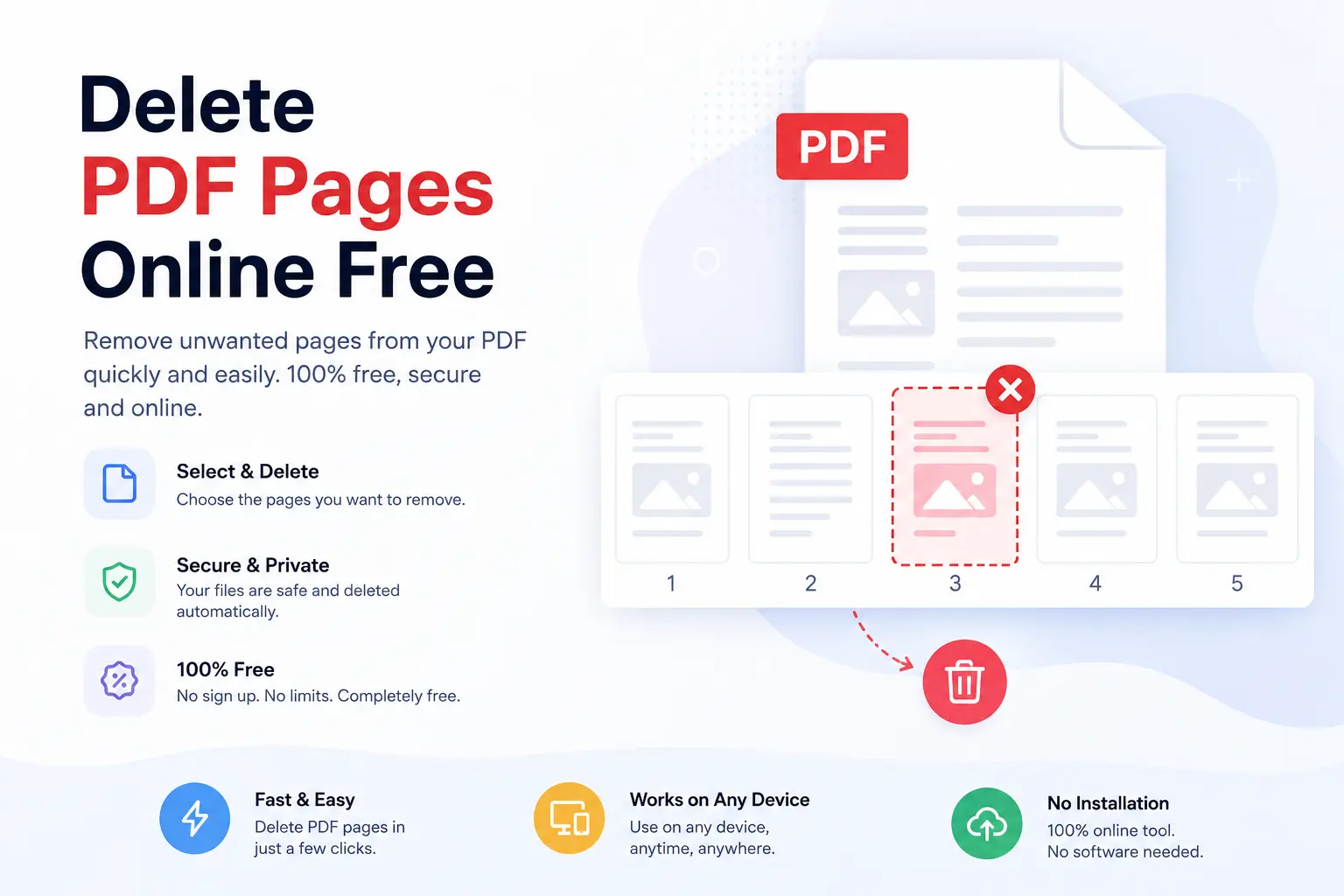
Delete PDF Pages: A Simple Guide to Remove Unwanted Pages From a PDF
PDF files make sharing documents easy, but they can become messy when they contain extra pages. Maybe your report has a blank page at the end, your presentation includes an old section, or you scanned a document with pages you do not need. The good news is that you can remove these pages in a few simple steps. This guide explains methods for deleting PDF pages on computers, phones, and online tools. You will learn how to remove single pages, multiple pages, blank pages, and unwanted sections from your PDF files.
Can You Delete Pages From a PDF?
Yes, you can remove pages from a PDF file. A PDF editor can help you select unwanted pages and remove them without changing the rest of the document. Many people ask, can i delete a page in a PDF?" or "Can you delete pages from a PDF document?" The answer is yes. You can remove one page or several pages depending on the tool you use. Removing pages is useful for:
- · Cleaning old reports
- · Removing empty pages
- · Reducing document length
- · Preparing files for sharing
- · Protecting a cleaner document layout
A PDF is often treated as a final document, but that does not mean it cannot be edited. With the right tool, you can make changes quickly.
How to Delete PDF Pages Online
Using an online PDF editor is one of the easiest ways to remove pages. This option works well if you do not want to install software. To delete pages from pdf online, follow these steps:- 1. Open a trusted PDF editing website.
- 2. Upload your PDF file.
- 3. Select the pages you want to remove.
- 4. Click the delete option.
- 5. Download the updated PDF.
Online tools are useful for quick tasks, such as removing one unwanted page before sending a document.However, avoid uploading private files to unknown websites. If your PDF contains personal, business, or financial information, use a trusted service or desktop software.
How to Delete a Page From PDF Using Adobe Acrobat
Adobe Acrobat is one of the most common tools for editing PDF files. It allows users to organize and remove pages from a document. Adobe explains that users can open a PDF, choose the Organize Pages option, select pages, remove them, and save the updated file. The process for adobe acrobat delete pdf pages is simple:
- 1. Open the PDF in Adobe Acrobat.
- 2. Select Organize Pages.
- 3. Click the page thumbnail you want to remove.
- 4. Select the delete icon.
- 5. Save the file.
You can also remove multiple pages by selecting more than one page before deleting them. This method works well for people who regularly edit documents and need more control over their files.
How to Delete Pages From PDF Free
Many users search for delete page from pdf free because they only need to remove a page once in a while. Free options include:
- · Free online PDF editors
- · Built-in computer tools
- · Free PDF software
Before using any free service, check its privacy rules. A free tool can be useful, but it should still protect your files. If you only need to remove a single page, a simple PDF editor is usually enough. You do not need expensive software for a small change.
How to Delete a Blank Page in PDF
Blank pages are one of the most common PDF problems. They often appear after scanning documents, exporting files, or combining multiple PDFs.
- To delete a blank page in pdf, you can:
- 1. Open the PDF editor.
- 2. View page thumbnails.
- 3. Find the empty page.
- 4. Select the page.
- 5. Remove it and save the document.
Many users search for how to delete a blank page from a PDF because a single empty page can make a professional document look unfinished. Before deleting a page, check that it is truly empty. Some pages may look blank but contain hidden information, images, or document settings.
How to Delete One Page From PDF
Removing only one page is a common task. For example, you may have a 20-page report but want to remove page 7. Searches like "how to delete one page from PDF" and "delete one page from PDF document" are common because users often need a quick fix. The steps are usually the same:
- · Open the PDF
- · Select the page
- · Choose delete
- · Save the new file
Removing a single page does not affect the remaining pages.
How to Delete Pages From PDF on Mac
Mac users have a built-in option called Preview that can help with basic PDF editing. To delete pages from PDF preview:
- 1. Open the PDF in Preview.
- 2. Turn on thumbnail view.
- 3. Select the page you want to remove.
- 4. Press the delete key.
- 5. Save the file.
Many people search for "delete pages from PDF Mac" because they want a quick solution without installing extra software. Preview works well for simple edits. For advanced PDF work, a dedicated PDF editor may offer more options.
How to Delete PDF Pages on Windows
Windows users can choose from many PDF editing programs. The steps may change slightly depending on the software. The usual process is:
- 1. Open the PDF file.
- 2. Select page thumbnails.
- 3. Choose the pages you want to remove.
- 4. Click delete.
- 5. Save the updated PDF.
If you work with PDFs often, using a proper editor can save time.
Can You Delete PDF Pages on a Phone?
Yes, you can remove PDF pages from mobile devices. Many apps allow users to edit documents directly from smartphones. People often search "delete PDF pages Android" and "delete PDF pages iPhone" because they need to edit files while away from a computer.
Mobile editing usually includes:
- · Uploading the PDF
- · Selecting pages
- · Removing unwanted pages
- · Saving the new file
For important documents, review the app permissions before uploading files.
Delete and Add Pages From PDF
Sometimes you do not just want to remove pages. You may also want to add new pages. The process to add and delete pages from pdf usually happens inside the same PDF editor.
You can:
- · Remove old pages
- · Insert new pages
- · Change page order
- · Combine multiple files
This is helpful when updating contracts, reports, guides, or school documents.
Common Questions About Deleting PDF Pages
How do I delete pages in a PDF?
Open your PDF in an editing tool, select the unwanted pages, remove them, and save the updated document.
Can you delete a page on a PDF?
Yes. A PDF editor can remove one page or multiple pages.
How do you delete a page from a PDF file?
Open the file, select the page thumbnail, click delete, and save the changes.
Can you delete pages on PDF for free?
Yes. Many free online tools and software options allow basic page removal.
How to delete a page in PDF Adobe?
Open the file in Adobe Acrobat, use Organize Pages, select the page, remove it, and save the PDF.
Tips Before You Remove PDF Pages
Before you delete pages, keep these tips in mind:
Save a Copy First
Create a backup before editing. This helps if you remove the wrong page by mistake.
Check the Page Number
Large PDF files can have many pages. Always confirm the page before deleting it.
Protect Private Files
Avoid uploading sensitive documents to random websites.
Review the Final File
Open the saved PDF and check that everything looks correct. A quick review can prevent small mistakes from reaching your customers, team members, or clients.
Why Removing Extra PDF Pages Helps
A clean PDF looks more professional. Extra pages can confuse readers and make important information harder to find. Removing unnecessary pages helps create a shorter, clearer document. Whether you are preparing a business file, school project, or personal document, page editing can make the final PDF easier to use.
Use GoDocLab to Manage Your PDF Tasks Easily
If you need a simple way to work with PDF files, tools like GoDocLab can help you handle common document tasks. Visit GoDocLab to explore PDF solutions. A good PDF tool should make everyday tasks simple. Removing pages should take seconds, not become a frustrating project.
Final Thoughts
Learning how to delete pdf pages is a useful skill for anyone who works with digital documents. Whether you use Adobe Acrobat, Preview on Mac, a mobile app, or an online PDF editor, removing unwanted pages is easy. The best method depends on your needs. For a quick change, a free online tool may work well. For regular document editing, a dedicated PDF editor can give you more control. Clean PDFs save time, look better, and make sharing documents easier.