
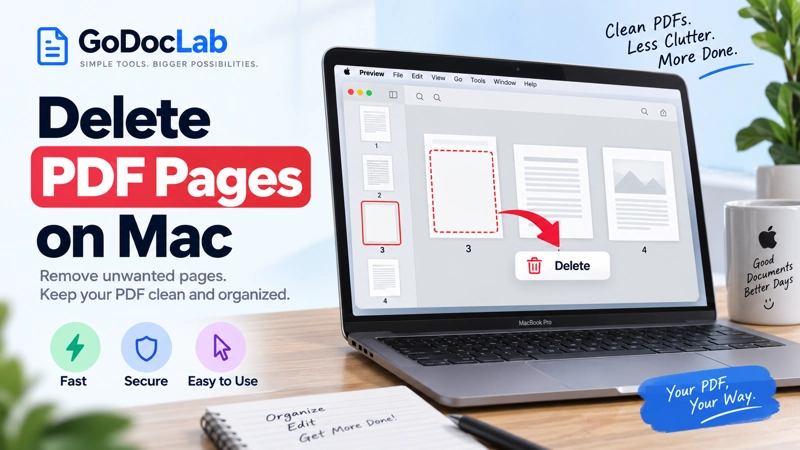
- Using Preview: Open your PDF, select View > Thumbnails, click the unwanted page, and press Delete.
- Deleting multiple pages: Hold Command (⌘) while selecting different thumbnails, then press Delete.
- Using an online tool: Open GoDocLab Delete Pages, upload your PDF, configure the deletion, process the file, and download the result.
- Keeping your original: Choose File > Duplicate in Preview before making changes.
- Handling sensitive files: Prefer an offline method when your document should not be uploaded to an external service.
Need to remove a blank page, an outdated section, or several unnecessary pages from a PDF on your Mac? You can do it without installing additional software. The easiest way to delete PDF pages on Mac is to use Apple's built-in Preview app. Open the PDF, choose View > Thumbnails, select the pages you want to remove, and press Delete.
Save the edited document when you're finished. If you prefer working in a web browser, the GoDocLab Delete Pages tool provides another option. This guide explains both methods, how to delete multiple pages, and what to check before sharing the finished document.
How to Delete PDF Pages on Mac Using Preview
Preview is Apple's built-in application for opening and working with PDFs and images. It lets you delete, move, and rearrange PDF pages without using a separate PDF editor. For most Mac users, this is the simplest place to start.
Step 1: Open Your PDF in Preview
Locate the PDF in Finder. Double-click the document if Preview is your default PDF application. Otherwise, right-click the file and choose Open With > Preview. Once the PDF opens, confirm that it contains the document you intend to edit. Before deleting anything: Select File > Duplicate to create a working copy. Give it a recognizable name, such as report-edited.pdf. Preview can save document changes automatically, so working on a duplicate helps protect your original.
Step 2: Show the Page Thumbnails
With the PDF open, select:
View > Thumbnails
A sidebar will appear, showing miniature previews of the document's pages. Each thumbnail represents a page in the PDF. Clicking a thumbnail displays its contents in the main viewing area. If you prefer viewing more pages together, Preview also offers View > Contact Sheet.
Step 3: Select the Page You Want to Delete
Find the unwanted page in the thumbnail sidebar and click it once. For example, imagine you have a 12-page assignment with an unnecessary blank page between pages 6 and 7. Select that blank page's thumbnail. Check the page in the main viewing area before deleting it. This is especially useful when the PDF contains several similar-looking pages.
Step 4: Press Delete
With the correct thumbnail selected, press the Delete key on your keyboard. Alternatively, select Edit > Delete from the menu. Preview removes the selected page from the document. Remember that deleting a page also removes annotations attached to that page, including highlights and comments.
Step 5: Save Your Edited PDF
After removing the unwanted page, choose:
File > Save
You can also press Command (⌘) + S. If you're editing a duplicate, the original PDF remains available separately. Reopen the edited document and confirm that the unwanted page is gone and the remaining pages appear in the correct order.
How to Delete Multiple PDF Pages at Once
You don't have to delete PDF pages one at a time. Preview supports selecting several page thumbnails before removing them.
Delete Pages That Are Not Next to Each Other
Suppose your PDF has 20 pages, and you want to remove pages 3, 8, and 15.
- Open the PDF in Preview.
- Select View > Thumbnails.
- Click the thumbnail for page 3.
- Hold the Command (⌘) key.
- While holding Command, click the thumbnails for pages 8 and 15.
- Release Command and confirm your selection.
- Press Delete.
All selected pages will be removed together.
This method is particularly helpful for deleting scattered blank pages, duplicate pages, or outdated sections.
Delete a Continuous Range of Pages
If the unwanted pages appear together, such as pages 5 through 10, use a range selection.
- Click the thumbnail for page 5.
- Hold Shift.
- Click the thumbnail for page 10.
- Confirm that the intended range is selected.
- Press Delete.
Important: Page positions change after deletion. If you have several separate groups to remove, select them before deleting whenever possible, rather than relying on page numbers that may shift. For more information about supported page editing operations, see Apple's official Preview instructions.
How to Delete PDF Pages Online With GoDocLab
If you'd rather work in your browser, you can use GoDocLab's Delete PDF Pages tool.
The tool is designed to remove unwanted pages from PDF documents. Its published workflow includes uploading a PDF, configuring the operation, processing the document, and downloading the resulting file. The tool page currently lists PDF input support and a maximum file size of 100 MB.
Step 1: Open the GoDocLab Tool
Visit:
GoDocLab — Delete PDF Pages You'll find a file selection area where you can choose a PDF from your Mac or drag and drop it onto the page.
Step 2: Upload Your PDF
Select your PDF file from Finder. Use the correct document, particularly if you have several versions with similar names. For important files, keep a separate copy before beginning.
Step 3: Configure the Pages to Remove
Once the document is uploaded, proceed to the tool's configuration stage. Specify the unwanted pages using the options displayed in the tool. Review your choices carefully before processing, especially if you're removing several pages.
Step 4: Process the Document
When your selection is ready, use the Process Delete Pages action. The tool processes the requested operation and prepares the resulting PDF.
Step 5: Download and Review
Download the finished PDF. GoDocLab identifies the resulting download as output.pdf. Consider renaming it to something more descriptive, such as contract-revised.pdf or notes-cleaned.pdf. Open the downloaded file in Preview and confirm that the unwanted pages have been removed. GoDocLab's published tool page describes free use without a required account for downloading. Account sign-in is offered separately for saving converted files to an account.
Which Method Should You Choose?
Both Preview and a browser-based PDF tool can help remove unwanted pages. The better choice depends on your workflow.
|
Consideration |
Apple Preview |
GoDocLab |
|
Installation |
Built into macOS |
Browser-based tool |
|
Internet connection |
Not required for local PDFs |
Required to access and use the online service |
|
Page selection |
Thumbnail-based selection |
Tool configuration stage |
|
Multiple-page removal |
Supported |
Confirm the available selection options in the tool |
|
File size |
No fixed limit stated in the referenced Apple guidance |
Published maximum of 100 MB |
|
Document privacy |
Local editing option |
Online processing under GoDocLab's published privacy policy |
|
Best suited to |
Quick edits and sensitive local documents |
Browser-based document workflows |
Choose Preview if you're already using a Mac and want to delete pages without transferring the document to an online service.
Choose GoDocLab if you prefer a browser-based workflow or regularly work with online PDF utilities.
There's no need to install a separate application just to remove a blank page or an unwanted section.
How to Check Your Edited PDF
Deleting pages is straightforward, but checking the result matters—particularly when the document will be submitted, printed, or shared.
Confirm the Correct Pages Were Removed
Open the edited PDF and inspect the thumbnail sidebar. For example, suppose a 15-page document contained two unnecessary pages. If both were removed successfully, the edited document should contain 13 pages. However, page count alone isn't enough. Confirm that the correct content remains.
Check the Reading Order
After deleting pages, review the transitions between the remaining sections.
Make sure that:
- Important text doesn't refer to a missing page.
- Chapters or sections appear in the intended sequence.
- Page numbering still makes sense.
- The document's introduction, supporting material, and conclusion remain complete.
For example, removing a blank page may be harmless, but removing a numbered page from the middle of a report can leave gaps in visible page numbers.
Check Forms, Links, and Annotations
Pay closer attention to PDFs containing:
- Fillable fields
- Digital signatures
- Internal navigation links
- Bookmarks
- Comments or highlights
Deleting pages changes the document's structure and may affect features that refer to removed content. For documents that rely on signatures, formal approval, or archival integrity, preserve the original and verify that the edited version remains suitable for its intended use. If you only need to change the order of pages, use GoDocLab's Reorder PDF Pages tool rather than deleting content.
Common Problems and Solutions
The Delete Key Isn't Removing the Page
If pressing Delete doesn't work, make sure the page thumbnail is selected rather than text within the document.
Try these steps:
- Select View > Thumbnails.
- Click the unwanted page's thumbnail.
- Choose Edit > Delete from the menu.
If the option is unavailable, check whether the document is locked or has editing restrictions.
The PDF Is Locked or Password-Protected
Some PDFs require a password to open or restrict editing permissions. If you own the document or have authorization to edit it, use the appropriate password or obtain an editable copy from the document owner. A password for opening a PDF isn't necessarily the same as permission to modify it. You can learn more in Apple's guide to PDF password protection and permissions.
You Accidentally Deleted the Wrong Page
If the deletion just happened, try Edit > Undo or press Command (⌘) + Z. If you've already saved and closed the document, check whether you retained the original copy or have a suitable backup or earlier version. The safest habit is to duplicate important PDFs before making structural changes.
Preview Shows Only One Page at a Time
The thumbnail sidebar may be hidden. Choose View > Thumbnails to display the page list again. You can also select View > Contact Sheet for a broader overview of the document.
You Need to Keep Only a Few Pages
Sometimes deleting unwanted pages isn't the most convenient approach. For instance, if you need only pages 4–6 from a 100-page report, extracting those three pages may be easier than removing the other 97. In that situation, consider GoDocLab's Extract PDF Pages tool. If you need to divide a document into separate files by page ranges, the Split PDF tool is another relevant option.
The Edited PDF Has Unexpected Formatting or Navigation Issues
Check the original document against the edited copy. Look for missing text, broken references, altered bookmarks, or unexpected page order. For a complex PDF with interactive content, consider using a PDF editor designed for advanced document management rather than relying on basic page removal alone.
Privacy and Document Safety
PDFs often contain personal or business information, including financial records, identification details, and confidential agreements. Before using any online PDF service, consider whether the file is appropriate to upload. GoDocLab's published Privacy Policy states that uploaded files are transmitted over HTTPS, processed on its servers, and automatically removed after processing. It also notes that some account features may retain links to converted files or conversion history.
These are the service's published practices, not a guarantee that every document workflow has been independently audited. For sensitive or regulated documents, check your organization's document-handling requirements before uploading files to a third-party website. When you only need to remove pages from a locally stored PDF, Preview offers an offline approach. One more distinction: Removing a page is not the same as securely redacting confidential information within a page. If your goal is to hide sensitive text while keeping the page, use a suitable redaction workflow instead.
Final Thoughts
For most Mac users, Preview is the most convenient way to delete unwanted PDF pages. It provides clear page thumbnails, supports multiple-page selection, and works with locally stored documents. If you'd prefer to edit a PDF through your browser, try GoDocLab's Delete Pages tool. Whichever method you choose, keep a copy of your original document, remove only the intended pages, and inspect the finished PDF before sharing it.
FAQs
Frequently asked questions
Yes. Apple's built-in Preview app lets you delete PDF pages without installing Adobe Acrobat. Open the PDF, show the thumbnails, select the unwanted pages, and press Delete.