
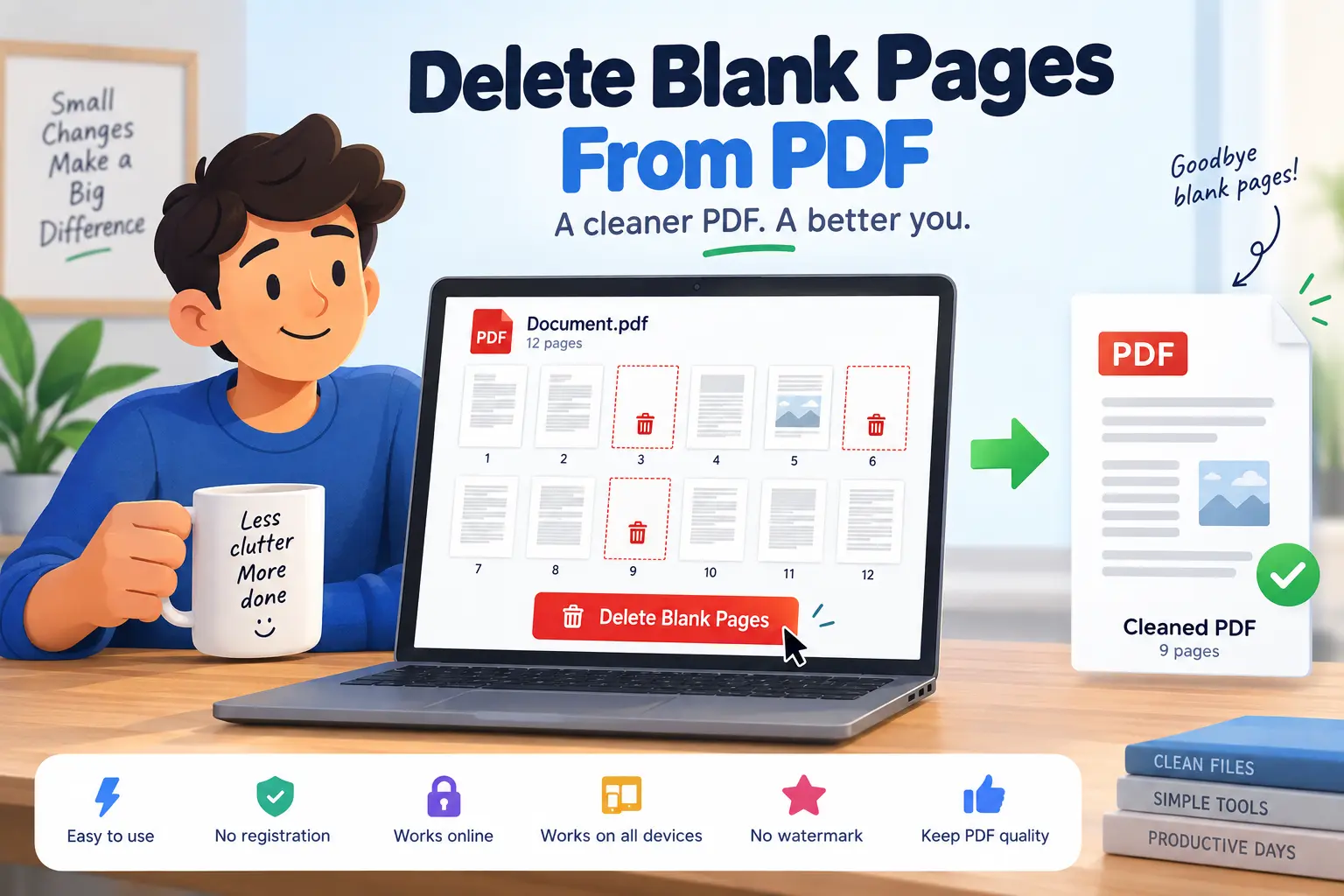
Quick online method: Open the GoDocLab Delete Pages tool, upload your PDF, select the unwanted pages using the available controls, click Process Delete Pages, and download the result. Free option: GoDocLab advertises free browser-based PDF page removal without mandatory signup. Mac: Open the PDF in Preview, display page thumbnails, select unwanted pages, and press Delete. Scanned PDFs: Check blank-looking pages carefully because they may contain faint writing, signatures, or scan marks. Important: Removing pages is different from automatically detecting blank pages. Confirm the capabilities of the tool you're using.
Bottom line: Make a copy of the PDF, identify the pages that are truly unnecessary, delete them, and check the final document before sharing it.
Blank pages have an annoying habit of turning up in otherwise finished PDF documents.
Perhaps your scanner captured the empty backs of several sheets. Maybe a report exported with an extra page break, or a merged PDF contains unwanted gaps between sections.
Whatever the cause, those empty pages can make a document harder to review, less professional to share, and more wasteful to print.
Fortunately, you can remove blank pages from PDF files without starting over. This guide explains the quickest online method, built-in and desktop alternatives, and the precautions that matter when you're cleaning up scanned or important documents.
How to Delete Blank Pages From PDF Online Free
If you know which pages are blank, a page-removal tool is usually the simplest approach.
GoDocLab provides a browser-based Delete Pages tool for removing unwanted pages from PDF documents.
Its published page lists PDF input, a maximum upload size of 100 MB, and a workflow for uploading, configuring, processing, and downloading the edited PDF.
Step 1: Save a Copy of the Original PDF
Before making changes, duplicate the file.
For example, if your document is named project-report.pdf, create a working copy named project-report-cleanup.pdf.
Keeping the original is especially important for business records, signed files, scanned documents, and PDFs containing form fields.
If you delete the wrong page, you'll have a reliable copy to return to.
Step 2: Open the GoDocLab Delete Pages Tool
Visit GoDocLab Delete Pages.
The page includes an upload area labeled Select PDF to delete pages from.
You can select a PDF from your device or use the drag-and-drop area.
Step 3: Upload Your PDF
Choose the document you want to clean.
Make sure it is the working copy rather than your only original.
GoDocLab currently lists a 100 MB upload maximum for this tool.
After selecting the file, review the available page-removal options.
Step 4: Identify the Blank Pages
Look through the document and write down the page numbers that appear empty.
Use page thumbnails or a PDF viewer to examine suspicious pages.
Before deleting a page, zoom in and check for small text, faint handwriting, page numbers, annotations, signatures, or stamps.
For example, a page may look completely empty at thumbnail size but contain a small approval signature near the bottom.
Don't delete a page simply because it looks white from a distance.
Step 5: Select the Pages to Remove
Use the page-selection controls provided by the tool.
If the interface lets you enter page numbers, select the confirmed blank pages.
If it displays thumbnails, choose the pages you want removed.
Be careful when removing multiple pages because page numbers can shift after deletion.
For instance, if a 12-page PDF contains blank pages at positions 4 and 9, identify both positions in the original document before editing.
Step 6: Process the PDF
After reviewing your selection, click Process Delete Pages.
Wait for the service to create the updated file.
Avoid assuming that the software has automatically detected every blank page; the GoDocLab page documents page removal, not a confirmed automatic blank-page detector.
Step 7: Download the Cleaned PDF
Download the generated document.
GoDocLab identifies the output filename as output.pdf.
Rename it to something meaningful, such as project-report-clean.pdf.
Step 8: Check the Final Document
Open the new PDF and inspect its page count and page order.
Confirm that all important content remains.
Check the pages immediately before and after each deletion to ensure that the document still reads correctly.
Also review internal references and printed page numbers, which may not update automatically.
Why Do Blank Pages Appear in PDF Files?
Understanding the cause can help you prevent the problem from returning.
Double-Sided Scanning
Duplex scanners capture both sides of each sheet.
If the back of a printed page is empty, the scanner may still include that side as a page in the PDF.
For example, scanning ten single-sided sheets using duplex mode could produce additional empty-looking pages.
Some scanner software offers blank-page skipping, but the available settings and detection accuracy vary.
Extra Page Breaks
Word processors and document-design applications may create extra blank pages when a document contains manual page breaks, section breaks, or certain layout settings.
The problem can become visible only after exporting to PDF.
Merging Several PDFs
Combining multiple files can introduce empty divider pages, accidental duplicates, or blank pages already present in the source files.
These pages may not be obvious until you inspect the merged document.
Printing or Exporting Problems
Print-to-PDF workflows sometimes produce an unexpected final page because content extends beyond the printable area or page-break rules are applied incorrectly.
When this happens repeatedly, fixing the source document is usually better than deleting the same blank page after every export.
How to Find Blank Pages in a PDF Before Deleting Them
A reliable cleanup begins with identifying the correct pages.
For short documents, you can review each page individually.
For longer PDFs, thumbnails make the job easier because they provide an overview of the document.
Use Page Thumbnails
Open the PDF in a viewer that supports a thumbnail sidebar or page overview.
Scan the thumbnails for white or nearly empty pages.
Note their positions.
Zoom In on Suspicious Pages
An empty-looking thumbnail is not sufficient proof that a page is blank.
Enlarge the page and inspect the top, center, and bottom.
Look especially for faint pencil marks, light-colored text, small page numbers, and signatures.
Check the Document's Purpose
Sometimes a blank page is intentional.
It may separate sections, preserve double-sided printing alignment, or provide room for handwritten notes.
For booklets, manuals, and print-ready documents, deleting these pages can disturb the intended page layout.
Record the Original Page Numbers
Write down the page numbers you plan to remove.
This is especially useful when deleting several pages or working with a lengthy scanned document.
Use the PDF viewer's actual page positions rather than relying only on page numbers printed inside the document.
How to Remove Blank Pages From a Scanned PDF
Scanned PDFs require additional care because each page may be stored as an image.
Even a blank sheet can contain scan noise, shadows, dust marks, or faint writing.
A software tool that searches for empty text may not recognize those pages as blank.
Step 1: Review the Scanned Pages
Open the PDF and examine the suspected blank sheets.
If the scan contains faint information, determine whether that content is important before removing it.
Step 2: Understand Automatic Blank-Page Detection
Some scanning applications and specialized PDF processors can attempt to identify blank pages automatically.
They may analyze image content, contrast, or other characteristics to decide which pages are empty.
However, a page with shadows or faint handwriting can be difficult to classify correctly.
An aggressive detection setting may remove useful content, while a cautious setting may leave unwanted pages behind.
For important records, review the pages that automatic software proposes deleting.
Step 3: Delete Confirmed Blank Pages
Once you've identified the truly unwanted pages, remove them with a PDF page editor.
You can use an online tool or a suitable desktop application.
Step 4: Apply OCR Separately if Needed
After cleaning the document, you may want the scanned text to become searchable.
GoDocLab offers an OCR PDF tool for making scanned PDFs searchable.
OCR and blank-page removal are different tasks.
OCR recognizes text in scanned images; page deletion removes entire pages.
You may need both operations, but one does not replace the other.
How to Delete Blank Pages in PDF on Mac
Mac users can remove unwanted PDF pages using Apple's built-in Preview application.
You don't need a separate PDF editor for this basic task.
Step 1: Open the PDF in Preview
Find the document in Finder and open it using Preview.
Create a duplicate first if you want to preserve the original.
Step 2: Display Page Thumbnails
Choose View > Thumbnails.
The thumbnail sidebar displays the pages in the document.
Step 3: Select the Blank Pages
Click the thumbnail of a page you want to delete.
To select several pages, use the normal multiple-selection controls.
Check your selection carefully before continuing.
Step 4: Delete the Pages
Press the Delete key or choose Edit > Delete.
Preview removes the selected pages.
Apple notes that deleting a PDF page also removes any annotations associated with that page.
Step 5: Save and Review
Save the edited PDF.
Open the result and confirm that the remaining content is complete and in the correct order.
How to Delete Blank Pages From PDF on Mobile
You can remove PDF pages using a compatible browser-based tool on Android or iPhone.
GoDocLab advertises that its page-removal service works on phone and desktop browsers.
On Android
Open your browser and visit a PDF page-removal tool.
Choose the PDF from your files, review the available controls, select the unwanted pages, and download the updated document.
Check your device's Downloads folder or the location selected by your browser.
On iPhone or iPad
Open a compatible page-removal website in Safari or another supported browser.
Select the PDF through the file picker, choose the pages to remove, process the file, and save the output in Files or another suitable location.
Tips for Small Screens
Selecting page thumbnails can be harder on a phone.
Zoom in before deciding that a page is blank.
For lengthy or legally important documents, a larger desktop display may make review more reliable.
Can You Delete Multiple Blank Pages at Once?
Yes, many PDF editors allow multiple pages to be removed in one operation.
Adobe Acrobat supports choosing individual page numbers or ranges.
For example, you may be able to select pages 3, 8, and 12, or remove a continuous range such as pages 15–19.
The exact method depends on the software.
If a tool supports multiple selection, identify all the unwanted page numbers before confirming the operation.
Check the original numbering first. Removing one page changes the positions of pages that follow it.
For large PDFs, a manual page-removal workflow may be safer than an automatic detector when important content is faint or difficult to distinguish.
Delete Pages, Extract Pages, or Organize PDF: Which Tool Do You Need?
Page deletion is only one type of PDF cleanup.
Choosing the right operation can make the work faster and reduce unnecessary editing.
Task | Best operation | What happens |
Remove a few blank pages | Delete pages | Removes those pages |
Keep only certain pages | Extract pages | Creates a PDF containing selected pages |
Rearrange pages | Reorder pages | Changes the page sequence |
Divide a large PDF | Split PDF | Creates separate documents |
Reduce file size | Compress PDF | Attempts to reduce storage size |
Make scans searchable | OCR PDF | Recognizes text in scanned images |
For example, suppose you have a 50-page PDF but only need pages 10–15.
Extracting those pages may be simpler than manually deleting the other 44 pages.
If you want to remove pages and correct the remaining order, a page-organization tool may be more convenient.
GoDocLab provides separate Split PDF, Reorder Pages, and Compress PDF tools for related workflows.
Does Deleting Blank PDF Pages Reduce File Quality?
Removing entire PDF pages does not inherently require resizing or recompressing the images and text on the pages you keep.
In a straightforward page-deletion workflow, the goal is to remove selected pages while leaving the remaining content visually unchanged.
However, software may rewrite or restructure parts of a PDF when saving.
That means it's still sensible to inspect the output.
Check Text and Images
Open several remaining pages at a readable zoom level.
Make sure images and text look the same as before.
Check Links and Bookmarks
If your PDF includes bookmarks or internal links, review them.
Page deletion may affect references to removed pages.
Check Page Numbers
Printed page numbers and references inside the document may not update automatically.
For example, a report could still contain a sentence referring to page 18 even though page 18 has moved or been deleted.
Check Digital Signatures
A certificate-based digital signature protects specified PDF content.
Deleting pages from a digitally signed document can invalidate the signature or trigger a validation warning.
For signed agreements or compliance records, preserve the original signed file and follow your organization's approved workflow.
Why Is There Still a Blank Page After Deleting Pages?
Sometimes a cleaned PDF still contains an empty-looking page.
There are several possible reasons.
You Deleted the Wrong Page Number
The PDF viewer's page positions may differ from the printed page numbers inside the document.
For example, a report may have a cover page and a table of contents before page 1 begins.
Always identify the actual page position.
The Page Contains Hidden or Faint Content
A nearly empty page may contain annotations, light-colored text, or other content that isn't obvious in a thumbnail.
Inspect it at a higher zoom level.
The Page Was Reintroduced
If you're repeatedly converting or merging source documents, the blank page may return during a later export.
Correct the source or export settings to prevent this.
You Opened the Old File
Check the output filename and download location.
You may be viewing the original rather than the cleaned document.
Common PDF Cleanup Problems and Solutions
Problem Possible cause Recommended solution Wrong page removed Incorrect page number Restore from the original and retry Blank page still appears Missed page or wrong output opened Recheck the actual page positions Important content disappeared Faint content mistaken for blank Compare with the original Page order changed Deletion shifted later pages Review sequence and reorder if necessary PDF can't be edited Password or permission restrictions Obtain an authorized editable version Upload fails File too large or incompatible Check supported input and limits Bookmarks lead to wrong places Deleted target pages Review and repair navigation Printed numbering is incorrect Static page-number text Update the source document if needed Signature warning appears Signed content was modified Preserve and verify the original signed PDF File remains large Blank pages were small contributors Consider compression if appropriate
How to Prevent Blank Pages in Future PDFs
Deleting unwanted pages solves the immediate problem. Preventing them can save time on future documents.
Check Scanner Settings
If your scanner regularly captures empty backs of pages, look for duplex and blank-page-skip settings.
Review the results carefully when using automatic detection.
Review Page Breaks Before Export
In Word and similar applications, look for unnecessary manual page breaks or empty sections.
Correct them before creating the PDF.
Inspect Source PDFs Before Merging
Open each source file and verify its page count.
Removing accidental blank pages before merging can make the final document easier to manage.
Use Print Preview
Before exporting a webpage or office document to PDF, examine the print preview.
Unexpected extra sheets are often easier to identify there.
Is It Safe to Remove Blank Pages From PDF Online?
PDF files may contain personal information, contracts, financial records, employee details, or confidential business information.
Online page-removal tools may upload files to remote servers for processing.
GoDocLab states that its service uses HTTPS transfers and removes files after processing.
These are the provider's published practices rather than independently verified security guarantees.
Before uploading sensitive files, review the relevant privacy policy and any organizational requirements.
If a document must remain on your computer, use an approved local PDF editing application.
For important records, preserve the untouched original and verify the edited file before sharing it.
Frequently Asked Questions
How do I delete blank pages from PDF online for free?
Open a PDF page-removal tool such as GoDocLab, upload your document, identify the blank pages, select them for deletion, and download the result. Review the finished PDF before sharing it.
Can I remove empty pages from a scanned PDF?
Yes. You can manually identify and remove the unwanted pages. Be careful because scanned pages may contain faint writing, shadows, or other content that makes automatic blank-page detection difficult.
Can I delete blank pages in PDF without installing software?
Yes. Browser-based PDF page editors allow you to remove selected pages without installing a separate desktop application.
Does GoDocLab automatically detect blank PDF pages?
The published GoDocLab Delete Pages workflow documents selecting and removing unwanted pages. Automatic blank-page detection has not been established by its public tool instructions.
How do I delete blank pages from PDF on Windows?
Use a browser-based PDF page remover or a compatible desktop editor such as Adobe Acrobat. Select the unwanted pages, delete them, and save a new copy.
How do I delete blank pages from PDF on Mac?
Open the PDF in Preview, choose View > Thumbnails, select the unwanted pages, and press Delete.
Can I delete several blank pages at once?
Yes, many PDF editors support multiple page selections or page ranges. Check your tool's available selection controls before processing.
Why does my PDF have extra blank pages?
Common causes include double-sided scanning, unnecessary page breaks, export layout issues, and combining PDFs that already contain empty pages.
Will removing blank pages make my PDF smaller?
It may reduce the file size, especially if the deleted pages contain scanned images. The amount of reduction depends on the content and how the PDF is stored.
Will deleting pages reduce the quality of the remaining PDF?
Removing complete pages does not inherently require reducing the quality of pages you keep. However, review the output because PDF editors may process files differently.
Can I delete pages from a password-protected PDF?
Editing restrictions may prevent page removal. Use the correct password or obtain permission from the document owner rather than trying to bypass restrictions.
Can I remove every page from a PDF?
A practical PDF document needs at least one page in many editing workflows. Adobe Acrobat explicitly requires one page to remain when deleting pages.
Final Thoughts: Keep Your PDF Clean Without Losing Important Content
You don't need to recreate an entire document just because a scanner, export, or merge added a few empty sheets. To delete blank pages from PDF files safely, make a copy, find the unwanted pages, remove them, and inspect the result. GoDocLab provides an online page-removal workflow, while Adobe Acrobat and Apple Preview offer established alternatives. If your PDF contains scanned pages, take extra care before deleting anything that only appears blank. Ready to clean up your document? Open the GoDocLab Delete Pages tool, upload your PDF, select the pages to remove, and download a cleaner copy for review.
FAQs
Frequently asked questions
Upload your PDF to a page removal tool, find the blank pages, select them, and delete them. After that, download the cleaned PDF and check that all useful pages are still there.