
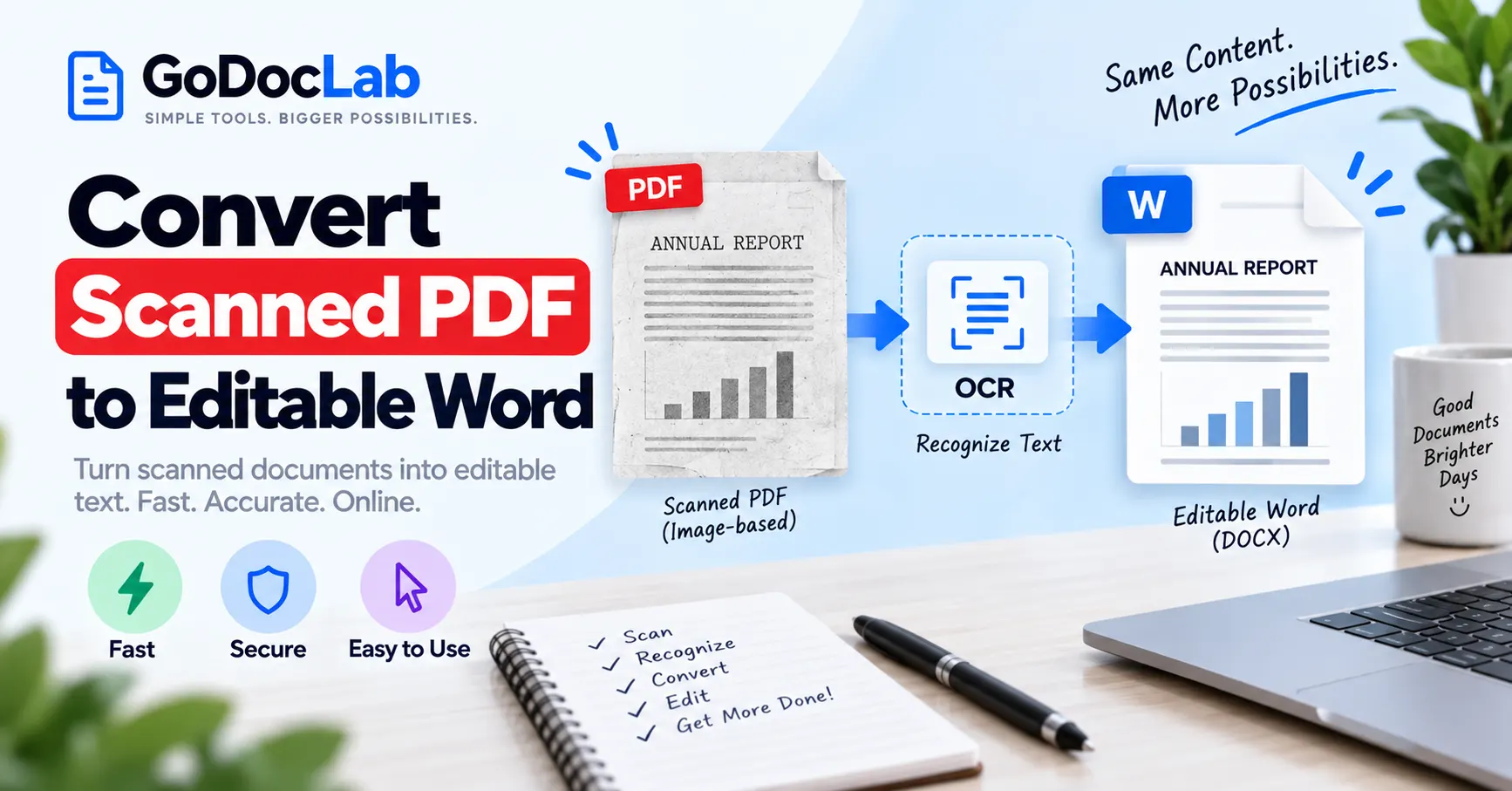
Want to convert scanned PDF to editable Word without typing every page again? You need optical character recognition (OCR) to identify the words inside scanned images, followed by PDF-to-Word conversion to create an editable DOCX document.
Quick method: Open GoDocLab OCR PDF, upload your scanned PDF, run text recognition, and download the searchable PDF. Then use GoDocLab PDF to Word to convert it into DOCX.
Alternative: Adobe Acrobat offers OCR and Word export functionality, while some online PDF-to-Word tools provide built-in OCR.
Free options: GoDocLab advertises free OCR and PDF-to-Word tools without mandatory signup. PDF24 also offers free online OCR.
Editable text: A searchable PDF is not the same as an editable Word document. Check that the DOCX contains real text rather than full-page images.
Formatting: Tables, fonts, paragraphs, and page breaks may change during conversion.
Accuracy: Always check names, dates, numbers, and technical information against the original scan.
How to Convert Scanned PDF to Editable Word Online for Free
The most useful starting point is a two-stage workflow: OCR first, Word conversion second.
GoDocLab offers both operations through separate browser-based tools.
Its OCR PDF tool is designed to make scanned PDFs searchable, while its PDF-to-Word converter produces DOCX output.
Step 1: Check Whether Your PDF Is Scanned
Open the PDF in a compatible document reader.
Try selecting one sentence with your mouse or trackpad.
If you can highlight individual characters and words, the document probably contains a text layer.
If the entire page behaves like one image, OCR may be necessary.
This test isn't definitive. Some scanned documents already include an invisible OCR text layer, and some text-based PDFs have unusual selection behavior.
However, it gives you a useful idea of whether text recognition is needed.
Step 2: Open GoDocLab OCR PDF
Visit the GoDocLab OCR PDF tool.
The tool's published page describes a workflow for converting scanned PDFs into searchable documents using optical character recognition.
GoDocLab currently lists PDF as the supported input and output format, with a maximum upload size of 100 MB.
Select Select scanned PDF, or use the available drag-and-drop upload area.
Choose the document you want to process.
Step 3: Run Optical Character Recognition
Review the uploaded PDF and any available configuration options.
Select Process OCR PDF to start recognition.
OCR software analyzes the scanned pages and attempts to identify letters, numbers, and words.
The resulting searchable PDF may contain recognized text associated with the original page images.
If the interface provides language or recognition settings, choose options appropriate for the document.
Step 4: Download and Check the Searchable PDF
Download the PDF produced by the OCR tool.
Open it and try selecting or searching for a sentence.
Check whether the recognized words match what appears in the original scan.
If text is missing or incorrect, you may need a clearer source image or a different recognition method.
Important: OCR makes scanned text recognizable, but it does not automatically produce a fully editable Word document.
Step 5: Convert the OCR PDF to Word
Open the GoDocLab PDF to Word converter.
Select Select PDF to convert and upload the searchable PDF you created in the previous step.
After checking the selected file, click Process PDF to Word.
The tool will attempt to convert the PDF content into Microsoft Word format.
Step 6: Download the DOCX File
Once processing is complete, download the resulting Word document.
GoDocLab's published workflow identifies the output filename as converted.docx.
Save the file in a convenient location.
Keep your original scanned PDF separately so you can compare the two versions.
Step 7: Check That the Text Is Editable
Open the DOCX file in Microsoft Word or another compatible word processor.
Click inside a paragraph and try editing a word.
If individual text characters can be selected and changed, the conversion has produced editable content in that area.
If the entire page becomes selected as a single picture, the file may still contain image-based content.
Check several pages rather than assuming that the entire document converted in the same way.
Finally, compare the Word file with the original scan to identify missing text, incorrect numbers, or formatting problems.
What Is a Scanned PDF?
A scanned PDF is a document created from images of physical pages.
For example, when you place a printed letter in a scanner and save it as PDF, the scanner may capture a picture of the paper.
The resulting document can look identical to the printed original, but the computer may see only image pixels.
This is different from a PDF created directly in Microsoft Word, Google Docs, or another text-editing application.
Digitally generated PDFs usually contain text information that software can select, search, or extract.
Scanned PDFs may lack this information unless OCR has already been applied.
Scanned PDF vs. Searchable PDF vs. Editable Word
File type | Main content | Searchable text | Editable text |
Image-only scanned PDF | Pictures of pages | Usually no | Usually no |
OCR-processed PDF | Images with recognized text | Usually yes | Limited, depending on software |
Digital PDF | Text and document objects | Usually yes | Requires a suitable editor |
Word DOCX | Editable document elements | Yes, when text-based | Yes, where content is reconstructed as text |
The important difference is that a file's extension doesn't tell you whether its contents are editable.
For example, a Word document can contain full-page images of a scanned report. Although it has a .docx extension, the text inside those images may still be impossible to edit directly.
That is why checking the final result matters.
What Is OCR and How Does It Work on Scanned PDFs?
OCR stands for optical character recognition.
It is a technology that attempts to identify characters in images and turn them into text that software can process.
Suppose a scanned page contains the sentence:
"Payment received on 15 October 2026."
Without OCR, the computer may treat that sentence as an arrangement of pixels.
OCR examines the visual patterns and attempts to recognize the letters, numbers, spaces, and punctuation.
It can then create searchable text from the recognized content.
How OCR Processes a Scanned Document
An OCR workflow commonly involves image analysis, text detection, character recognition, and output generation.
Depending on the application, OCR may also attempt to correct page skew, distinguish text from images, and estimate reading order.
For example, software may recognize that a document has two columns and attempt to extract the content in the appropriate sequence.
However, complicated layouts can still confuse recognition software.
Does OCR Make Every PDF Fully Editable?
No.
OCR primarily addresses text recognition.
It can make an image-based PDF searchable, selectable, or suitable for further text extraction.
Creating an editable Word document requires another process: rebuilding the recognized content into paragraphs, text boxes, tables, and other document structures.
A two-stage workflow is therefore often necessary.
Some applications combine OCR and Word export into one operation, while others provide separate features.
Why Can't I Edit My Scanned PDF?
If your scanned PDF is not editable, the most likely reason is that the words are stored as images rather than individual text characters.
For example, a photograph of a printed invoice may contain visible headings, item descriptions, and totals.
But you cannot simply click on the invoice number and replace it as you would in Word.
You need text recognition or another document-reconstruction method.
Other possible reasons include document restrictions, incompatible software, or an incomplete OCR text layer.
How to Tell Whether OCR Is Needed
Try these simple checks:
Search for a distinctive word in the PDF.
Try selecting a complete sentence.
Copy a small passage into a text editor.
Check whether the copied text matches the visible document.
If none of these works and the page appears image-based, OCR is a sensible next step.
If the text is already selectable, you may be able to use a PDF-to-Word converter directly.
How to Convert Scanned PDF to Word Without Losing Formatting
One of the biggest challenges with OCR conversion is preserving the original layout.
A scanned page is a fixed image. A Word document uses editable paragraphs, tables, fonts, margins, and other structures.
When software converts scanned content into Word, it must interpret the original page and reconstruct its layout.
Some formatting can be retained, but perfect reproduction is not guaranteed.
Why Fonts Sometimes Change
The original document may use fonts that are difficult to recognize or aren't installed on your device.
The conversion software may substitute a different font.
This can change line breaks, paragraph heights, and page lengths.
If the Word document uses the wrong font, choose a suitable replacement and review the layout.
Why Paragraphs and Page Breaks Move
A scanned PDF represents the appearance of each page.
Word dynamically arranges text according to page margins, font metrics, spacing, and other settings.
As a result, a paragraph that occupied one page in the original may extend onto another page after conversion.
Review page size, margins, spacing, and paragraph breaks.
Why Images and Tables May Not Stay in Position
OCR focuses on recognizing content.
A converter may not accurately reconstruct the original relationship between images, captions, and text.
Tables can be particularly challenging because the software must determine where columns, rows, and individual cells begin and end.
For complex layouts, some manual rebuilding may be necessary.
How to Get Better Formatting Results
Use the clearest original scan available.
Before conversion, straighten tilted pages, correct sideways images, and make sure text isn't cropped.
If the OCR tool supports language selection, choose the appropriate language.
After converting to Word, inspect page breaks, headings, images, tables, and paragraph alignment.
For documents with complex formatting, start by testing a few pages before processing the full document.
How to Improve OCR Accuracy
Text recognition quality depends heavily on the scanned source.
A clear, properly oriented scan usually gives OCR software a better starting point than a blurry photograph.
Use Clear, High-Resolution Scans
Small or blurred characters are harder to recognize.
If you have access to the original paper document, scan it again using appropriate quality settings.
A common practical starting point for printed documents is approximately 300 dpi, although the ideal setting depends on the source and application.
Increasing resolution cannot recover detail that was never captured in the original image.
Straighten Crooked Pages
Scans that are noticeably tilted may reduce recognition accuracy or disrupt reading order.
Use a scanning application with deskew functionality when available.
Correct the document orientation before running OCR.
Improve Contrast and Lighting
Faint text, dark shadows, and uneven lighting can make recognition harder.
A cleaner scan with legible letters and a consistent background is preferable.
Avoid excessive image enhancement, which may erase faint punctuation or fine details.
Choose the Correct Language
Some OCR tools allow you to select the document language.
If your PDF contains English, Arabic, Urdu, or another language, the recognition engine must support it for reliable results.
Language support varies by provider.
Do not assume that every free OCR converter supports all scripts or mixed-language documents.
Check the Original Before Processing
Inspect the first, middle, and final pages of a multipage document.
Make sure no pages are upside down, missing, cropped, or unreadable.
If important content is already absent from the scan, OCR cannot reliably reconstruct it.
Convert Scanned PDF to Word With Adobe Acrobat
Adobe Acrobat provides OCR and PDF export functionality for converting scanned documents into Word format.
Adobe's official documentation explains that OCR can create searchable text from scanned pages.
Its PDF-to-Word workflow also describes automatically recognizing text in scanned documents during Word export.
Method 1: OCR First, Then Export
Open the scanned PDF in Adobe Acrobat.
Select All tools > Scan & OCR.
Choose In this file.
Select the appropriate pages and recognition language.
Click Recognize Text.
Review the OCR-processed content.
Open the PDF-to-Word conversion feature.
Choose Microsoft Word or DOCX output.
Export and save the converted file.
Check the text and formatting.
This approach gives you an opportunity to inspect recognition results before converting the document.
Method 2: Export Scanned PDF Directly to Word
Adobe also describes a PDF-to-Word export process that performs text recognition when scanned content is present.
The available menu labels depend on the Acrobat version.
A direct workflow can be convenient, but OCR quality and formatting still need review.
Additional conversion and editing features may require the appropriate Acrobat subscription.
Convert Scanned PDF to Word Using Microsoft Word
Microsoft Word can open PDF files and attempt to convert them into editable Word documents.
According to Microsoft's official documentation, this process works best with documents containing mostly text.
The important limitation is that scanned pages may be imported as images.
Steps to Open a PDF in Word
Open a supported desktop version of Microsoft Word.
Select File > Open.
Browse to the PDF file.
Select the document.
Read the message explaining that Word will convert a copy.
Confirm the conversion.
Review the resulting document.
Save it as DOCX.
If the document contains actual selectable text, this may be enough.
If the converted page appears as one large picture, perform OCR using an appropriate tool and try converting again.
Microsoft also warns that Word may not reproduce the PDF's original layout exactly.
Which Method Should You Choose?
Method | Suitable for | Important consideration |
GoDocLab OCR + PDF to Word | Two-stage browser-based conversion | Check both OCR accuracy and DOCX editability |
Adobe Acrobat | Integrated desktop OCR and document export | Some functions require paid access |
Microsoft Word | PDFs containing mostly selectable text | Scanned pages may import as images |
PDF24 OCR | Free creation of searchable PDFs | DOCX output requires another conversion step |
iLovePDF | Online conversion with optional OCR | OCR is a premium feature |
Smallpdf | Browser-based PDF-to-Word conversion | Scanned-document OCR is a Pro feature |
A scanned PDF to Word converter should be judged by the actual result, not only by whether it successfully creates a DOCX file.
How to Convert a Multipage Scanned PDF to Word
A long scanned document needs additional care.
For example, a 70-page report may contain different page layouts, scanned tables, and pages of varying quality.
OCR may work well on one section but struggle with another.
Start by checking the source PDF's completeness and page order.
If possible, test a small representative sample, including text-heavy pages, tables, and pages with unusual formatting.
After processing the full document, compare the Word output with the original.
Check whether page content has been omitted or duplicated.
For particularly complicated files, dividing the work into smaller sections may make quality control easier.
How to Convert Scanned PDF to Word on Mac or Mobile
You can use browser-based tools from different devices, but file handling and editing capabilities vary.
On Mac
Mac users can open GoDocLab or another compatible OCR service in a browser.
Upload the scanned PDF, perform OCR, and convert the resulting searchable document to DOCX.
Open the Word file in Microsoft Word for Mac or another compatible word processor.
Apple Preview is useful for inspecting PDFs, but it is not a general-purpose export tool for fully editable DOCX documents.
On Windows
Windows users can use online OCR tools, Adobe Acrobat, or another suitable desktop OCR application.
After recognizing the text, convert the document into Word format.
If you already have Microsoft Word, use it to inspect and edit the resulting DOCX.
On Android
Open a compatible OCR service using your mobile browser.
Select the scanned PDF from your device, start recognition, download the result, and convert it into Word format where necessary.
You can review the DOCX in a compatible mobile word processor.
On iPhone or iPad
Use a supported browser and select the PDF through the available file picker.
After OCR and Word conversion, save the downloaded document in the Files app or another accessible location.
For detailed formatting corrections, a desktop computer may provide a more practical workspace.
Scanned PDF to Word With Tables: What Should You Check?
Tables are among the most error-prone elements in scanned-document conversion.
A converter must recognize both the text and the relationships between cells.
For example, a table might have product descriptions in one column, quantities in another, and prices in the final column.
If the reading order changes, the figures may no longer correspond to the correct products.
How to Verify Converted Tables
Compare each important table with the original scan.
Check row and column headings, numerical values, currency symbols, and decimal separators.
Make sure the document hasn't combined two columns into one paragraph.
If the Word table is heavily distorted, rebuilding it using verified source data may be more reliable than attempting numerous small corrections.
For spreadsheets or financial reports, an appropriate table-extraction workflow may be more useful than a general Word conversion.
How to Edit a Scanned PDF in Word After Conversion
Once your DOCX contains editable text, you can make changes using a compatible word processor.
However, it is best to correct OCR errors before making major layout changes.
Start by reviewing important names, dates, and numbers.
Then correct formatting issues such as headings, paragraphs, tables, and images.
If you intend to publish or submit the document, compare it against the original scan.
What to Check Before Sharing
Check the beginning, middle, and end of the document.
Verify that headings appear in a logical order and that no paragraphs are missing.
Test copied text to identify hidden recognition problems.
For legal, financial, academic, or technical documents, verify every critical figure and reference rather than relying on a quick visual review.
Common OCR and Word Conversion Problems
Problem | Possible cause | Recommended solution |
Text cannot be edited | Pages remain images | Run OCR and verify the resulting DOCX |
OCR misses words | Blurry or low-contrast scan | Use a clearer source image |
Characters are incorrect | Recognition mistakes | Correct the text against the original |
Paragraphs are out of order | Multiple columns or complex layout | Review and rebuild reading order |
Tables are misaligned | Incorrect row or column detection | Reformat or reconstruct the table |
Word file has extra pages | Different fonts or margins | Review page layout settings |
Unsupported language | OCR engine lacks suitable language support | Choose compatible software |
Upload fails | File-size or permission issue | Check tool requirements |
Some pages are missing | Processing or source-file problems | Compare page counts and retry |
Why Is My Scanned PDF Still Not Editable?
The OCR step may not have completed successfully, or the PDF-to-Word converter may have inserted page images instead of reconstructing text.
Check whether you can select text in the OCR-processed PDF.
Then open the DOCX and test whether individual words are editable.
If the result is still image-only, try a conversion workflow that explicitly supports OCR-assisted DOCX output.
Why Does OCR Recognize Numbers Incorrectly?
Some characters have similar shapes.
For example, the letter O may be mistaken for 0, and I may be mistaken for 1.
Poor scan quality increases the possibility of recognition mistakes.
Correct these values by comparing them with the original document.
Why Does the Converted Word File Have Different Formatting?
OCR recognizes text, but Word conversion must also rebuild page structure.
If the converter chooses different fonts, margins, or paragraph breaks, the layout can change.
Review document formatting and make corrections after verifying the text itself.
Is It Safe to Convert Scanned PDFs Online?
Scanned PDFs may contain confidential personal or business information.
Online OCR tools can upload documents to remote servers for processing.
GoDocLab states that its services process files on servers, use HTTPS transfers, and remove processed files after use.
These are the company's published practices, not an independent security audit.
Before uploading medical records, identification documents, legal contracts, financial statements, or confidential workplace files, review the service's privacy policy and applicable document-handling rules.
If external uploads are not allowed, use an approved local OCR application.
Keep the original scanned document so you can verify the recognized text and maintain an appropriate source record.
Frequently Asked Questions
Can I convert a scanned PDF to editable Word?
Yes. OCR can recognize text inside scanned page images, and a PDF-to-Word converter can attempt to turn that recognized content into an editable DOCX document.
Can I convert scanned PDF to Word online for free?
Yes. Free OCR and PDF conversion tools are available. GoDocLab currently advertises free OCR PDF and PDF-to-Word services, while PDF24 offers free online OCR. Results and usage conditions vary.
Why can't I edit my scanned PDF?
A scanned PDF may contain pictures of printed text rather than individual text characters. OCR is often needed before you can edit the content as ordinary Word text.
Will OCR keep the original formatting?
Not perfectly in every case. OCR primarily recognizes text, while document conversion reconstructs layout. Tables, spacing, columns, and fonts may require correction.
Can OCR read handwritten documents?
Some OCR and handwriting-recognition systems can recognize handwriting, but accuracy varies considerably with writing style, image quality, language, and the software used.
Can I convert a scanned PDF to Word without installing software?
Yes. Compatible online OCR and PDF-to-Word services work through a browser. For confidential documents, review upload policies before using them.
Can I convert a scanned PDF to Word on Mac?
Yes. You can use online OCR and DOCX conversion tools on Mac, or suitable desktop software such as Adobe Acrobat.
Can I convert scanned PDF to Word without losing tables?
Some tools attempt to preserve table structure, but accurate reconstruction isn't guaranteed. Inspect rows, columns, and numerical values carefully.
Does Microsoft Word automatically recognize scanned text?
Word can open PDFs and convert them, but image-based pages may remain pictures. If the text is not editable, a dedicated OCR step may be necessary.
What is the difference between OCR PDF and PDF to Word?
OCR PDF attempts to recognize text within scanned pages, often producing a searchable PDF. PDF to Word converts document content into a Word-compatible format for editing.
Final Thoughts: Turn Scanned Pages Into Editable Word Documents
Learning to convert scanned PDF to editable Word can save time when you need to update old reports, revise documents, or reuse text from printed materials.
The most important step is recognizing the text correctly before relying on the Word output.
GoDocLab provides separate tools for OCR and PDF-to-Word conversion, while Adobe Acrobat, PDF24, iLovePDF, and Smallpdf offer alternative approaches.
Whatever method you use, remember that OCR is not perfect and formatting may change.
Keep the original scan, confirm that the DOCX contains editable text, and review the final document carefully.
Ready to convert your scanned document? Start with GoDocLab OCR PDF to make the text searchable, then use GoDocLab PDF to Word to create a DOCX file for editing.
FAQs
Frequently asked questions
Yes. Use OCR to recognize the text inside scanned pages, then convert the searchable PDF into DOCX. Adobe confirms that OCR can create searchable text from scanned PDF images, while Microsoft supports opening PDF documents in Word for conversion.