
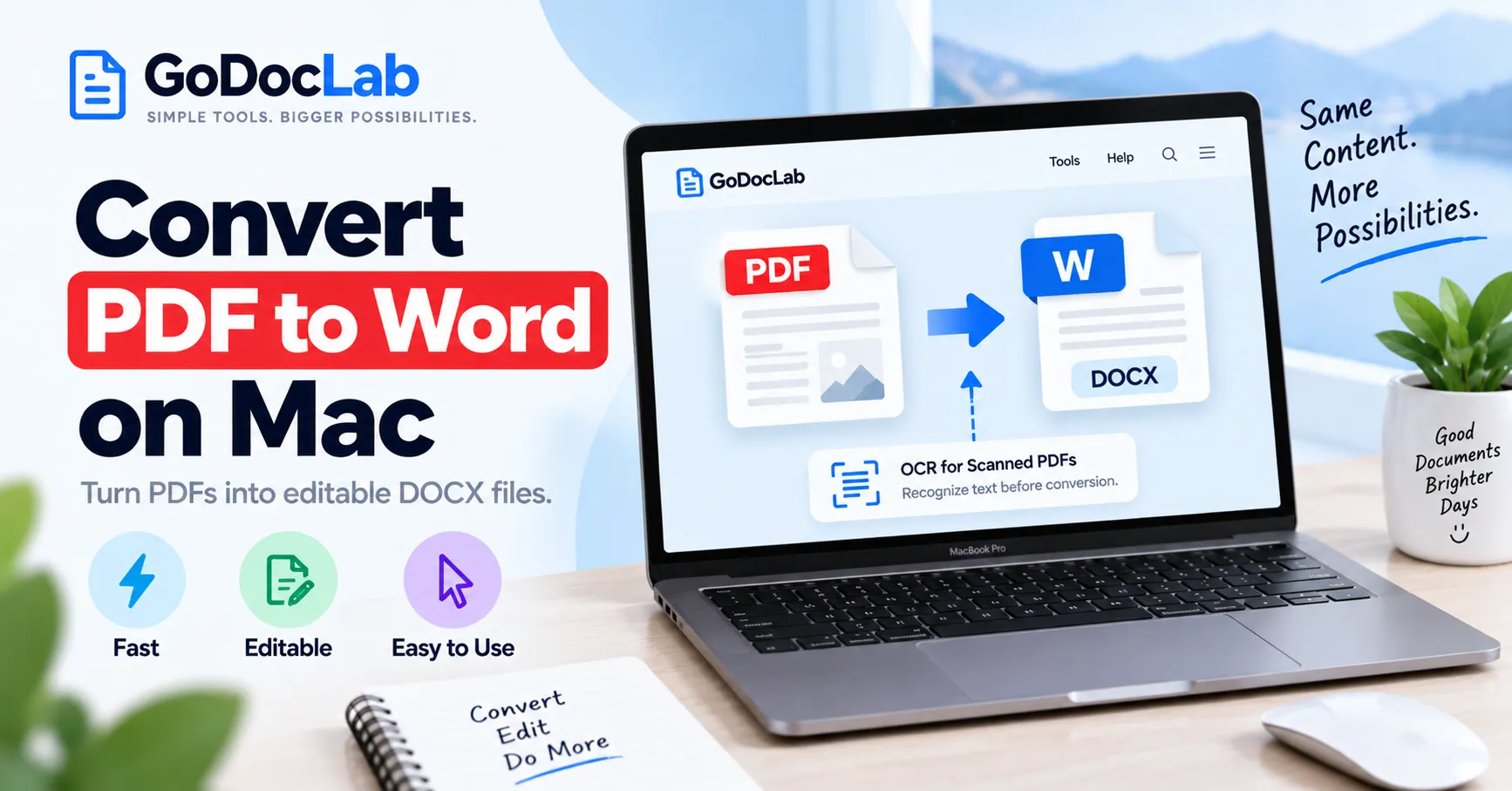
Online: Open GoDocLab PDF to Word, upload your PDF, select Process PDF to Word, and download converted.docx.
Microsoft Word for Mac: Open Word, choose File > Open, select your PDF, allow conversion, and save the result as DOCX.
Adobe Acrobat: Open the PDF, choose Convert > Microsoft Word > DOCX, then save the exported file.
Apple Preview: Copy selectable text from the PDF and paste it into Word. Preview isn't a full PDF-to-DOCX converter.
Scanned documents: OCR may be necessary to turn images of text into editable characters.
Before sharing: Check tables, fonts, headings, images, page breaks, and missing content.
Need to edit a PDF on your Mac but don't want to retype the entire document? You can convert a PDF into an editable Microsoft Word file using an online converter, Microsoft Word, or Adobe Acrobat. The simplest browser-based option is GoDocLab's PDF to Word converter. Upload your PDF, start the conversion, and download the resulting DOCX file. If you already have Microsoft Word installed, you can open many PDFs directly in Word and save the converted document.
Apple Preview also offers a basic alternative when you only need to copy a small amount of text. The important distinction: A PDF that converts successfully doesn't always become a perfectly formatted Word document. Text-heavy PDFs usually work better than scanned pages, complicated tables, or graphic-heavy layouts. This guide explains four practical methods, how to choose between them, and how to check the finished Word file.
Why Convert PDF to Word on a Mac?
PDF files are useful for sharing documents with consistent page layouts. However, they aren't always convenient when you need to make substantial text edits.
A Word document is designed for editing and reorganizing content. Once a PDF has been converted into DOCX format, you may be able to change paragraphs, update headings, revise tables, and work with the document using Word's familiar editing tools.
For example, suppose a client sends you a ten-page PDF proposal. You need to update its introduction, replace an outdated price, and add a new section.
Converting it to Word can be more practical than trying to make extensive changes directly in a PDF editor.
Common reasons to convert include:
Updating reports, letters, and proposals.
Editing educational materials and assignments.
Reusing text from a PDF in another document.
Correcting formatting in an existing file.
Collaborating on a document using Word.
Revising a template when the original editable file is unavailable.
If you already have the original Word document, edit that instead. Converting a PDF back to Word can introduce formatting changes that wouldn't occur when editing the original.
Method 1: Convert PDF to Word Online With GoDocLab
A browser-based converter is convenient when you don't want to install additional software.
GoDocLab provides a PDF to Word converter for Mac that runs through a web browser. Its published tool page lists PDF input, DOCX output, and a maximum upload size of 100 MB.
The site currently advertises free conversion and says an account isn't required for standard downloads.
Step 1: Open the Converter
Visit GoDocLab's PDF to Word tool.
You can use the page from a browser on your Mac.
The tool displays an upload area for choosing a PDF file.
Step 2: Select Your PDF
Click the file-selection area or drag and drop your document.
For example, you might upload a file named project-proposal.pdf.
Confirm that you've selected the correct document, especially if your Downloads folder contains several similar files.
Step 3: Start the Conversion
After uploading, proceed through the available configuration stage and confirm your file.
Select Process PDF to Word.
GoDocLab's published workflow describes converting the PDF into a Word-compatible DOCX document.
The final appearance depends on the source PDF's text, images, tables, and other formatting.
Step 4: Download the Word File
When the tool completes processing, download the result.
The published output filename is converted.docx.
Rename it to something more useful, such as project-proposal-editable.docx.
Step 5: Open the DOCX on Your Mac
Open the downloaded file in Microsoft Word or another application that supports DOCX.
Read through the converted document before making substantial edits.
Check headings, paragraphs, images, tables, and page breaks. If you plan to send the file to someone else, confirm that the important content transferred correctly.
Method 2: Convert PDF to Word Using Microsoft Word for Mac
If Microsoft Word is installed on your Mac, you may not need a separate conversion service.
Microsoft documents a built-in feature that opens a PDF, creates a Word-compatible copy, and attempts to reproduce the original layout.
This method works particularly well with PDFs containing mostly text.
Step 1: Open Microsoft Word
Launch Microsoft Word on your Mac.
You can start from a blank document or Word's opening screen.
Step 2: Open the PDF
Choose:
File > Open
Browse to the PDF you want to edit and select it.
Step 3: Confirm the Conversion
Word may display a message explaining that it will convert the PDF into an editable Word document.
Confirm the operation.
Microsoft states that this process creates a copy, leaving the original PDF unchanged.
Step 4: Review the Converted Document
Word attempts to identify paragraphs, headings, images, and other document elements.
Check the result carefully.
A straightforward text document may be easy to edit, while a multi-column brochure or complex financial report may require adjustments.
Step 5: Save as DOCX
Choose File > Save As or the appropriate save command in your Word version.
Give the document a clear filename and choose Word's modern DOCX format.
Save the document and reopen it to confirm that the edits and formatting are preserved.
For more information, see Microsoft's official instructions for editing PDFs in Word.
When Is Microsoft Word the Better Choice?
Word is a practical option if:
You already have a compatible Word installation.
The PDF contains mostly text.
You want to edit the document immediately after conversion.
You prefer not to upload the file to a third-party online converter.
If Word converts an entire page into an image, the words in that image won't be editable as ordinary text. A scanned-document workflow may work better.
Method 3: Export PDF to Word With Adobe Acrobat
Adobe Acrobat provides another documented method for converting PDFs into Word formats.
This is useful when you regularly work with PDFs or need Acrobat's document-management features.
Step 1: Open the PDF in Acrobat
Launch a compatible version of Adobe Acrobat on your Mac.
Open the PDF you want to convert.
Step 2: Choose the Word Export Option
Select Convert from the main toolbar.
In the left pane, choose Microsoft Word.
Step 3: Select DOCX
Choose DOCX from the output-format menu.
Acrobat also documents DOC as an option for older Word compatibility.
For most modern editing workflows, DOCX is the more appropriate starting point.
Step 4: Convert and Save
Select Convert to DOCX.
Choose a folder, enter a filename, and save the resulting Word document.
Step 5: Review the File
Open the converted DOCX in Word.
Compare the important sections with the original PDF, particularly tables, images, headings, and page breaks.
Adobe's export functionality may depend on your Acrobat edition and subscription.
See Adobe's official PDF-to-Word conversion guide for the documented steps.
Method 4: Copy PDF Text Using Apple Preview
Apple Preview is built into macOS and can open PDFs without additional software.
However, Preview doesn't provide a standard full-document PDF-to-DOCX export feature.
Instead, you can use it to copy selectable text from a PDF and paste that text into a new Word document.
This works best for short passages or a few paragraphs.
Step 1: Open the PDF in Preview
Find your PDF in Finder.
Right-click it and select Open With > Preview, or double-click it if Preview is your default PDF viewer.
Step 2: Select the Text
Choose:
Tools > Text Selection
Drag across the text you want to copy.
Step 3: Copy the Selection
Choose Edit > Copy or press Command (⌘) + C.
Step 4: Paste Into Word
Open Microsoft Word and create a new document.
Paste the text using Command (⌘) + V.
Review the result and restore any necessary formatting.
Step 5: Save as DOCX
Save the Word document under a descriptive filename.
Preview is a useful option when you only need written content from a short section, but manually copying an entire long PDF is usually inefficient.
Apple provides details in its Preview text-selection instructions.
What If Your PDF Is Scanned?
A scanned PDF may contain images of printed pages rather than text stored as editable characters.
This creates a different conversion problem.
If you open a scanned PDF in Word, the result may contain images of pages instead of editable paragraphs.
To make the text usable, you may need optical character recognition (OCR).
OCR software analyzes images of text and attempts to produce machine-readable characters.
How to Convert a Scanned PDF to Word
Use this workflow:
Open your scanned PDF in a suitable OCR application.
Run text recognition on the document.
Save or export the recognized content in an appropriate format.
Convert the recognized PDF or text into Word when necessary.
Compare the result with the scanned original.
GoDocLab also provides an OCR PDF tool for scanned-document workflows.
Can Preview Recognize Scanned PDF Text?
Apple documents an Embed Text feature in Preview that can recognize text in image-based PDFs.
Where the feature is available, open the PDF, choose File > Export, and select Embed Text.
Apple notes that the option appears only when text has not previously been recognized in the document.
This produces a PDF with recognized text; it does not directly create a DOCX file.
After recognition, you can use an appropriate PDF-to-Word method.
Always Check OCR Accuracy
OCR can misinterpret:
Similar-looking characters such as 0 and O.
Dates and account numbers.
Unusual fonts.
Faint or skewed scans.
Multi-column layouts.
Small table entries.
For important documents, check names, amounts, dates, and figures against the original scan.
Which PDF to Word Method Should You Choose?
Each method solves a slightly different problem.
Method | Best for | Main benefit | What to watch |
GoDocLab online | Browser-based conversion | No dedicated desktop converter needed | Upload privacy and layout changes |
Microsoft Word for Mac | Mostly text-based PDFs | Open, convert, and edit in Word | Complex tables and page breaks |
Adobe Acrobat | Frequent PDF conversion work | Dedicated DOCX export | Product and plan requirements |
Apple Preview | Copying short passages | Built into macOS | No complete DOCX conversion workflow |
OCR before conversion | Scanned documents | Recognizes image-based text | Recognition errors and lost structure |
If your PDF is mostly text, start with Word or a suitable online converter.
If the PDF is a scanned document, assess whether OCR is needed.
If you only need one paragraph, Preview may be enough.
And if you need accurate edits to a complicated original document, obtaining the original Word file is often the most reliable solution.
How to Preserve Formatting and Check the DOCX
A PDF and a Word file store document information differently.
PDFs focus on page presentation. Word documents organize editable content into paragraphs, tables, text boxes, and other elements.
During conversion, software must infer how content in the PDF should become Word objects.
This can introduce formatting changes.
Check Headings and Paragraphs
Compare headings and body text against the PDF.
Look for unusual line breaks, merged paragraphs, inconsistent fonts, and missing section breaks.
If the text is accurate but the formatting is inconsistent, applying Word styles can be more efficient than fixing every paragraph separately.
Inspect Tables Carefully
Tables can be difficult to reconstruct from PDF layout information.
Check whether rows, columns, and values appear in the intended positions.
For documents containing prices, calculations, measurements, or technical details, verify each important number rather than relying only on the appearance of the table.
Review Images and Captions
Make sure photos, charts, diagrams, and captions are present.
Check whether images have moved or are overlapping nearby text.
A Word document may preserve an image while placing it differently on the page.
Verify Page Breaks and Lists
Check numbered lists, bullet points, footnotes, headers, and page breaks.
Microsoft notes that several complex PDF features may not convert cleanly, so document structure deserves attention even when the visual layout looks acceptable.
Compare the Entire Document
A good final check includes:
The first and final pages.
Major headings and section transitions.
Important tables.
Pages containing images.
Sections with unusual characters.
Page numbers and references.
Keep the original PDF until you've finished checking the converted document.
Common PDF to Word Problems on Mac
The Word File Contains Images Instead of Editable Text
The original PDF may be scanned or may contain pages rendered as graphics.
Try an OCR workflow to recognize the text.
Then convert or import the recognized content into Word and review the result.
The Formatting Looks Different
Different document models, missing fonts, text boxes, and complicated layouts can cause changes.
If you have the original editable file, work from it instead.
Otherwise, correct the Word document's headings, paragraphs, and tables systematically.
The PDF Is Password-Protected
Some PDFs require a password or restrict copying and editing.
If you own the document or have authorization to work with it, use the appropriate credentials or request an editable version.
Don't assume that every converter supports protected PDFs.
The File Is Too Large to Upload
GoDocLab currently publishes a 100 MB maximum for its PDF to Word tool.
If your document exceeds that limit, consider an approved desktop workflow.
If you need only a portion of the document, you can extract selected PDF pages before converting.
If you compress the PDF, check that text and image quality remain suitable for conversion.
Text Is Missing or Characters Are Incorrect
Compare the DOCX with the PDF.
Look for OCR errors, unsupported fonts, unusual symbols, and sections that were omitted during conversion.
If a particular page is affected, try a different authorized method or correct the source file.
The Converted File Won't Open
Confirm that the download completed and that its extension is .docx.
Try opening it with a compatible Word application.
If the file appears corrupted, return to the original PDF and repeat the conversion using a different method.
Privacy and Document Safety
Before uploading a PDF to an online converter, consider whether it contains sensitive information.
Examples include contracts, confidential reports, financial statements, medical records, and personal identification documents.
GoDocLab's Privacy Policy states that uploaded files are transferred through HTTPS and processed on its servers. It also describes automatic removal of processed files and notes that some account features may associate conversions or history with an account.
These are the website's stated practices, not evidence of an independent security audit.
For confidential documents that must stay on your Mac, use an approved local application instead.
Also check document permissions. Being able to open a PDF doesn't automatically mean you have permission to modify or redistribute its contents.
Final Thoughts
To convert PDF to Word on Mac, choose a method that matches your document.
Use a browser-based converter for a convenient online workflow, Microsoft Word when you already have it installed, or Adobe Acrobat when you need dedicated PDF export functionality.
For a quick online option, try GoDocLab's PDF to Word converter. Upload a supported PDF, process it, and download the DOCX file.
If you have a scanned document, check whether OCR is necessary first. If you only need a short passage, Apple's Preview app may be sufficient.
Most importantly, keep the original PDF and verify the Word document before making important edits or sharing it. A usable conversion is one that preserves the information you need—not merely one that ends in .docx.
FAQs
Frequently asked questions
Yes. GoDocLab currently advertises free online PDF-to-DOCX conversion. If you already have Microsoft Word, you can also use its built-in PDF opening and conversion feature.