
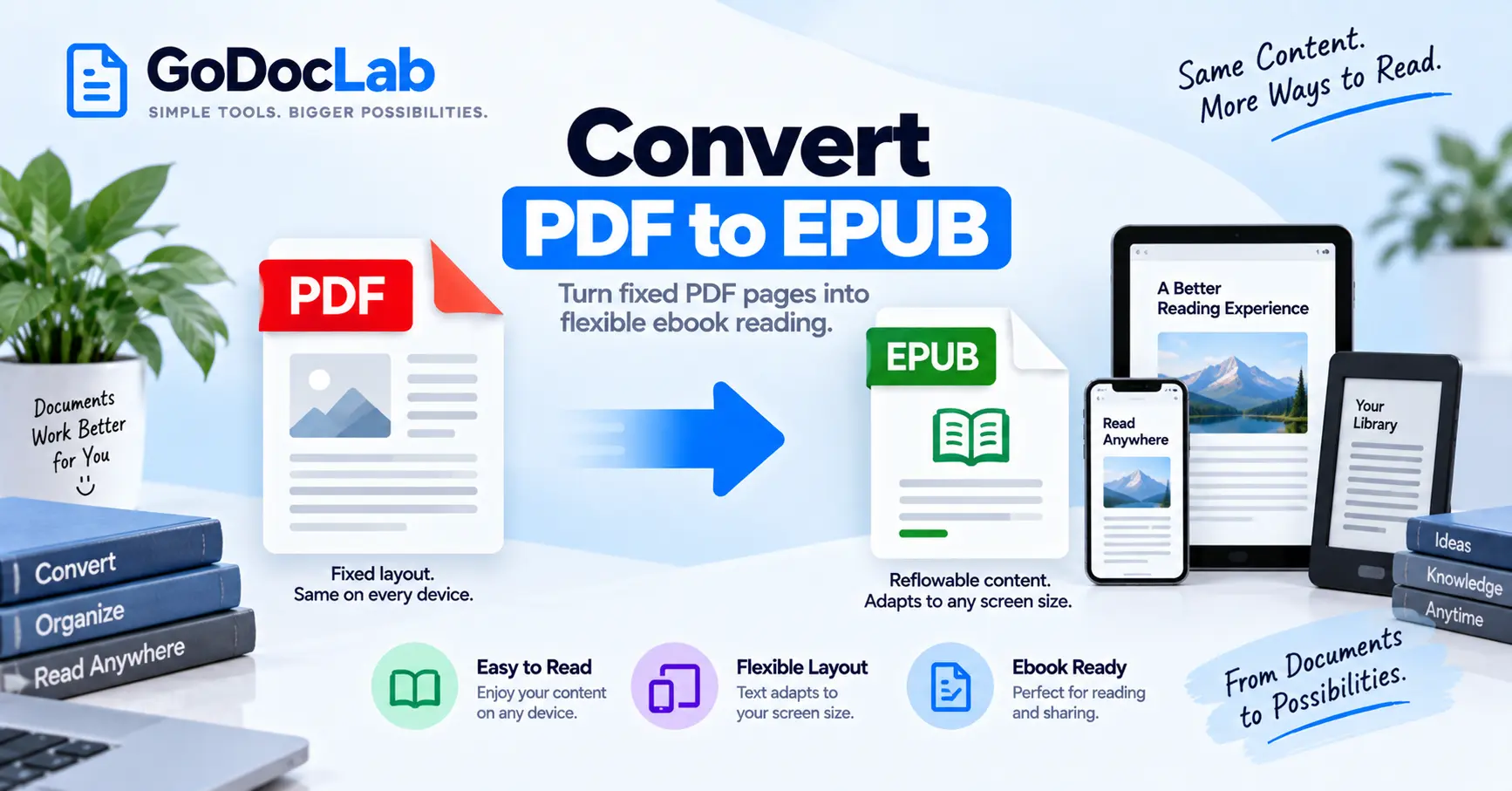
Want to convert PDF to EPUB so your documents are easier to read on a phone, tablet, or e-reader? A PDF to EPUB converter can transform a fixed-page document into an ebook format that often adapts better to different screen sizes.
Quick online method: Open the GoDocLab PDF to EPUB converter, upload your PDF, start conversion, and download the EPUB file.
Free desktop option: Use Calibre to convert PDFs to EPUB and adjust ebook conversion settings.
Better reading experience: Reflowable EPUB files can adjust text to the screen, making long documents more comfortable to read.
Scanned PDFs: Use OCR first if the document contains images of printed pages rather than selectable text.
Kindle compatibility: Amazon's Send to Kindle service accepts supported EPUB files and processes them for Kindle reading.
Formatting: Complex tables, images, columns, and page layouts may change during conversion.
Bottom line: Convert a text-based PDF into EPUB when flexible reading is more important than preserving the exact page design. Always check the finished ebook before transferring it to your reading device.
PDFs are convenient for sharing documents, but they aren't always comfortable for reading books on small screens.
A PDF designed for A4 or US Letter paper may require constant zooming and horizontal scrolling on a smartphone. That can become frustrating when you're reading a long report, textbook, novel, or research document.
EPUB offers a different approach. Rather than forcing content into the original PDF page dimensions, a reflowable EPUB can adjust the text according to your screen size and reading preferences.
This guide explains how to convert PDF to EPUB, which tools to use, how to handle scanned PDFs, and what to check before opening the result on Kindle, Kobo, Apple Books, or another ebook reader.
How to Convert PDF to EPUB Online for Free
The basic process is straightforward: upload the PDF, convert it into EPUB format, download the file, and open it in an ebook reader.
GoDocLab provides a browser-based tool for this workflow.
Step 1: Open the GoDocLab PDF to EPUB Converter
Visit the GoDocLab PDF to EPUB tool.
The website provides an upload area labeled Select PDF to convert.
Its published information lists PDF input, EPUB output, and a maximum upload size of 100 MB.
Step 2: Upload Your PDF
Click the upload area or drag your PDF into it.
Choose the document you want to convert.
Before proceeding, open the original PDF and confirm that it contains all the expected pages.
If the document consists entirely of scanned images, consider OCR before conversion.
Step 3: Review the File and Available Options
Check that you've selected the correct PDF.
Review any configuration options shown by the converter.
The available controls may depend on the tool's current interface.
Don't assume that options for chapter detection, font embedding, metadata editing, or fixed-layout output are available unless they're displayed.
Step 4: Start the Conversion
Click Process PDF to EPUB.
The converter will attempt to transform the PDF into an EPUB ebook.
During this process, the original PDF's positioned text and graphical content may be reorganized into an ebook structure.
The quality of the result depends on the source document.
A simple text-based novel will generally be easier to reconstruct than a scanned magazine containing multiple columns, pictures, charts, and decorative layouts.
Step 5: Download the EPUB File
After processing, download the resulting ebook.
GoDocLab identifies the output filename as converted.epub.
Save it in a folder where you can easily find it.
Keep the original PDF because you may need to repeat the conversion or compare the text later.
Step 6: Open and Review the EPUB
Open the EPUB in a compatible ebook reader.
Check the beginning, middle, and end of the document.
Inspect chapter headings, paragraph spacing, images, footnotes, and reading order.
Try increasing and decreasing the text size.
If the text adapts to the screen and remains readable, the result is suitable for the kind of flexible reading you wanted.
Important: A valid EPUB file isn't necessarily a well-formatted ebook. Reviewing the reading experience is part of the conversion process.
What Is an EPUB File?
EPUB is a widely used ebook format designed for digital reading.
Unlike an ordinary fixed-page PDF, a reflowable EPUB can adapt the presentation of its content to the reading device.
For example, a paragraph may occupy twelve lines on a smartphone but only six lines on a tablet.
The text content remains the same, but its arrangement changes.
This makes EPUB useful for novels, essays, study material, and other documents dominated by continuous text.
EPUB can also contain images, stylesheets, navigation information, and other ebook resources.
PDF vs. EPUB: What's the Difference?
Feature | EPUB | |
Primary purpose | Consistent document appearance | Digital ebook reading |
Layout | Fixed pages | Usually reflowable; fixed layout is also supported |
Font-size adjustment | Often requires zooming | Reader may adjust text size |
Phone readability | Depends on original page dimensions | Reflowable books adapt to smaller screens |
Printed page numbers | Usually fixed | Pagination can change with reader settings |
Navigation | Bookmarks and links, where provided | Ebook navigation and chapter structure |
Best suited to | Forms, reports, print-ready documents | Novels, articles, text-heavy ebooks |
The distinction isn't absolute.
EPUB also supports fixed layout for books where preserving page design is essential, including some comics, children's books, and illustrated publications.
However, fixed-layout EPUB may not provide the same flexible text resizing as a reflowable book.
Why Convert PDF to EPUB?
Converting a PDF into EPUB is useful when the original page layout makes reading uncomfortable.
Easier Reading on Smaller Screens
A PDF created for printing can appear tiny on a phone.
A reflowable EPUB can adjust text to the reading area, reducing the need to zoom and scroll horizontally.
This is particularly useful for long reading sessions.
Adjustable Font Size
Many EPUB readers let you change the font size, line spacing, margins, and sometimes the typeface.
These options can make long documents more comfortable to read.
The exact controls depend on the reading application.
Better Chapter Navigation
A properly structured EPUB can contain a table of contents that helps readers move between chapters.
This is especially helpful for books, manuals, and study guides.
However, converting a PDF doesn't automatically guarantee that the ebook's chapter navigation will be correct.
More Flexible Reading Preferences
Compatible ebook applications may offer dark themes, adjustable backgrounds, bookmarks, and other reading settings.
Some also provide accessibility features, depending on the app and the ebook's structure.
EPUB alone doesn't guarantee that the content is accessible. Logical reading order, headings, image descriptions, and other structural features still matter.
How to Convert PDF to EPUB With Calibre
Calibre is a free, open-source ebook management application that supports conversion between many ebook and document formats.
It is useful if you want a desktop workflow or need more control over ebook conversion settings.
Calibre supports PDF input and EPUB output.
Step 1: Install Calibre
Visit the official Calibre website.
Download the application for your operating system and complete the installation.
Calibre is available for Windows, macOS, and Linux.
Step 2: Add Your PDF
Open Calibre.
Select Add books and choose the PDF you want to convert.
The file should appear in your Calibre library.
Step 3: Open the Conversion Settings
Select the book.
Click Convert books.
In the conversion dialog, choose EPUB as the output format.
Step 4: Review Conversion Options
Calibre provides several settings that may help improve the output.
Depending on your needs, review the ebook's title, author, and other metadata.
For PDF input, Calibre also provides controls related to paragraph unwrapping.
These settings can matter because PDF documents often store text as visually positioned lines rather than clearly structured paragraphs.
Step 5: Convert the Book
Start the conversion and allow Calibre to process the PDF.
When the job is complete, open the EPUB using Calibre's ebook viewer or another compatible reader.
Step 6: Fix Formatting Problems
Inspect the ebook for broken paragraphs, repeated headers, incorrect chapter breaks, and misplaced images.
Calibre's own documentation warns that PDF is a particularly difficult source format for ebook conversion.
Complex columns, tables, mathematical notation, and image-based documents may not convert correctly.
For a document you intend to publish as a professional ebook, you may need to edit the converted EPUB or rebuild the book from a better source format.
Other Free Online PDF to EPUB Converters
If GoDocLab doesn't handle your PDF as expected, other established conversion services may provide different results.
PDF24 PDF to EPUB
PDF24's PDF to EPUB converter offers browser-based conversion.
Its published interface includes settings for resolution, image quality, and conversion mode.
The process involves uploading the PDF, choosing the appropriate settings, starting conversion, and downloading the EPUB.
PDF24 currently advertises the service as free without mandatory account registration.
Zamzar PDF to EPUB
Zamzar provides an online PDF-to-EPUB converter.
Its current interface includes optional ebook settings for title, author, EPUB version, and fixed layout.
These settings may be useful when you need more control over ebook identification or presentation.
Zamzar currently lists a 50 MB limit for its free conversion workflow on this page.
Check any additional limitations before uploading a large document.
Convertio PDF to EPUB
Convertio offers browser-based PDF-to-EPUB conversion.
Its published workflow supports selecting a file, choosing EPUB output, starting conversion, and downloading the result.
The service emphasizes converting fixed-page PDF content into reflowable ebooks.
As with other converters, actual results depend on the source PDF.
Which PDF to EPUB Converter Should You Choose?
Tool | Suitable for | Main consideration |
GoDocLab | Straightforward online conversion | Review ebook structure after processing |
Calibre | Desktop conversion and advanced settings | PDF conversion may need significant cleanup |
PDF24 | Free browser-based conversion | Output settings can affect results |
Zamzar | Online conversion with ebook options | Free file-size restrictions apply |
Convertio | Quick browser-based conversion | Check current limits and privacy terms |
The best PDF to EPUB converter depends on whether you prioritize convenience, formatting control, privacy, or output quality.
For simple text-based documents, a basic online workflow may be enough.
For complicated or professionally published ebooks, desktop software and manual editing may be more appropriate.
How to Convert a Scanned PDF to EPUB
A scanned PDF can contain photographs of printed pages rather than real text.
Although you can see the writing, conversion software may not be able to identify the words.
This can produce an ebook containing page images, missing text, or poor reading order.
The usual solution is optical character recognition (OCR).
Step 1: Check Whether the PDF Contains Selectable Text
Open the PDF in a compatible viewer.
Try selecting a sentence.
If you can highlight individual words, the document probably contains a text layer.
If the entire page behaves like one image, OCR may be required.
Some scanned PDFs already include a hidden OCR text layer, so this is an initial check rather than a definitive test.
Step 2: Run OCR
Use a tool that explicitly supports scanned PDF recognition.
GoDocLab provides an OCR PDF tool that its website describes as making scanned PDFs searchable.
The tool produces PDF output.
This means you may need a separate PDF-to-EPUB conversion step afterward.
Step 3: Convert the Searchable PDF
After OCR, open the resulting PDF in your chosen EPUB converter.
Run the conversion and download the ebook.
Step 4: Check Recognition Accuracy
OCR can misread blurred letters, unusual fonts, numbers, and punctuation.
For example, the letter O may be confused with the number 0.
Review names, dates, quotations, and technical details against the original scan.
If text recognition is poor, consider making a clearer scan before converting again.
How to Convert PDF to EPUB Without Losing Formatting
It's important to understand what formatting preservation means when working with EPUB.
A PDF uses fixed pages, whereas a reflowable EPUB is designed to adapt to the reading display.
As a result, preserving every line break and page position would defeat much of the benefit of reflowable ebook reading.
The more useful goal is to preserve meaningful structure.
That includes headings, paragraph order, images, captions, lists, links, and chapter navigation.
Preserve Paragraphs and Headings
Some PDF converters mistake visual line breaks for paragraph boundaries.
This can produce awkward gaps or short lines in the EPUB.
Review several sections to ensure that sentences and paragraphs flow naturally.
Check Images and Captions
Images may change size or position during conversion.
A diagram that appeared beside a paragraph in the PDF might move above or below it in the ebook.
Check that captions still refer to the correct images.
Review Tables Carefully
Tables can be difficult to display on narrow screens.
A wide table designed for a printed page may not fit comfortably in a reflowable ebook.
If the table is important, consider whether the original PDF is a better reading format or whether the information should be rebuilt for smaller screens.
Verify Chapter Breaks
Look for repeated headers, incorrect section divisions, or blank chapters.
Some converters may interpret page headings as chapter titles.
Fixing those issues can improve the reading experience substantially.
Keep the Original PDF
Save the original alongside the EPUB.
It provides a reference if you need to investigate missing content or incorrect formatting.
Reflowable vs. Fixed-Layout EPUB: Which Is Better?
Not every ebook should reflow.
The correct choice depends on the content.
Content type | Recommended starting point | Reason |
Novels | Reflowable EPUB | Comfortable adjustable text |
Text-heavy study notes | Reflowable EPUB | Adapts to different screens |
Reports with simple headings | Reflowable EPUB | Flexible reading |
Illustrated children's books | Fixed-layout EPUB or PDF | Page design may be essential |
Comics and graphic novels | Fixed-layout EPUB or another compatible visual format | Image placement is important |
Complex textbooks | Depends on content and reader | Tables, equations, and figures require careful handling |
A fixed-layout EPUB preserves more control over page appearance but may offer fewer text-size adjustments.
A reflowable EPUB usually provides a more flexible reading experience.
The EPUB standard supports both approaches.
How to Read Converted EPUB Files on Kindle, Kobo, iPhone, and Android
Once conversion is complete, the next step is opening the ebook on your preferred device.
Convert PDF to EPUB for Kindle
Amazon supports EPUB files through its Send to Kindle service.
After creating and checking the EPUB, you can submit the supported file through Send to Kindle.
Amazon then processes the document for compatible Kindle devices and applications.
This is different from assuming that every Kindle device can open a raw EPUB transferred directly through a USB connection.
Important: You may not need to convert a PDF into EPUB just to read it on Kindle. Amazon also supports PDF uploads through Send to Kindle. Choose the format based on the reading experience you want.
PDF to EPUB for iPhone and Apple Books
On iPhone or iPad, you can save an EPUB file to your device and open it in a compatible ebook-reading application.
Apple Books supports EPUB reading where the application is available.
If your PDF is already comfortable to read, Apple Books can also display PDFs directly.
Converting is most useful when you specifically want a reflowable reading experience.
PDF to EPUB for Android
Android users can convert a PDF using a compatible browser-based tool or desktop application.
Transfer the resulting EPUB to the device and open it in an ebook reader that supports EPUB.
The import procedure varies by application.
Check whether your selected reader supports local EPUB files and the particular ebook features you need.
PDF to EPUB for Kobo
Kobo e-readers support several ebook and document formats, including EPUB and PDF.
You can transfer compatible EPUB files using an appropriate device or application workflow.
Kobo's official documentation also distinguishes DRM-protected files from ordinary EPUB documents.
If your book has digital rights management restrictions, its handling may differ from that of an unprotected personal ebook.
Why Does a PDF Look Bad After EPUB Conversion?
Poor output usually comes from a mismatch between the PDF's original structure and the ebook format.
A PDF designed for printing may contain positioned text boxes, decorative page elements, and complex graphics.
During conversion, software has to determine what the reader should encounter first.
For a simple novel, that may be straightforward.
For a report with several columns and sidebars, it can be difficult.
Common Problems and Solutions
Problem | Likely cause | What to do |
Text appears in the wrong order | Multi-column PDF layout | Try another converter or reconstruct sections |
Paragraphs have broken lines | Original PDF line positioning | Adjust conversion settings or edit EPUB |
Missing text | Scanned pages or extraction errors | Run OCR and compare with the source |
Images are misplaced | Layout reconstruction | Review and reposition images where possible |
Tables are unreadable | Fixed-width content on a narrow screen | Rebuild tables or retain the PDF |
Table of contents is missing | Chapter structure wasn't detected | Edit ebook navigation |
Strange symbols appear | Font encoding problems | Try another extraction method |
Ebook won't open | Corrupted or incompatible EPUB | Convert again and test in another reader |
Why Are Paragraphs Broken Into Short Lines?
The converter may have retained the original PDF's visual line boundaries instead of reconstructing continuous paragraphs.
Calibre includes paragraph-unwrapping settings that can help with certain PDFs.
For persistent problems, editing the ebook or using the original source document may provide a cleaner result.
Why Are Images Missing?
Images may be unsupported, incorrectly extracted, or omitted during conversion.
Try another converter and inspect the source PDF.
If the images are essential, rebuild the ebook from a source document containing the original graphics.
Why Does the EPUB Have No Table of Contents?
A PDF may not contain the semantic chapter structure needed to generate proper ebook navigation.
Even if the original PDF has large visible headings, the converter may interpret them as ordinary text.
Use an ebook editor to review the chapter structure and create navigation where necessary.
Is It Safe to Convert PDF to EPUB Online?
Online conversion can involve uploading documents to remote servers.
GoDocLab states that its files are processed on its servers, that transfers use HTTPS, and that files are removed after processing.
These are the provider's published practices, not independent security guarantees.
Before uploading confidential material, review the service's privacy information and any applicable workplace or client restrictions.
For sensitive documents that shouldn't leave your computer, Calibre may provide a more appropriate local conversion workflow.
Also consider copyright and digital rights management.
Only convert material you own or are authorized to process. Do not attempt to bypass ebook protection or licensing restrictions.
Frequently Asked Questions
How do I convert PDF to EPUB for free?
Use a free PDF to EPUB converter such as GoDocLab or PDF24. Upload your PDF, start conversion, download the EPUB, and inspect it in an ebook reader.
Can I convert PDF to EPUB without installing software?
Yes. Browser-based converters allow you to process supported PDFs without installing a desktop conversion application.
Can I convert a scanned PDF to EPUB?
Yes, but you may need OCR to recognize the text inside scanned page images before conversion. Review the recognized text carefully.
Will PDF to EPUB conversion preserve all formatting?
Not necessarily. Reflowable EPUB changes line breaks and pagination. Complex tables, images, and multi-column layouts may require corrections.
Can I convert PDF to EPUB for Kindle?
Yes. Amazon's Send to Kindle service accepts supported EPUB files and processes them for Kindle reading. It also accepts PDFs, so conversion may not always be necessary.
Can I read EPUB files on Kobo?
Yes. Kobo e-readers support EPUB, although protected ebooks and particular EPUB features may require specific handling.
Is EPUB better than PDF for reading?
For long text on smaller screens, reflowable EPUB is often more comfortable. For complex layouts, diagrams, forms, and print-ready pages, PDF may be preferable.
Can I convert a PDF with images into EPUB?
Yes, but image placement and sizing may change. Check the resulting EPUB to ensure that the images remain visible and correctly associated with their text.
Can I convert multiple PDFs to EPUB at once?
Some tools support multiple-file or batch conversion. Check the specific service's current capabilities before assuming that batch processing is available.
What is the difference between EPUB and MOBI?
EPUB is a widely supported modern ebook format. MOBI is an older ebook format associated with Kindle workflows. For supported modern Send to Kindle transfers, EPUB is an appropriate input format.
Why doesn't my converted EPUB look like the original PDF?
PDF uses fixed pages, while reflowable EPUB adjusts content to the screen and reader settings. Some visual differences are therefore expected.
Final Thoughts: Make Your PDFs Easier to Read as Ebooks
Converting PDF to EPUB can make text-heavy documents more comfortable to read on phones, tablets, and e-readers.
GoDocLab provides a browser-based conversion workflow, while Calibre, PDF24, Zamzar, and Convertio offer alternatives with different settings.
For the best results, start with a clean text-based PDF, use OCR when needed, and review the final EPUB for reading order, headings, images, and navigation.
If the PDF contains complex graphics or fixed-page content, keeping it as a PDF may provide a better experience than forcing it into a reflowable ebook.
Ready to create your ebook? Open the GoDocLab PDF to EPUB converter, select your document, download the EPUB, and check the result in your preferred reader.
FAQs
Frequently asked questions
Yes. GoDocLab provides a browser-based PDF to EPUB tool that currently accepts PDF files up to 100 MB. Review the downloaded EPUB in an ebook reader before treating the conversion as complete.