
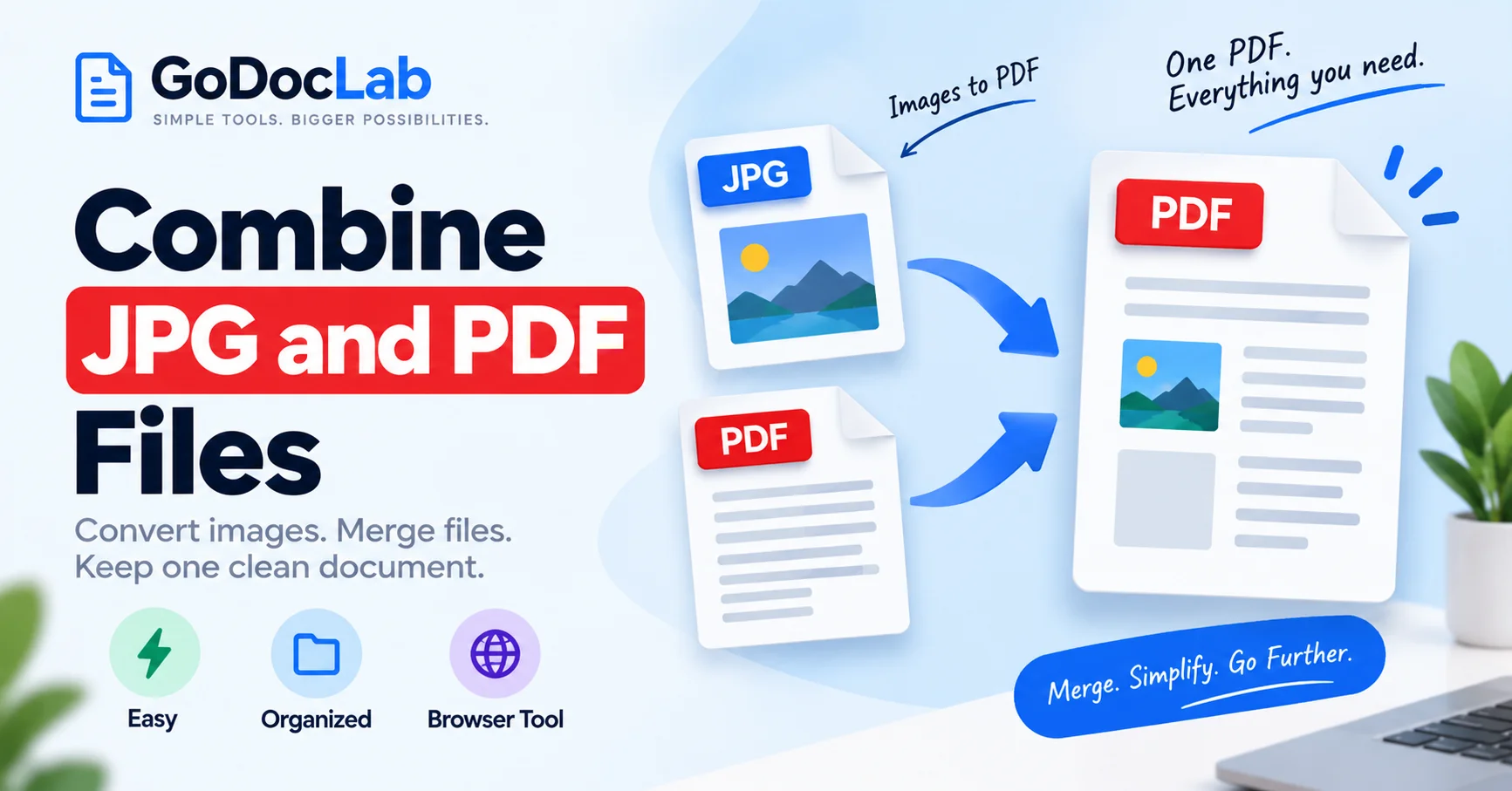
Need to combine JPG and PDF files into one document? The easiest general method is to convert your JPG images into PDF pages first, then merge those pages with your existing PDFs.
Quick method: Use GoDocLab Image to PDF to convert your JPG, then GoDocLab Merge PDF to join the documents.
One-file option: Adobe Acrobat desktop supports combining JPEG images and PDF documents in a single workflow.
Mac method: Use Preview to convert JPG images to PDF, then add their pages to an existing PDF.
Multiple images: Convert several JPGs into PDF pages, arrange them in the correct sequence, and merge the resulting documents.
Image quality: Start with clear source images and check the finished PDF before sharing.
Important precaution: Keep copies of your original files and review privacy requirements before using an online converter.
Bottom line: Convert images to PDF when necessary, merge the files in the desired order, and verify that every page is readable and complete.
How to Combine JPG and PDF Files Into One Document
You have a PDF report, a few JPG receipts, and perhaps a scanned document saved as an image. Now you need to send everything as one organized file. Instead of attaching several documents separately, you can combine the images and PDFs into a single file. The process is straightforward: convert JPG to PDF, add the converted pages to your existing PDF, and save the merged document. This is useful for expense reports, job applications, school assignments, business proposals, scanned records, and other workflows involving different file formats. For example, imagine preparing a reimbursement claim. You have a three-page expense form in PDF format and four receipts saved as JPG images. By converting the receipts into PDF pages and merging them with the expense form, you can prepare one document containing all seven pages.
You can then check the order and send a single attachment.
How to Combine JPG and PDF Files Using GoDocLab
GoDocLab provides two separate tools that work together for this task. The first converts images into PDF format. The second combines PDF documents into one file. This two-step method is useful because GoDocLab's Merge PDF tool accepts PDF inputs rather than raw JPG images.
Step 1: Open the Image to PDF Converter
Visit the GoDocLab Image to PDF tool. Its published page lists support for JPG, JPEG, PNG, TIFF, BMP, and GIF formats. The website currently advertises a 100 MB maximum upload size.
Step 2: Upload Your JPG Image
Select Select images, or use the displayed drag-and-drop upload area. Choose the image you want to include in the final PDF. Before converting, make sure the image is correctly oriented and that important text is readable. For scanned receipts or forms, check that the edges aren't cropped.
Step 3: Convert the Image to PDF
Review the image and available conversion options.
Select Process Image to PDF.
The service will attempt to create a PDF document from your uploaded image. Once processing is complete, download the resulting file, which GoDocLab identifies as converted.pdf. If you have several images, prepare the PDF files you need before starting the final merge. Check the uploader's current multiple-file behavior rather than assuming every image will automatically become a separate page.
Step 4: Open the Merge PDF Tool
Visit the GoDocLab Merge PDF tool.
This tool accepts PDF files and combines them into one document.
Step 5: Add the Converted PDF and Your Existing PDFs
Select Select PDF files to merge.
Upload the PDF created from your JPG image and the original PDF documents you want to combine.
For example, you might upload:
expense-report.pdf
receipt-01.pdf
receipt-02.pdf
receipt-03.pdf
Use the available file-order options if they appear in the interface.
If you need to change the final page sequence afterward, you can use a separate PDF reordering tool.
Step 6: Merge the PDFs
Review the selected documents.
Click Process Merge PDF to start combining them.
After processing, download the output file, which the website identifies as merged.pdf.
Step 7: Review the Final PDF
Open the merged PDF in a reliable document reader.
Confirm that the JPG images appear as PDF pages and that the original PDF content remains present.
Check page order, image quality, orientation, and the total page count.
If the result contains every expected page, you can rename it to something descriptive, such as expense-report-with-receipts.pdf.
Why Convert JPG Images Into PDF Before Merging?
JPG and PDF are different file formats.
JPG, also called JPEG, is primarily an image format. It stores photographic or graphical content.
PDF is a document format capable of containing text, images, graphics, and multiple pages.
A JPG normally represents one image, while a PDF can contain an entire document.
Converting the JPG into a PDF page creates a format that a PDF merger can handle.
JPG vs. PDF: Key Differences
Feature | JPG/JPEG | |
Main purpose | Storing images | Storing documents |
Multiple pages | Not a standard multipage format | Supported |
Editable text | Usually no separate text layer | May contain selectable text |
Page layout | Based on image dimensions | Can contain defined page sizes |
Common use | Photos, screenshots, scans | Reports, forms, applications |
Converting an image into a PDF does not automatically make text inside the image editable.
For example, a JPG photo of a printed receipt will generally remain an image after PDF conversion.
If you need to search or extract words from scanned pages, optical character recognition may be necessary.
How to Combine Several JPG Images With a PDF
Many document packages contain several images rather than just one.
For example, a property inspection report may include a PDF checklist and ten photographs.
You can convert the photographs into PDF pages and merge them with the checklist.
Organize the Images Before Converting
Rename the files so their purpose and intended order are clear.
For example:
01-front-entrance.jpg
02-living-room.jpg
03-kitchen.jpg
04-bedroom.jpg
Numbered filenames make it easier to keep the correct sequence.
This matters particularly when an upload interface sorts files alphabetically.
Convert the Images
Choose an image-to-PDF converter that supports the number and format of files you need. Some services combine several uploaded images into one multipage PDF. Others may require separate conversions or provide different grouping options. Review the selected tool's behavior before processing an important document.
Merge the Result With Your Existing PDF
Once your image pages are in PDF format, open a PDF merger. Add the original PDF and the newly converted image PDF. Arrange the documents in the required sequence. After merging, inspect every page and remove unnecessary duplicates.
How to Combine JPG and PDF Files Using Adobe Acrobat
Adobe Acrobat provides a more direct method for combining different document formats. According to Adobe's official documentation, its desktop Combine Files feature supports PDFs, JPEG images, Word files, Excel files, PowerPoint files, and other supported formats. This means you don't necessarily need to convert the JPG images separately.
Step-by-Step Instructions
Open Adobe Acrobat.
On Windows, select Menu > Combine files. On Mac, select File > Combine files.
Click Add Files.
Select your JPG images and PDF documents.
Arrange the files and pages in the required order.
Remove unwanted items if necessary.
Click Combine.
Save the resulting PDF.
This approach is useful when you frequently prepare document packages containing different file types. However, access to desktop combination features depends on the Acrobat application and subscription.
If you only need occasional merging, a free image-to-PDF converter followed by a PDF merger may be sufficient.
How to Combine JPG and PDF Files on Mac Using Preview
Mac users can combine images and PDF documents using Apple's built-in Preview application.
The general process involves converting the JPG into PDF format and then adding the resulting PDF pages to the destination document.
Step 1: Convert the JPG to PDF
Open the JPG image in Preview.
Choose File > Export as PDF, if available in your version of Preview.
Select a suitable filename and save location.
Save the converted PDF.
Step 2: Open the PDFs
Open the converted image PDF and the original PDF document in Preview.
For each PDF, select View > Thumbnails.
This displays the pages in a sidebar.
Step 3: Combine the Pages
Drag the thumbnail from the converted image PDF into the original PDF's thumbnail sidebar.
Place it where you want the image to appear.
You can add it at the beginning, end, or between existing pages.
Step 4: Save the Result
Apple notes that Preview automatically saves document changes.
If you want to preserve the source PDFs, use File > Duplicate before combining them.
After merging, save the resulting document and verify the page sequence.
This method is particularly useful for Mac users who prefer local processing.
How to Combine JPG and PDF Files on Windows
Windows users have several options.
For a browser-based method, use an image-to-PDF converter followed by a PDF merger.
If you need more control, Adobe Acrobat provides a desktop combination workflow.
You can also convert a JPG image to PDF using Windows' print functionality.
Convert JPG to PDF With Microsoft Print to PDF
On supported Windows versions:
Open the JPG in a compatible image viewer.
Select Print.
Choose Microsoft Print to PDF as the printer.
Review the paper size, orientation, and scaling options.
Select Print.
Choose a filename and save the new PDF.
This creates a PDF from the image without printing a physical page.
You can then merge the PDF with your other documents using suitable PDF merging software.
Be careful with print scaling because some settings may add margins or crop parts of the picture.
Can You Combine JPG and PDF Files on Android or iPhone?
Yes. Mobile-friendly online converters can help combine images and PDFs.
The general workflow is similar to desktop conversion.
First, select JPG images from your device and convert them into PDF format.
Next, open a PDF merger, upload the converted image PDF and your existing PDF, and download the combined document.
Depending on your device, you may also have built-in printing or document-sharing features that can create PDFs from images.
For larger documents, a computer may be easier to use because arranging many pages on a small screen can be inconvenient.
Mobile Tips
Check that the full image is included and that its orientation is correct.
Confirm that the downloaded PDF is saved in an accessible folder or file-management application.
Finally, open the completed document and review the page order before sharing it.
How to Arrange JPG and PDF Pages in the Correct Order
Page order is one of the most important parts of preparing a combined document.
Even if every file converts successfully, the final PDF may be confusing if the pages are mixed up.
Imagine sending an expense report with the receipts placed before the cover page or the conclusion appearing halfway through the document.
A clear sequence helps readers understand the information without searching through multiple pages.
Example: Organizing an Expense Report
Page position | Content |
1 | Expense report cover |
2–4 | Main expense details |
5 | Receipt for transportation |
6 | Receipt for accommodation |
7 | Receipt for meals |
If you need to change the order after combining the files, use the GoDocLab Reorder Pages tool.
It is designed to rearrange pages in an existing PDF.
Review the final document after reordering.
How to Preserve Image Quality When Combining JPG and PDF
Converting an image into PDF does not automatically improve its resolution.
If the original JPG is blurry or heavily compressed, those problems may still be visible in the PDF.
Image quality is especially important for receipts, scanned documents, diagrams, and photographs containing small details.
Use the Best Available Source Image
Choose the original, higher-quality JPG whenever possible.
Avoid using repeatedly compressed copies or tiny preview images.
A photograph that looks acceptable on a phone screen may become difficult to read when printed.
Check for Cropped Edges
Before converting, inspect the entire image.
For receipts and scanned forms, make sure no important numbers or signatures extend beyond the edges.
If necessary, capture or scan the document again.
Review Compression Settings
Some image-to-PDF converters or subsequent PDF compression workflows may reduce image quality.
If the file contains small text, avoid unnecessary compression.
After conversion, zoom in to inspect the details.
Keep the Original JPG
Preserve an untouched copy of the image.
If the PDF result looks blurry or incorrectly sized, returning to the original will make it easier to try another conversion method.
Page Size and Orientation: Why They Matter
JPG images come in different shapes and dimensions.
A smartphone photo might be tall and narrow, while a PDF report might use A4 or US Letter pages.
Combining them can produce a PDF with inconsistent page dimensions.
This isn't always a problem, but it may affect readability and printing.
Portrait vs. Landscape
Portrait pages are taller than they are wide.
Landscape pages are wider than they are tall.
If an image is sideways, correct its orientation before converting it to PDF.
This helps avoid creating a document that requires the reader to rotate their device for every second page.
Page Margins
Some conversion tools place an image inside a standard PDF page with margins.
Others may create a page that closely matches the image dimensions.
Neither behavior is necessarily wrong.
For formal submissions, however, consistent margins may improve readability.
Fit vs. Fill
When an image is placed on a PDF page, software may offer scaling options.
Fit generally preserves the complete image within the available area, potentially leaving margins.
Fill may enlarge the image until it covers the area, potentially cropping some edges.
If you are converting a receipt, certificate, or form, fitting the entire image is usually safer than cropping important content.
How to Merge Only Certain Pages From Your PDFs
You don't always need every page from the source documents.
For example, a 50-page report may contain only three pages relevant to your application.
Instead of merging the entire report, you can extract the required pages first.
GoDocLab provides PDF page-management utilities, including an Extract Pages tool and a Selective Page Merge option.
After creating the smaller PDF, merge it with the JPG-derived pages.
This helps keep the finished document focused and reduces the risk of sharing irrelevant material.
How to Reduce the File Size of a Combined JPG and PDF Document
Photos and scans can make PDF files large.
A single high-resolution photograph may require more storage than several pages of ordinary text.
If your combined PDF exceeds an email attachment or upload limit, compression may help.
GoDocLab provides a Compress PDF tool.
Before Compressing
Keep a copy of the original merged PDF.
Review the compression settings and avoid unnecessarily aggressive quality reduction.
For receipts, signed forms, and diagrams, check fine details after compression.
After Compressing
Open the compressed file.
Verify that every page remains visible and that small text is still readable.
If important details become difficult to see, use a higher-quality output or return to the uncompressed version.
Common Problems When Combining JPG and PDF Files
Problem | Possible cause | Recommended solution |
JPG won't upload | Unsupported format or file-size limit | Check the converter's requirements |
Image is sideways | Incorrect source orientation | Rotate it before conversion |
Image appears blurry | Low-resolution source or compression | Use a better original and review export settings |
JPG page is cropped | Incorrect page scaling | Use a fit-to-page option when available |
PDF pages are out of order | Wrong file sequence | Reorder the combined PDF |
Duplicate pages appear | Files were included twice | Remove unnecessary pages |
Combined PDF is too large | High-resolution images | Compress a copy if appropriate |
PDF merger rejects a file | Source isn't a valid PDF | Reconvert the image or check the source |
Text in the JPG isn't searchable | It remains an image | Apply OCR when searchable text is needed |
Why Is My JPG Blurry After Conversion?
The source image may have low resolution, or the conversion process may have resampled it.
Try again using the original high-quality image.
If your tool offers resolution or image-quality settings, choose an appropriate option.
Why Does My Combined PDF Contain Blank Pages?
Blank pages may come from the original PDF, scanner output, or document conversion. Inspect the page thumbnails to identify the source. If a blank page is unnecessary, you can use a PDF page-removal tool.
Why Is the File Too Large to Email?
The merged document may contain several high-resolution photographs or scans. Compress a copy or reduce image dimensions when appropriate. Make sure the smaller file still meets the recipient's quality requirements.
Is It Safe to Combine JPG and PDF Files Online?
Many online converters process uploaded files on remote servers. GoDocLab's website states that uploaded documents are handled through server-side processing and describes HTTPS transfers and file-removal practices. These are its published statements rather than independently verified security guarantees. Before uploading confidential material, review the provider's privacy policy. If your images include identification documents, medical records, personal financial details, or other sensitive information, follow your organization's file-handling requirements. An approved local conversion method may be more appropriate when documents cannot be uploaded to third-party services.
Frequently Asked Questions
Can I combine a JPG image and a PDF into one PDF?
Yes. Convert the JPG into a PDF page and merge it with the original PDF. Some desktop applications, including Adobe Acrobat, also support combining images and PDFs directly.
Can I combine multiple JPG files with one PDF?
Yes. Convert the images into PDF pages, arrange them in the correct order, and merge the resulting PDF with your existing document.
Is it free to combine JPG and PDF files?
Free options are available. GoDocLab currently advertises free Image to PDF and Merge PDF tools. PDF24 also offers free online conversion and merging workflows.
Will JPG image quality change after conversion?
It may, depending on the original image, conversion settings, and any resampling or compression. Check the resulting PDF before sharing it.
Can I change the page order after merging?
Yes. Use a PDF page-reordering tool to move pages into the correct sequence.
Can I combine JPG and PDF files without Adobe Acrobat?
Yes. You can convert the images to PDF first and then merge the files using a compatible online or desktop tool.
Can I combine JPG and PDF files on a phone?
Yes. Compatible mobile browsers can be used with online image-to-PDF and PDF-merging services. Review the result before sharing it.
Can I make text in a JPG searchable after converting it to PDF?
Yes, but you generally need optical character recognition (OCR). Merely placing the JPG into a PDF does not make the text inside the image searchable.
Can I combine PNG images with PDF documents?
Yes. Use an image-to-PDF converter that supports PNG, then merge the resulting PDF with your existing documents.
What if I only need a few pages from a large PDF?
Extract the required pages first, then merge that smaller PDF with your image-based pages.
Final Thoughts: Create One Organized PDF From Images and Documents
Learning how to combine JPG and PDF files makes it easier to organize receipts, reports, forms, photographs, and supporting documents.
For a simple browser-based workflow, convert the images into PDFs first, then merge them with your existing documents.
Adobe Acrobat offers a direct desktop alternative, while Mac Preview and Windows' built-in PDF printing features can help with local image conversion.
Before sharing your document, check the final page count, page order, image orientation, and readability.
Ready to put your documents together? Start with the GoDocLab Image to PDF tool, then use GoDocLab Merge PDF to create one combined document.
FAQs
Frequently asked questions
Yes. You can convert the JPG into a PDF page, then merge it with the existing PDF. Adobe Acrobat can also combine JPEG images and PDFs through its Combine Files feature.