
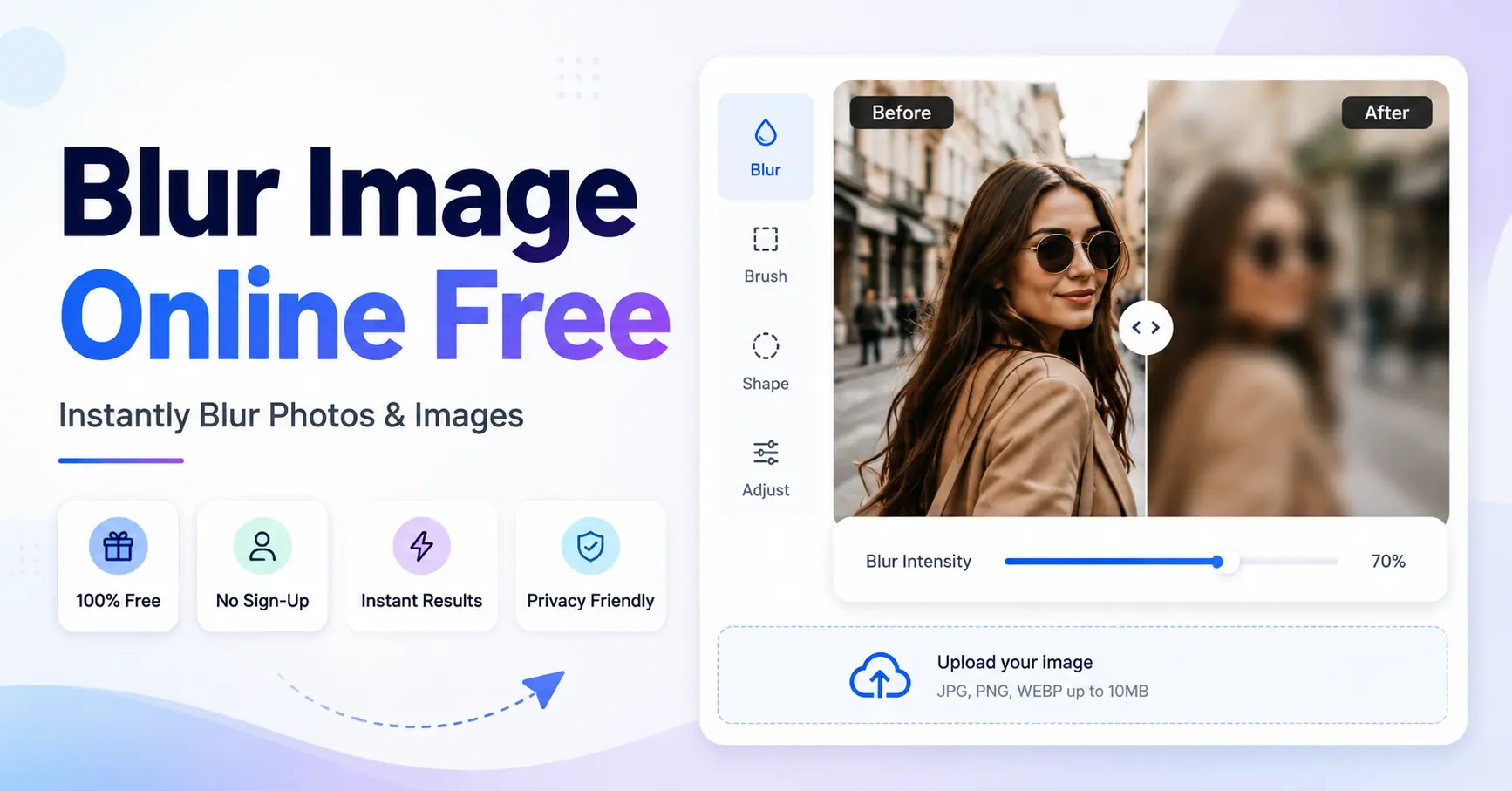
Blur Image Online: How to Blur Photos Easily and Protect Your Privacy
Images are everywhere. People share photos on social media, upload pictures for work, create designs, and store personal memories online. But sometimes a photo contains details that you do not want others to see. It could be a face, a private message, a house number, or a small mistake in the background. A simple solution is to blur the unwanted area. With a blur image online tool, you can quickly soften parts of a photo without needing advanced editing skills. This guide explains how image blur tools work, why people use them, and how you can edit photos quickly with an online tool.
What Does Blur Image Online Mean?
A blur image online tool helps users hide or soften parts of a picture through a web browser. You do not need to install heavy software or learn complex editing steps. You simply upload your image, select the area, adjust the blur level, and save the result. Blur effects reduce sharp details by mixing nearby colors and pixels. The final image looks softer, and specific information becomes harder to read or recognize.
People use blur tools for many reasons:
- · Protecting personal information
- · Creating better social media photos
- · Improving image focus
- · Hiding unwanted objects
- · Creating professional designs
A good blur tool saves time and makes photo editing easier for beginners.
Why Do People Blur Images Online?
There are many situations where blurring a photo makes sense.
Protect Privacy
Privacy is one of the biggest reasons people blur pictures. A screenshot may contain email addresses, phone numbers, account details, or private conversations. A photo from outside your home may show details you do not want to share. Using an image blur online tool lets you hide these parts before sharing. For example, a person selling a product online may blur a personal document visible in the background. A teacher may blur student information in a classroom photo. A business owner may hide private details from a public image.
Improve Photo Quality
Sometimes a photo has too many details. A blurred background can make the main subject stand out. Many photographers use background blur to create a cleaner look. You can create a similar effect with a blur image background online tool. This method works well for profile pictures, product images, and promotional graphics.
Create Better Designs
Designers often use blurred images as backgrounds for posters, websites, and social media posts. A soft background helps text become easier to read. A simple blur effect can change the whole look of an image without adding extra design elements.
How to Blur an Image Online Step by Step
Using an online blur tool is usually quick. The basic process looks like this:
Step 1: Upload Your Image Choose the photo you want to edit. Most online tools support common formats such as JPG and PNG. Pick a high-quality image if you want a clearer final result.
Step 2: Select the Area You Want to Blur Some photos need full-image blur, while others need only a small section changed. You can blur:
- · Faces
- · Text
- · Background objects
- · Personal details
- · Logos
A tool that allows area selection gives you better control.
Step 3: Adjust the Blur Level A small blur can soften an image while keeping some details visible. A stronger blur can hide information completely. Choose a level that matches your goal. Too much blur can make the image look unclear.
Step 4: Download the Final Image After editing, save the image and check the result before sharing it. Always review the final picture. A quick check helps you make sure the hidden details are fully covered.
Why Use GoDocLab to Blur an Image Online?
GoDocLab helps users complete blurry image tasks directly from a browser. It is free to use and does not require software installation. This makes it a practical choice for people who need to add a watermark quickly. Benefits include:
No installation needed
Simple online process
Free access
Works from a browser
Suitable for personal and professional documents
If you regularly work, having a simple online tool can save time. You can visit GoDocLab and try the Blur Image feature whenever you need to update a image.
Blur Image Background Online Free Options
Many users search for a free online solution to blur image backgrounds because they want fast editing without paying for expensive software. Free online tools can help users:
- · Add a soft background effect
- · Highlight the main subject
- · Remove distractions
- · Create clean profile images
A blur image free online tool works well for simple edits. It is useful for students, small businesses, content creators, and casual users. However, always choose a trusted website before uploading private photos. Check the website features and privacy details before using any online service.
Can You Blur Images Online for Free?
Yes, many tools allow users to blur images online for free. Free options usually include basic editing features such as blur strength control and area selection. For regular photo edits, a free tool is often enough. You can use a free online image editor for:
- · Social media pictures
- · Simple graphic work
- · Personal photos
- · Quick privacy edits
If you edit photos often, look for tools that offer a simple interface and good image quality after saving.
Blurring Part of an Image vs Blurring the Whole Image
There is a big difference between full-image blur and selective blur. A full blur affects every part of the picture. This creates a soft effect across the entire image. Selective blur affects only chosen areas. This option works better for privacy because you can hide specific information while keeping the rest of the photo clear. A blur part of an image online feature helps users focus on specific sections without changing the entire picture.
Using Crop Tools Before Adding Blur
Sometimes you need to remove unwanted areas before applying blur. Cropping helps you keep only the useful part of an image. A crop image online tool allows you to resize photos quickly without installing software. You can use cropping for:
- · Profile pictures
- · Product photos
- · Website images
- · Social media posts
A crop image online free tool is useful when you need a quick adjustment. Some users also search for crop an image online and crop an image online free options because they want a simple way to change image size.
Circle Crop and Round Image Editing
Circle-shaped images are popular for profile pictures, team photos, and website designs. A circle crop image online tool helps turn a square photo into a round shape. This style works well for avatars and clean website layouts. You can also use options like crop circle image online, crop image circle online, and round crop image online to create circular photos. The process is simple:
- 1. Upload your image.
- 2. Choose the circle crop option.
- 3. Adjust the position.
- 4. Save your image.
A circle crop keeps your design clean while giving your photo a modern look.
Blur and Crop Together for Better Results
Many image projects need more than one edit. You may want to crop an image first and then blur a section. For example, a product seller may crop a product photo to remove empty space and blur a private label in the background. A designer may use image crop online tools before adding a blur effect to create a better layout. Combining crop and blur features gives you more control over your final image.
Common Uses of Online Image Blur Tools Online blur tools help people in many fields.
Social Media Users People often blur backgrounds, remove distractions, or hide private details before posting photos.
Students Students may blur personal information from screenshots before sharing assignments or examples.
Businesses Companies use blur effects for marketing images, product photos, and customer privacy.
Content Creators Bloggers and video creators use blurred backgrounds to create cleaner visuals.
Tips for Better Image Editing Results
- Follow these simple tips when using online photo tools:
- · Use a clear original image.
- · Avoid hiding too much of the photo.
- · Check blurred areas before downloading.
- · Keep important subjects visible.
- · Use crop tools to improve composition.
Small changes can make a big difference in the final image.
Final Thoughts
A blur image online tool gives users a simple way to protect privacy, improve photos, and create better designs. You do not need professional editing skills to make useful changes. Whether you want to blur a background, hide private details, or create a round profile picture, online tools can help you finish the task quickly. Good photo editing comes from knowing what to change and keeping the result natural. With the right tool, anyone can create clean and useful images in just a few steps.