
Blog
Reorder PDF Pages Online – Free PDF Tool | GoDocLab
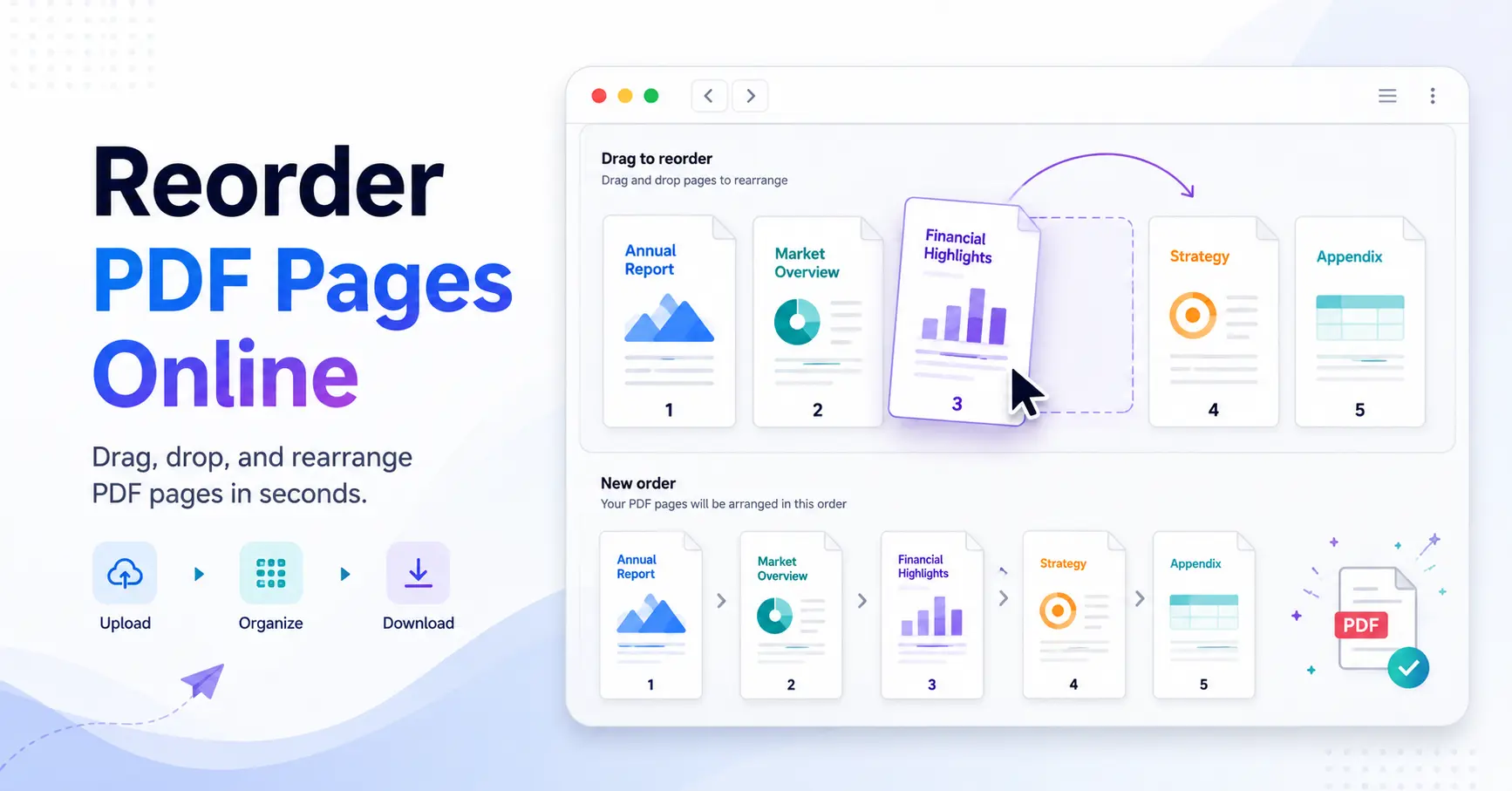
Reorder PDF Pages: How to Rearrange Pages in a PDF Easily
A PDF is supposed to make documents easier to share and preserve, but sometimes the pages end up in the wrong order. Maybe the cover page landed in the middle, the appendix came before the main report, or someone scanned the pages in the wrong sequence. Fortunately, you do not need to rebuild the entire document from scratch.
With the right PDF tool, you can Reorder PDF Pages by moving pages into the correct sequence and saving the updated document.
In this guide, we will explain how PDF page reordering works, how to Reorder PDF Pages Online, what to check after changing the order, and how to choose a practical workflow for different types of documents.
Quick note: Page reordering changes the sequence of pages. It does not automatically rewrite the content, fix incorrect text, or change the underlying information inside each page.
What Does It Mean to Reorder PDF Pages?
To Reorder PDF Pages means changing the sequence in which pages appear in a PDF document.
For example, imagine your document currently looks like this:
1 → 2 → 5 → 3 → 4
You want the final document to read:
1 → 2 → 3 → 4 → 5
A PDF page organizer lets you move pages until the sequence makes sense.
This can be useful for:
Reports
Contracts
Presentations
Invoices
Scanned documents
Research papers
Manuals
Application forms
Business documents
Combined PDF files
Adobe's Acrobat documentation describes rearranging pages through thumbnail views, where users can drag pages into the required position.
The basic concept is simple: change the order of pages without changing the content on those pages.
Reorder PDF Pages Online
If you need to Reorder PDF Pages Online, a browser-based PDF tool can provide a convenient workflow without requiring traditional desktop PDF software.
A typical process looks like this:
Open the PDF page-organizing tool.
Upload your PDF file.
View the available pages as thumbnails.
Move pages into the correct order.
Review the new sequence.
Process or save the reorganized PDF.
Open the final file and check it.
You can explore GoDocLab's PDF tools here:
The exact interface and available options depend on the tool you use, so only describe features that the specific GoDocLab page actually provides.
Why use an online tool?
An online workflow can be useful when:
You are working from different computers.
You do not want to install software.
You need to rearrange a PDF quickly.
You prefer browser-based tools.
You only need a straightforward page-order change.
However, think about privacy before uploading sensitive documents. A PDF can contain personal information, contracts, financial details, signatures, or confidential business material.
For sensitive files, review the service's privacy and file-handling policies before uploading.
Reorder PDF Pages Free
If you only need occasional PDF organization, you may prefer to Reorder PDF Pages Free rather than pay for dedicated PDF software.
A free tool can make sense for simple tasks such as:
Moving one page
Swapping two pages
Moving several pages
Fixing scanned-page order
Putting an appendix at the end
Moving a cover page to the beginning
Organizing pages after combining documents
But “free” should not be the only thing you evaluate.
Check whether the tool supports:
Your PDF size
The number of pages you need to process
The required output format
Downloading the finished document
The privacy level you need
The quality of the resulting PDF
Most importantly, review the final file before you send it to someone else.
A PDF that looks perfect until page 37 suddenly goes missing is not exactly the definition of a successful document workflow.
PDF Page Reorder: When Is It Useful?
A PDF Page Reorder tool becomes particularly useful when the pages already contain the correct information but appear in the wrong sequence.
Consider a scanned contract.
The scanner produces:
Signature page
Terms and conditions
Cover page
Payment information
Introduction
The content itself may be correct, but the order makes no sense.
You can reorganize the pages:
Cover page
Introduction
Terms and conditions
Payment information
Signature page
You do not need to rewrite the document. You simply organize the existing pages into a logical sequence.
This distinction makes page reordering different from normal PDF editing.
How to Reorder Pages in PDF
If you're searching for How to Reorder Pages in PDF, the process usually follows a straightforward pattern.
1. Open your PDF
Start with the original PDF file you want to organize.
If possible, keep an untouched copy of the original.
That way, you can return to it if you accidentally move a page to the wrong location.
2. Open the page thumbnail view
Most dedicated PDF editing tools provide a thumbnail or page-management interface.
Thumbnails make it easier to see the document structure at a glance.
3. Identify the pages you want to move
Look at the page previews and determine where each page belongs.
For long documents, you may want to write down the intended order before making major changes.
4. Move the pages
Drag a page to its new location or use the available move controls.
Adobe documents a drag-and-drop approach for rearranging pages in its thumbnail interface.
5. Check the sequence
Do not immediately download or share the file.
First, check the new page order from beginning to end.
6. Save the reorganized PDF
Once the sequence looks correct, save or download the updated file.
7. Review the final document
Open the finished PDF and verify that everything appears as expected.
PDF Reorder Pages: What Actually Changes?
When you PDF Reorder Pages, you generally change the sequence in which pages appear in the document.
You are not necessarily changing:
The text inside a page
Images inside a page
Fonts
Page dimensions
Graphics
Existing content
The main change concerns the document's page sequence.
For example:
Before
Page 1 → Page 4 → Page 2 → Page 3
After
Page 1 → Page 2 → Page 3 → Page 4
This makes page organization particularly useful when the content itself is already finished.
Reorder Pages PDF for Scanned Documents
Scanned documents are one of the most common situations where page ordering can become messy.
Imagine scanning a 20-page document manually.
You might accidentally:
Scan page 8 before page 7
Turn two pages at once
Scan the back side before the front side
Upload pages in the wrong order
The resulting PDF document can still contain all the information, but the sequence becomes difficult to follow.
A PDF page organizer lets you correct the order after scanning.
Microsoft's documentation for scanned assignments also demonstrates the broader idea of managing scanned PDF pages, including options to add, delete, and reorder pages during the workflow.
Rearrange PDF Pages After Combining Files
Another common use case involves merging multiple documents.
Suppose you create a project package containing:
Cover letter
Proposal
Pricing
Terms
Supporting documents
You might combine the files and then realize that the supporting documents appear before the pricing section.
Instead of rebuilding everything, you can rearrange PDF pages after combining the files.
This gives you more control over the final document structure.
A useful workflow is:
Create → Combine → Reorder → Review → Share
That simple sequence can prevent a lot of unnecessary editing.
Change PDF Page Order Without Changing the Content
Sometimes you don't want to edit anything on the pages. You simply need to change PDF page order.
For example, you may receive:
Page 3
Page 1
Page 4
Page 2
The information itself is correct.
The sequence is not.
Page reordering solves exactly that problem.
This makes it different from converting a PDF to Word or editing the actual text.
Microsoft notes that its built-in PDF reader can display and print PDFs but does not directly edit their contents. For actual PDF content changes, Microsoft recommends converting the document to an editable format such as DOCX when appropriate.
Page organization, however, is a separate task.
What to Check After Reordering PDF Pages
After you Reorder PDF Pages, don't stop at the thumbnail view.
Open the final document and check the following.
Page numbering
Make sure the visible page numbers still make sense.
A document may have internal page numbers such as “Page 4 of 20,” and moving pages can make the sequence appear inconsistent.
Table of contents
If your PDF contains a table of contents, check whether the listed sections still correspond to the correct pages.
Bookmarks
Some PDFs include bookmarks that point to specific pages. Acrobat documentation explains that bookmarks can have destinations associated with particular pages.
After substantial page changes, test important bookmarks.
Forms
If the PDF contains interactive form fields, verify that they still behave correctly.
Links
Click important internal links and confirm that they still take you to the intended destination.
Headers and footers
Check headers, footers, and page labels for consistency.
Overall layout
Scroll through the entire document.
A five-second check can save you from sending someone a PDF where the conclusion appears before the introduction.
PDF Editing vs. Page Reordering
It helps to understand the difference between these two tasks.
Page reordering
You change the sequence of existing pages.
Example:
Page 5 → moved to Page 2.
PDF editing
You change content within a page.
Example:
Changing a sentence, replacing an image, or modifying a graphic.
A PDF editor may support both functions, but they are not the same operation.
If your content is already correct and only the sequence is wrong, page reordering is usually the simpler solution.
Best Practices for PDF Page Organization
A few simple habits make PDF management much easier.
Keep the original file
Always preserve your original document before making changes.
Plan the new order
For larger documents, create a simple page sequence before moving anything.
For example:
1, 2, 7, 3, 4, 5, 6, 8
becomes:
1, 2, 3, 4, 5, 6, 7, 8
That small bit of planning can prevent unnecessary mistakes.
Use thumbnail previews
Visual page previews make it easier to recognize images, headings, and other content.
Review the entire PDF
Do not assume the document is correct just because the first few pages look good.
Keep a final copy
Use a clear filename such as:
project-report-reordered.pdf
This makes it obvious which version contains the updated page sequence.
Frequently Asked Questions
Can I Reorder PDF Pages Online?
Yes. Online PDF tools can provide a browser-based workflow for moving pages into a new sequence. The available features depend on the specific tool.
Can I Reorder PDF Pages Free?
Some PDF tools offer free page-reordering functionality. Check the tool's file-size, page-count, and processing limits before starting.
How Do I Change the Order of Pages in a PDF?
Open the PDF in a page-management tool, display the page thumbnails, move the pages into the desired sequence, review the document, and save the updated PDF.
Does Reordering PDF Pages Change the Content?
Normally, the goal of page reordering is to change the sequence rather than rewrite the content inside each page. You should still review the final document after processing.
Can I Reorder Scanned PDF Pages?
Yes. Reordering can help when scanned pages appear in the wrong sequence. However, the actual editing options depend on the PDF tool and document structure.
Can I Move Several PDF Pages?
Many PDF page-management tools support moving individual pages or groups of pages. Check the specific tool's functionality before relying on batch selection.
Will Reordering Pages Affect Bookmarks?
It can. If a PDF contains bookmarks linked to specific page destinations, check them after making substantial page-order changes. Acrobat documentation explains that bookmarks can point to particular PDF pages.